
To make a PowerPoint presentation look more realistic, Office users can link an Excel worksheet in it. It has many benefits. First, it is a valuable skill because it lets you present data in a clearer, easier-to-understand way. Second, it helps avoid mismatches in your report, as changes you make are instantly reflected in the presentation, as long as the files share the same location.
If you want to know how to embed an Excel Worksheet in a PowerPoint presentation, pause and read on.
Link Excel Data in PowerPoint Presentation
Before proceeding any further and diving into the main steps of the tutorial it is important to mention that the terms ‘EMBEDING’ and ‘LINKING’, though sound similar and interchangeable are quite different.
Launch Microsoft Excel and open the saved workbook with the data you want to insert and link to.
Next, select a section by dragging over the area of data and hit ‘Copy’ button visible under the ‘Home’ tab.
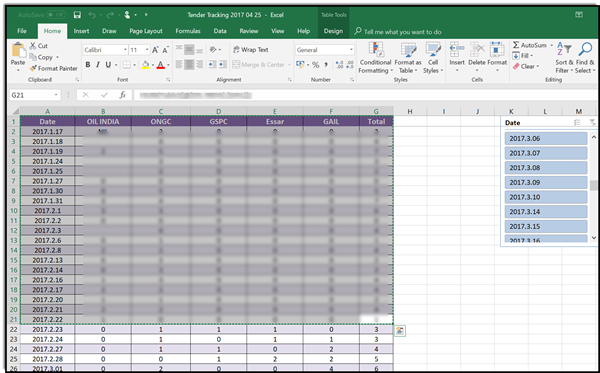
Now, switch to your PowerPoint presentation and click the slide where you would like to paste the copied worksheet data.
Then, on the Home tab, click the arrow below Paste, and select Paste Special.
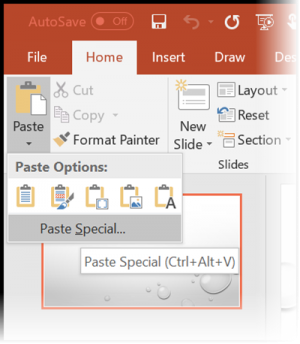
When seen, choose ‘Paste link’ under ‘Paste Special’ heading, and then, under ‘As’, select Microsoft Excel Worksheet Object.

Also, if you would like to link an entire Excel worksheet to PowerPoint, go to a PowerPoint presentation, choose the Insert tab and click or tap Object.
In the Insert Object dialog box that opens, select Create from file option.

Thereafter, click or tap Browse, and in the Browse box, find the Excel workbook with the data you want to insert and link to. Check the ‘Link’ option adjacent to the ‘Browse’ button.
That’s it!
Now read: How to take Screenshot in Word, Excel, PowerPoint.
