
This post will show you how to set the time window during which Windows downloads Windows Updates using Group Policy or the Registry Editor to configure BITS Settings.

Limit Bandwidth and set the Time when Windows Updates can download
Does your internet suddenly slow down, despite the fact that you weren’t really doing anything different from before? Well, this can be due to many reasons, and one of the most prominent ones is Background Intelligent Transfer Service (BITS). This particular Windows process can start using a great deal of your network bandwidth, apparently out of nowhere.
Let’s look at the reasons and how you can deal with it.
Understanding BITS and why Windows Updates can be untimely
So, what is BITS? It is a process that transfers files (downloads or uploads) between a client and a server and provides progress information for the transfers. BITS is most commonly used by Windows to download Windows Updates to the client’s local system. By default, BITS transfers files in the background, using only idle network bandwidth to preserve the user’s interactive experience with other network applications.
This can be an issue for users with a fast network adapter (10 Mbps) but connected to the network via a slow link (56 Kbps). This is mainly because BITS will compete for the full bandwidth instead of using only the available bandwidth on the slow link – BITS has no visibility of the network traffic beyond the client.
In simple terms, BITS can consume a large amount of network bandwidth during background downloads, leaving users with issues like slowness. The answer to this problem is to configure a system policy to block BITS from using bandwidth. The same trick can also be applied to users who do not face bandwidth concerns but simply want to limit their data downloads to certain times of the day.
Configure BITS Settings in Windows 11/10
To totally block, limit or do both, follow the steps below as suggested on Microsoft Answers:
Open Registry Editor and go to this location:
HKEY_LOCAL_MACHINE\Software\Policies\Microsoft\Windows\BITS
Right-click on a blank spot on the left side and select New > DWORD Value as shown below-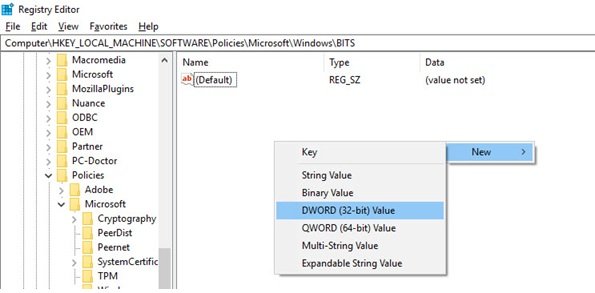
You have to create the following DWORDS and give them appropriate values:
- EnableBITSMaxBandwidth
- MaxBandwidthValidFrom
- MaxBandwidthValidTo
- MaxTransferRateOffSchedule
- MaxTransferRateOnSchedule.
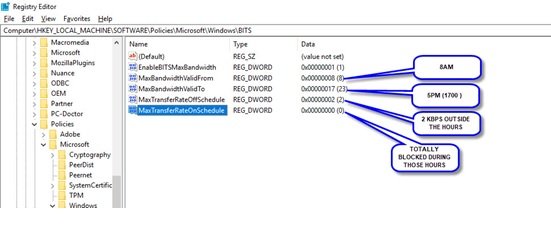
This set of settings will block BITS completely between the hours shown, and beyond those hours BITS will use only 2 KBPS of the entire network bandwidth. These values can be customized by the users based on their own preference.
For Users With Windows Pro Edition, you can limit the maximum network bandwidth for BITS background transfers using the Group Policy Editor. This tool does the same thing and creates the registry values mechanically. More on that on MSDN.
Conclusion
Configuring the time for downloading Windows Updates allows the users to smoothly carry on their day-to-day activities even while updates are being downloaded in the background. However, it is not recommended to disable this service completely.
How do I limit bandwidth for Windows Update?
You can limit bandwidth for Windows Update using the aforementioned guide. For that, you need to configure the BITS or Background Intelligent Transfer Service settings. For your information, you can do that with the help of the Registry Editor. For that, navigate to this path:
HKEY_LOCAL_MACHINE\Software\Policies\Microsoft\Windows\BITS
Here, you need to open these values and change the settings as per your requirements:
- EnableBITSMaxBandwidth,
- MaxBandwidthValidFrom,
- MaxBandwidthValidTo,
- MaxTransferRateOffSchedule, and
- MaxTransferRateOnSchedule.
How do I limit my computer download bandwidth?
To limit your computer bandwidth, you need to open the Windows Settings first. Then, go to Network & internet > Advanced network settings > Data usage. Next, click on the Enter limit button and select the Limit type option. Then, choose the data limit as per your requirements and click the Save button.
TIP: You can prevent Windows 11/10 from automatically restarting, for the purpose of installing Windows Updates using the Active Hours feature.
