
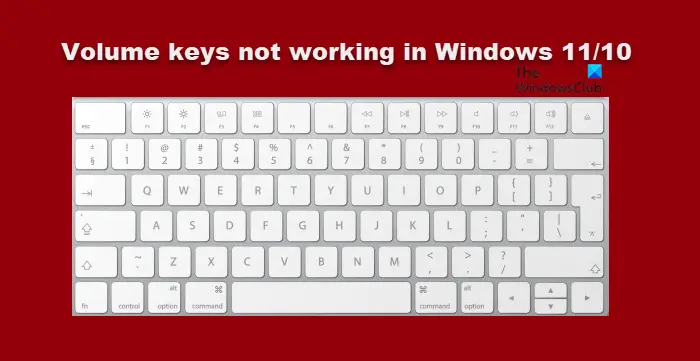
Some users have reported that Volume keys on their keyboard do not work. This issue is mostly experienced by users using USB keyboards. If the Keyboard Volume keys are not working on your Windows computer, then follow the steps mentioned here to resolve the issue.
Why are my volume keys not working Windows 11/10?
Generally, this issue is because of a glitch. The glitch can be in your Keyboard’s driver or in any other software responsible to control your volume. Usually, after unplugging and replugging, the issue should be resolved with the USB keyboard. However, if it’s not working or you don’t have a detachable keyboard, we have a solution for you mentioned below.
In this article, we will consider every reason and provide you with all the potential solutions to resolve the issue.
Fix Keyboard Volume keys not working in Windows 11/10
Let us start fixing your Keyboard Volume keys by first physically cleaning your Keyboard especially the area around the Vol Up/Down/Mute keys. If the issue persists, follow these steps to resolve it.
- Prerequisite Solutions
- Check HID
- Uninstall any previously installed keyboard software
- Reinstall Keyboard Driver
Let’s discuss them in detail.
1] Prerequisite Solutions
First, there are some things you need to do before delving deeper into this issue. These are some simple solutions and have the potential to resolve the issue for you without any hassle.
- Play a video or audio and check if your speakers are working.
- Check the mute button and ensure it is not activated.
- Plug into a different port, if you are using a USB Keyboard.
If the issue still persists, move to the next solution.
2] Check HID
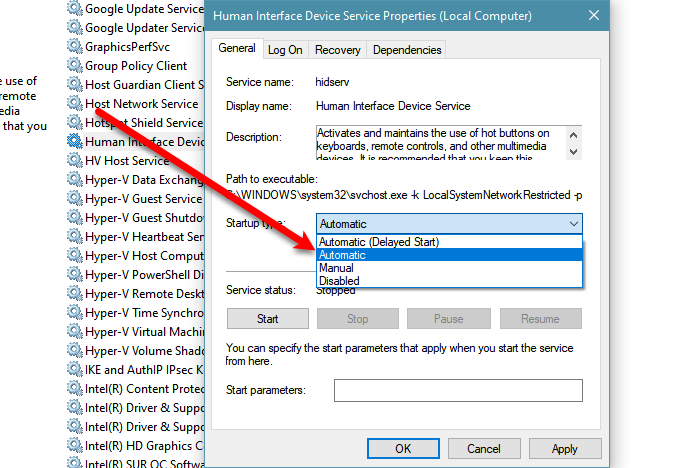
If the issue persists, then maybe your HID or Human Interface Device Access service is stopped. So, you have to enable it, in order to fix the issue.
Follow the game steps to do the same.
- Open Services.
- Look for Human Interface Device Service, right-click on it, and select Properties.
- Make sure that the Startup type is set to Automatic and click Start.
If the service is enabled, then try restarting it as that can resolve the issue.
3] Uninstall any previously installed keyboard software
If you have installed any software that can assign certain keys for a certain task, then you may want to uninstall the program and check what it does to the issue. Sometimes, they can interfere with the functioning of your keyboard and prevent volume keys from doing their task. So, removing them can fix the issue.
4] Reinstall Keyboard Driver
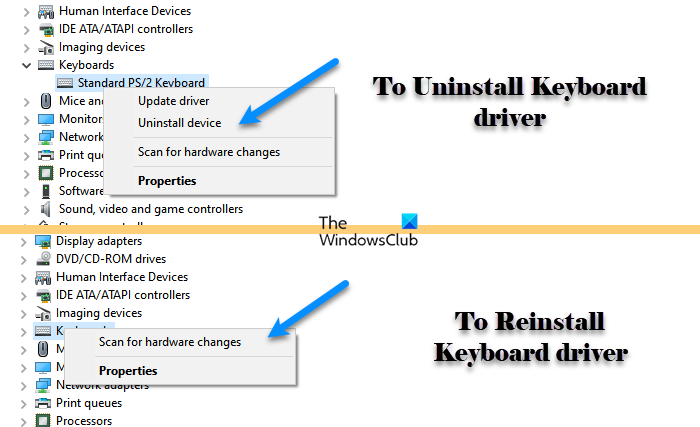
As mentioned earlier, this issue may be caused by a glitch in the drivers, and the easiest way to resolve it is by reinstalling the Keyboard Driver. Follow the given steps to complete the same task.
- Open Device Manager by Win + X > Device Manager.
- Expand Keyboard, right-click on your Keyboard driver, and select Uninstall.
- Now, click Uninstall to confirm your actions.
- After the uninstallation, right-click on Keyboard and select Scan for hardware changes.
Finally, check if the issue persists.
Hope it helped!
How do I enable the volume button on my keyboard in Windows 11?
In order to enable the volume button on your keyboard on Windows 11 or Windows 10 computer, you need to use the Fn or Function key. On most laptop computers, users must press the Fn key in conjunction with the volume keys to adjust the volume. Also the same thing applies to desktop computer users.
