
Let’s be honest: the downloader tools built into every web browser are, at best, limited. The old Opera web browser had the best one yet, but ever since the company abandoned its very own rendering engine in favor of Chromium, it lost its uniqueness. Now, if you’re looking for quality download manager software with advanced tools, then there is quite a lot to look forward to on the web right now. However, today we’re going to focus primarily on JDownloader.
Here’s what the developers had to say about the tool:
JDownloader is a free, open-source download management tool with a huge community of developers that makes downloading as easy and fast as it should be. Users can start, stop, or pause downloads, set bandwidth limitations, auto-extract archives and much more. It’s an easy-to-extend framework that can save hours of your valuable time every day!
JDownloader – Advanced download manager
During installation, the tool will prompt the user to select a few files for association. Choose the most needed ones from the list, then hit the button that says Next. Now, beware of installing junk before completing the process. Depending on your computer’s speed, installation may take a short while; after that, things run smoothly.
Let us take a look at its features now:
- Downloads
- Link Grabber
- My JDownloader
- Settings.
1] Downloads
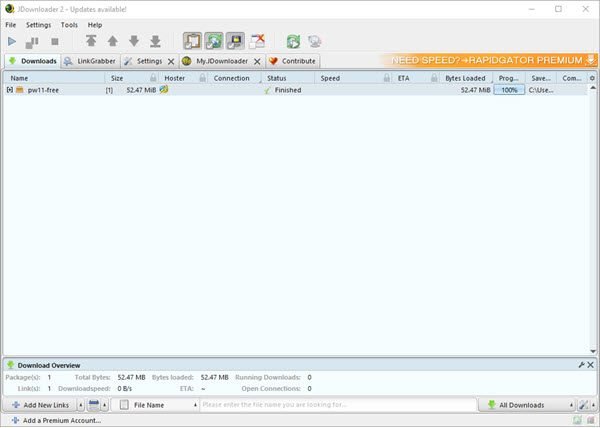
As far as we can tell, it’s not possible to initiate a download from within the web browser and have it automatically open in JDownloader. Therefore, users will have to add the download link to the tool instead, which isn’t hard.
Just copy the direct download link, then click the Add Links button under the Downloads tab. Now, the tool should automatically paste the link into itself; if it doesn’t, paste it manually.
The next step is to click Continue at the bottom. The tool should take you to the Link Grabber section, where you’ll find your file. Right-click on it and select Start Downloads.
Return to the Downloads tab and wait until the download completes.
2] Link Grabber
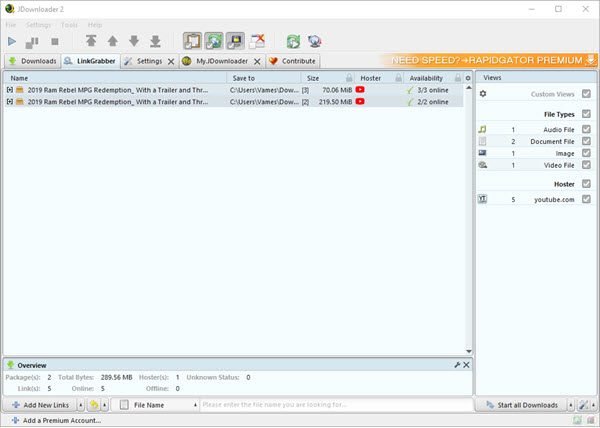
This section is particularly special, at least from our perspective. You see, this is where all the links you’ve ever used will be stored. But not only that, you’ll get to see video links here as well.
If you are watching a YouTube video, the video link will automatically appear in the Link Grabber section. To download the video, right-click the link and select Start Download to get started.
3] My JDownloader
This is a more personal feature that requires the user to sign up. However, it’s not free, as far as we can tell, and that’s the only way to access the JDownloader apps for Android, iOS, and even Windows phones.
4] Settings
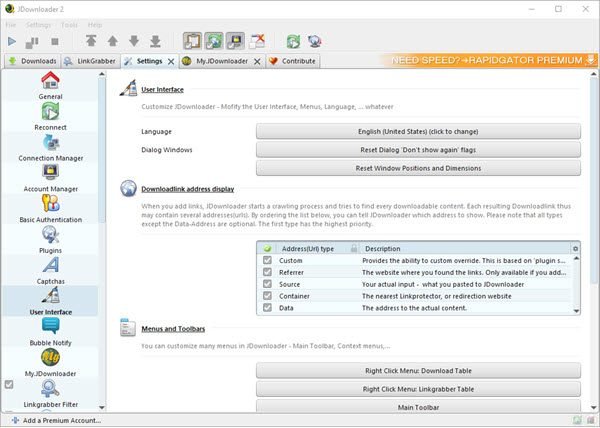
In Settings, users can install new plugins to customize JDownloader to their needs. You can even play around with the Scheduler and the Event Scripter if that’s your thing.
Additionally, you can set the tool to automatically extract files from a ZIP archive, and even customize the user interface. We have to say that the settings section is full of options, so take your time to go through and understand everything there.
Download the tool via the official website right now.
What is the best download manager like JDownloader?
There are many free Download Managers available for Windows 11/10. You can install them on your computer and use them as alternatives to JDownloader. Some of these free download managers include Free Download Manager, GetGo Download Manager, Flash Get Download Manager, etc.
What is a download manager PC?
A Download Manager is a type of software that helps you manage downloading of files from the internet. Download Managers are available for different platforms, including Windows PC. Using a Download Manager, you can download multiple files at the same time. Also, all downloads remain in one place, so you can manage them easily. Some Download Managers also offer additional features.
