
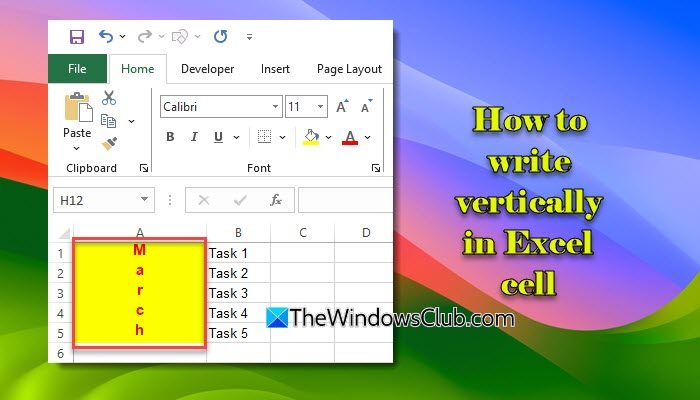
By default, Excel places text horizontally, from left to right across the cell. But if you want, you can easily change the text direction and make it appear vertically. This is especially useful when you need to create table headers, fit long titles in narrow spaces, or give your spreadsheet a fresh, organized look. In this post, we will show you how to write vertically in an Excel cell on a Windows 11/10 PC.
How to write vertically in Excel cell
To write vertically in an Excel cell, you may follow one of these methods:
- Use the Orientation dropdown
- Use the Format Cells option
- Use Line Breaks
- Use Shapes or Text Boxes
- Use Formula
- Use VBA Macro
Let us see this in detail.
1] Use the Orientation dropdown
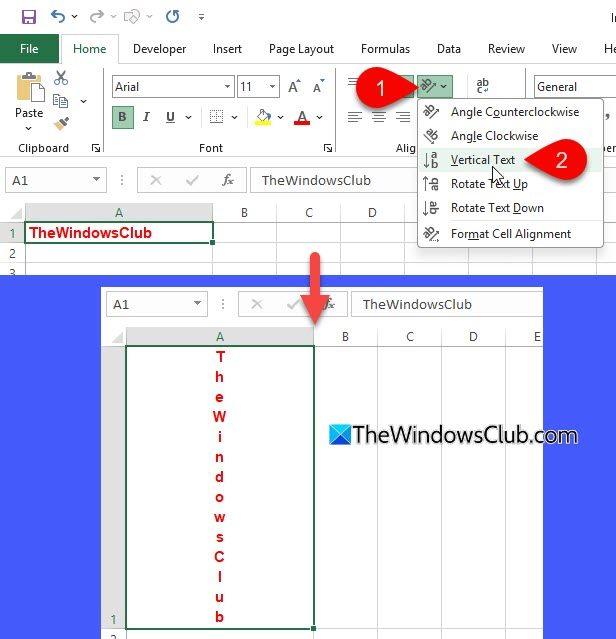
Select the cell(s) where you want the text to appear vertically. Go to the Home tab in the top ribbon. In the Alignment group, click the Orientation drop-down arrow. Choose Vertical Text from the list.
Your text will now appear stacked vertically, one letter under another.
Apart from Vertical Text, Excel offers two more orientation options that can display your text vertically:
- Rotate Text Up: Turns your text 90° upward (bottom to top). This option is great for side labels or headings along the left side of a table.
- Rotate Text Down: Turns your text 90° downward (top to bottom). Often used for labeling columns on the right side or along chart edges.
2] Use the Format Cells option
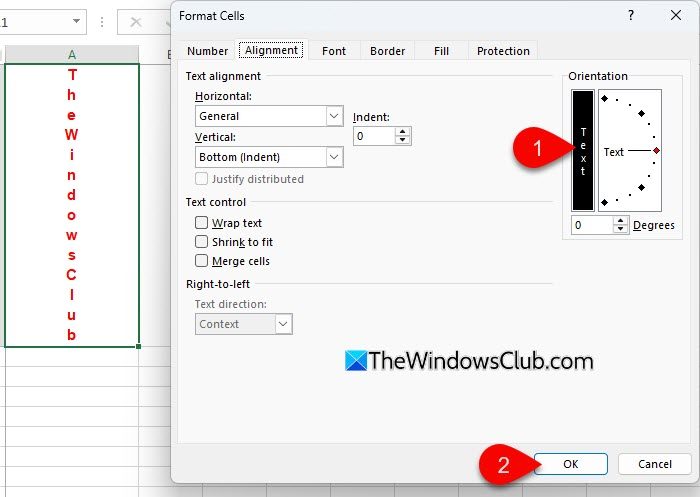
Select the cell where you want to make the text vertical. Right-click the selected cell and choose Format Cells from the menu.
Tip: You can quickly open the Format Cells dialog box by pressing Ctrl + 1.
In the Format Cells dialog box, go to the Alignment tab. Look for the Orientation section on the right side.
Click the Text box that shows letters stacked vertically, then click OK. This will stack each character one below the other within the same cell.
Alternatively, you can set a specific Degrees value instead of using the Text box. In the Orientation section, drag the red indicator or type a value:
- 90° to rotate text vertically from bottom to top, or
- -90° to rotate it vertically from top to bottom.
Click OK to apply the changes.
3] Use Line Breaks
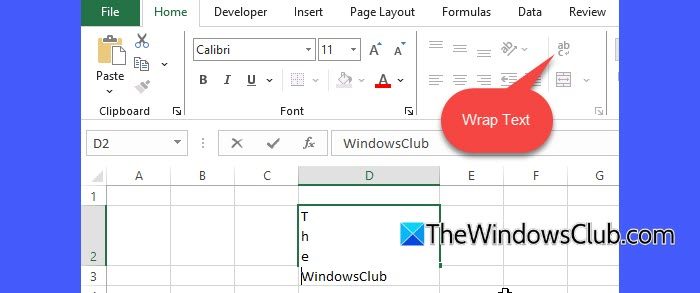
In this method, instead of rotating or formatting the text, we insert a line break after each letter or word, so they appear stacked vertically in the same cell.
Go to the Home tab on the Excel ribbon. In the Alignment group, click the Wrap Text button.
Select the cell where you want to write vertically. Type the first letter. Press Alt + Enter on your keyboard. This inserts a line break within the same cell.
Type the next letter, and again press Alt + Enter. Repeat until all letters are stacked.
You can use this method not only for letters but also for stacking short words (like “Q1”, “Q2”, “Q3”, “Q4”) vertically for a neat layout in reports or dashboards.
Note: You must enable Wrap Text for this method to work properly. If Wrap Text is turned off, pressing Alt + Enter won’t visibly move each letter to a new line (though the line break is there).
4] Use Shapes or Text Boxes
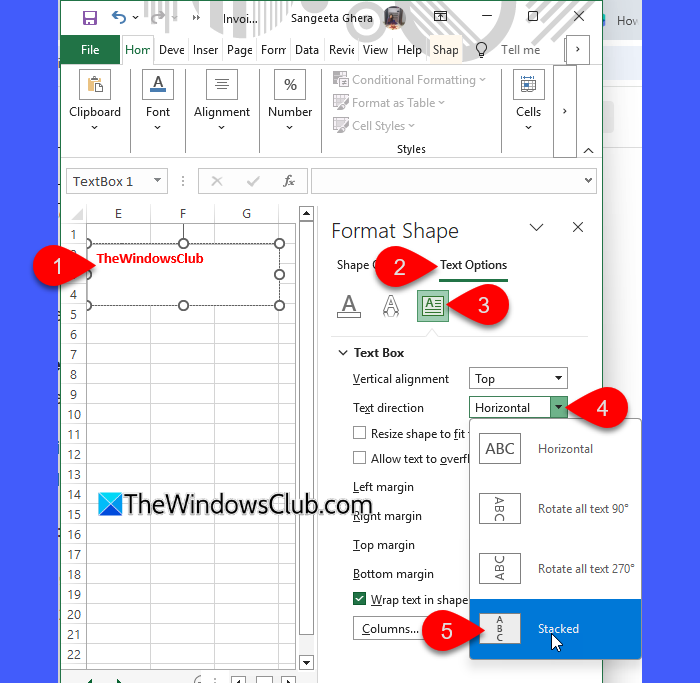
Go to the Insert tab on the Excel ribbon. Click the Text dropdown on the right side and select Text Box (or select Shapes > Rectangle, if you prefer a shape).
Click and drag on the sheet to draw the text box or shape. Type your text inside it.
Then right-click the text box (or shape) and choose Format Shape.
In the Format Shape pane on the right, switch to the Text Options tab. Then select the Text Box icon. The section will expand.
Click the Text direction dropdown and select Stacked. This places each letter one below the other, just like true vertical text inside a cell.
You can also choose:
- Rotate all text 90°: Text goes from bottom to top
- Rotate all text 270°: Text goes from top to bottom
5] Use Formula
If you need to stack text in many cells, you can use a simple Excel formula that does it automatically. It’s great for creating vertical headers or stacking text from a list of words in your sheet.
Type the word you want to display vertically in one cell of your spreadsheet (for example, A1). In another cell, enter the following formula:
=TEXTJOIN(CHAR(10), TRUE, MID(A1, SEQUENCE(LEN(A1)), 1))
Press Enter. The text will appear stacked vertically in the cell containing the formula.
Let’s understand how this formula works if A1 contains the word “TheWindowsClub”.
LEN(A1)counts the total number of characters in “TheWindowsClub”. There are 14 characters. So,LEN(A1)= 14.SEQUENCE(LEN(A1))generates a list of numbers from 1 to 14: {1; 2; 3; 4; 5; 6; 7; 8; 9; 10; 11; 12; 13; 14}.MID(A1, SEQUENCE(LEN(A1)), 1)extracts each character from “TheWindowsClub” using those positions: { “T”, “h”, “e”, “W”, “i”, “n”, “d”, “o”, “w”, “s”, “C”, “l”, “u”, “b” }CHAR(10)inserts a line break between each character when joined together. This is what creates the vertical effect inside a single cell.TEXTJOIN(CHAR(10), TRUE, … )joins all the letters from step 3, separated by a line break. TheTRUEargument tells Excel to ignore any empty cells (if there were any).
When combined with Wrap Text, each letter appears on a new line inside the cell.
Note:
- Make sure Wrap Text is turned on for the cell containing the formula.
- If you edit the original cell, the stacked text changes instantly.
- The formula uses both SEQUENCE and TEXTJOIN. While TEXTJOIN works in Excel 2019, the SEQUENCE function is only available in Excel 2021 and Microsoft 365. If you’re using Excel 2019 or earlier, the formula will return a #NAME? error.
6] Use VBA Macro
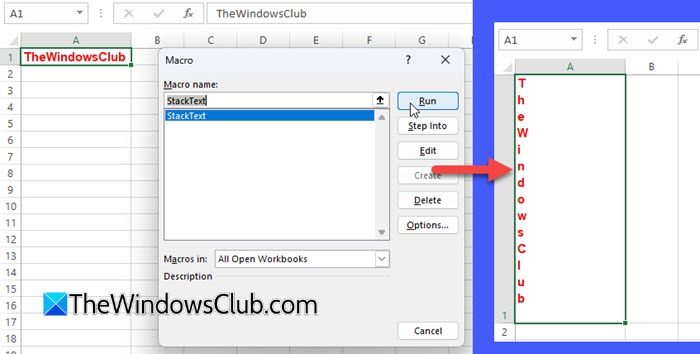
You can also stack text vertically across multiple cells using a VBA macro. This method automates the process and works well for static cell values.
Press Alt + F11 to open the VBA editor. Click Insert > Module to create a new module.
Copy and paste the following code into the module window:
Sub StackText()
Dim txt As String, i As Long, result As String
txt = ActiveCell.Value
For i = 1 To Len(txt)
result = result & Mid(txt, i, 1) & Chr(10)
Next i
ActiveCell.Value = result
ActiveCell.WrapText = True
End Sub
Close the VBA editor and go back to Excel. Select the cell containing the text you want to stack vertically. Press Alt + F8, choose StackText, and click Run.
Excel will instantly convert your text into a vertically stacked format within the same cell.
Note: Unlike a formula, the VBA approach doesn’t update automatically when you change your source text.
I hope you find this useful!
Read: How to make Excel cells expand to fit Text automatically.
Can you write vertically in Excel?
Yes, you can write text vertically in Excel. There are multiple ways to do this. For example, you can either use the Orientation option or the Format Cells dialogue box. For multiple cells, you can use a formula (as described in this post) to automate the process.
How do I add vertically in Excel?
To add numbers vertically in Excel, use the SUM function. Simply type =SUM(A1:A5) to add all numbers in that column range. You can also click the AutoSum (Σ) button on the Home tab. Excel will automatically select the vertical range and show the total.
Read Next: Excel crashing or freezing when printing.
