
In this post, we will show you how to use VibeVoice Text to Speech AI from Microsoft. VibeVoice is a next-generation text-to-speech (TTS) AI framework that converts written text into natural, human-like speech. Unlike traditional TTS systems, VibeVoice supports long-form narration and multi-speaker scenarios, making it useful for creating podcasts, audio shows, and conversational AI experiences.
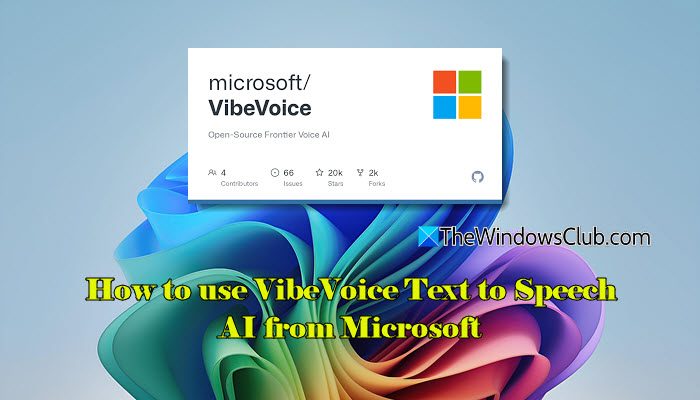
VibeVoice is available in multiple variants, each designed for a specific use case. One of the most popular versions is VibeVoice Realtime (0.5B), where 0.5B refers to 0.5 billion parameters. This variant is lightweight, fast, and optimized for real-time text-to-speech with very low latency. It can start speaking almost instantly and supports streaming text input, allowing speech generation to continue even while new text is being entered. Other variations are suitable for extended, conversational narration rather than real-time use.
How to use VibeVoice Text to Speech AI from Microsoft?
For this guide, we will use the VibeVoice Realtime (0.5B) model. This variant is easier to run and best demonstrates VibeVoice’s real-time streaming capabilities. To use VibeVoice Text to Speech AI from Microsoft, you need to follow these steps:
- Open the official VibeVoice page
- Set up the Google Colab environment
- Run the initial setup steps
- Generate and add a Hugging Face access token
- Launch VibeVoice-Realtime Demo
- Use the VibeVoice web interface to generate speech
Let us see this in detail.
1] Open the official VibeVoice page
Open the official VibeVoice GitHub docs page by clicking here. Scroll down to the Usages section. Under Usage 1: Launch real-time websocket demo, click the ‘try it on Colab‘ link.
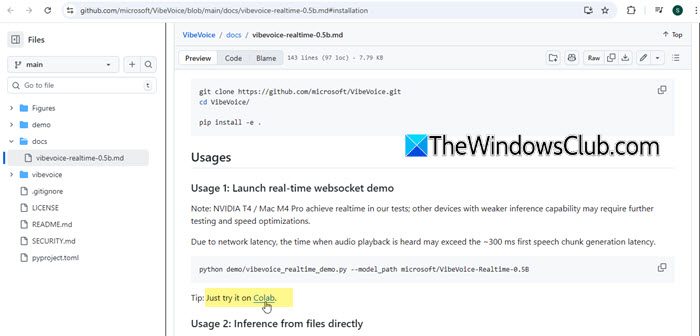
Note: Google Colab is a free, browser-based service from Google that can run Python code in the cloud. With Google Colab, you can try VibeVoice instantly without setting up Python, libraries, or GPU drivers on your Windows 11 PC. All the processing happens on Google’s servers, making it the easiest and safest way to test VibeVoice for the first time.
2] Set up the Google Colab environment
After you click the try on Google Colab link, a Colab notebook opens in your browser (an interactive page that contains ready-made instructions and buttons to run code step by step). If you are not already signed in, Google Colab will ask you to log in with your Google account.
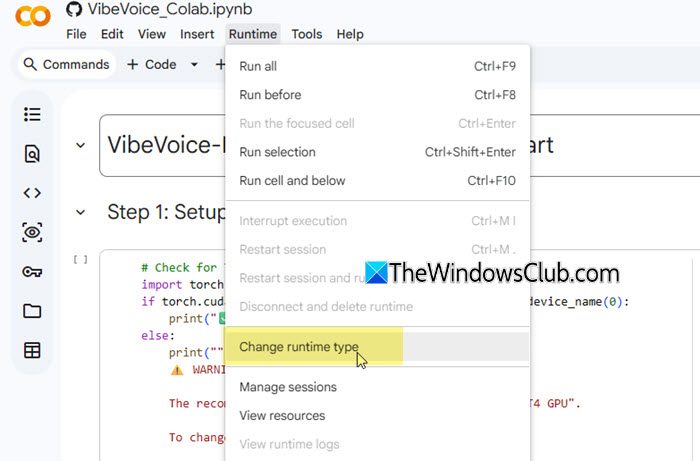
Before running any code, click Runtime in the top menu and select Change runtime type.
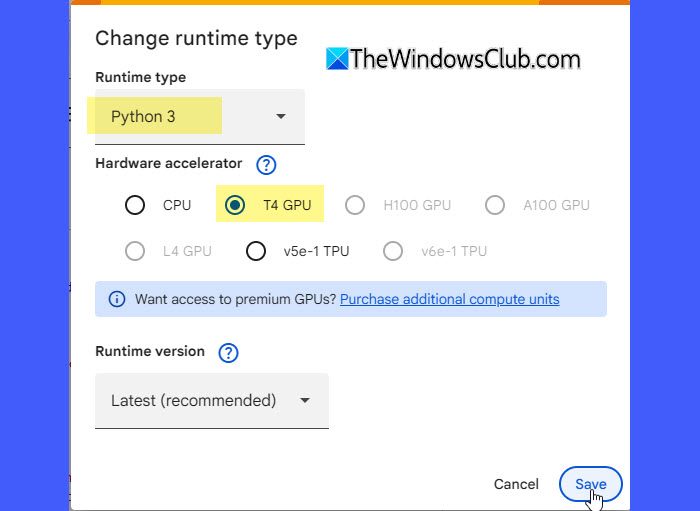
Set the runtime to Python 3 and choose T4 GPU as the hardware accelerator, then click Save. This ensures the notebook runs efficiently and provides smooth audio output during speech generation.
3] Run the initial setup steps
Once the runtime is configured, start running the initial setup steps in the Google Colab notebook. Run the steps one by one, from top to bottom, by clicking the play button next to each step. Wait for each step to complete before moving to the next one. When a step finishes successfully, you will see a green checkmark, indicating that it has run without errors.
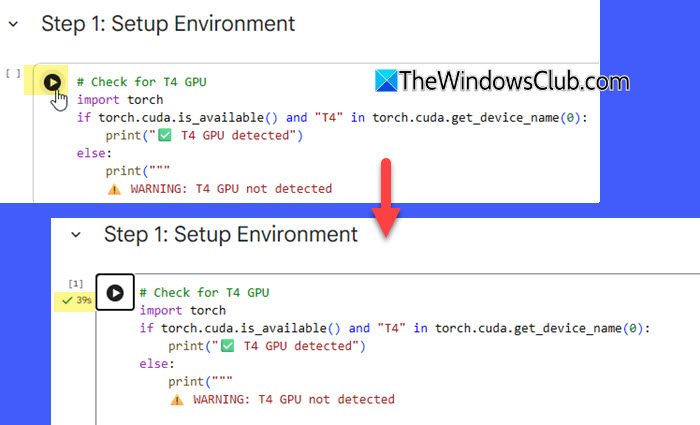
4] Generate and add a Hugging Face access token
After you run the initial setup and installation steps, the notebook will prompt you to log in to Hugging Face. This is required because VibeVoice downloads its model files from Hugging Face.
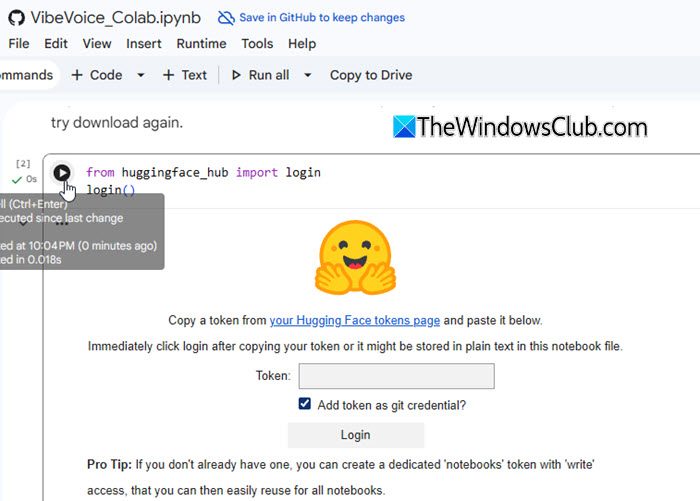
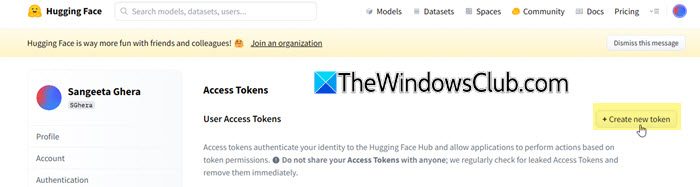
To continue, open your Hugging Face account in a new tab and go to Settings > Access Tokens. Click the Create new token button next to User Access Tokens.
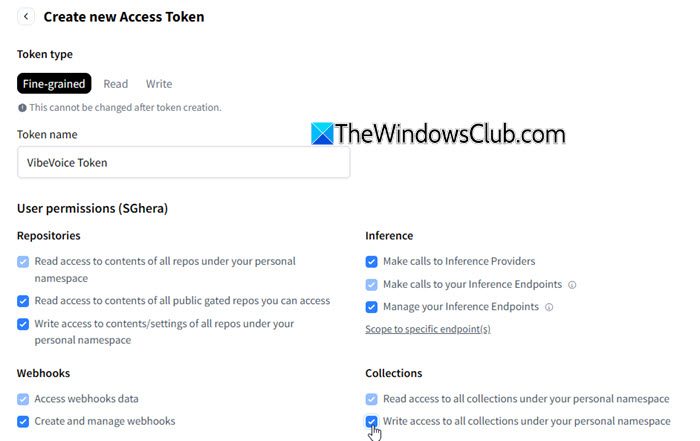
Give the token a suitable name and enable the required permissions. Next, click the Create token button at the bottom.
Copy the generated token and paste it into the corresponding field in the Google Colab notebook.
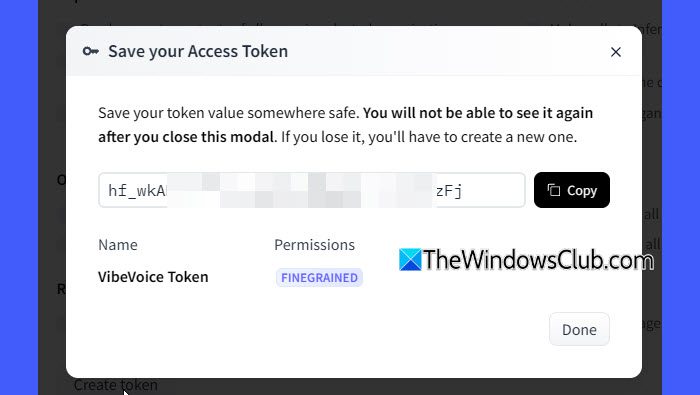
Once added, authenticate and proceed to the next step.
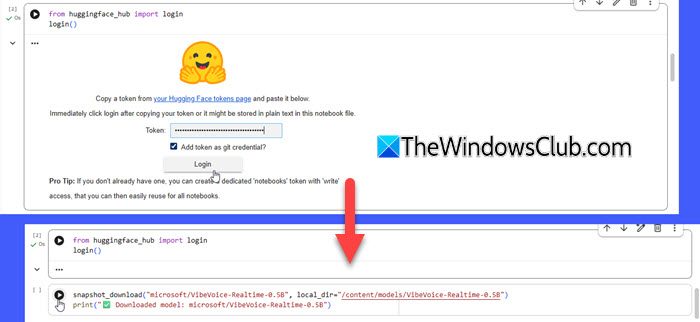
5] Launch VibeVoice-Realtime Demo
After completing Step1, run Step 2. This step starts the VibeVoice service and prepares the web-based interface for speech generation.
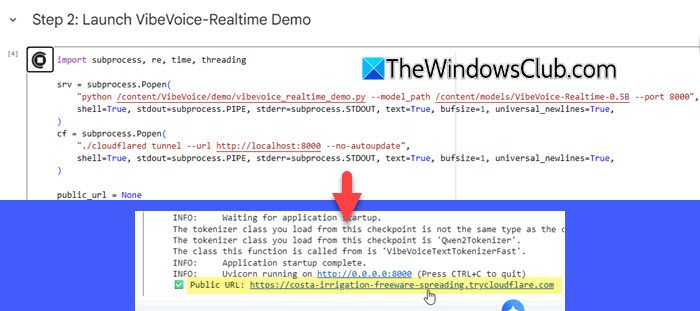
The process may take a couple of minutes to execute. As you scroll down, you’ll find one or more links, including a public URL. Open this link in a new browser tab. If the page loads correctly, it confirms that the VibeVoice demo is running and ready to use.
Read: How to convert Text-to-Speech in Windows 11
6] Use the VibeVoice web interface to generate speech
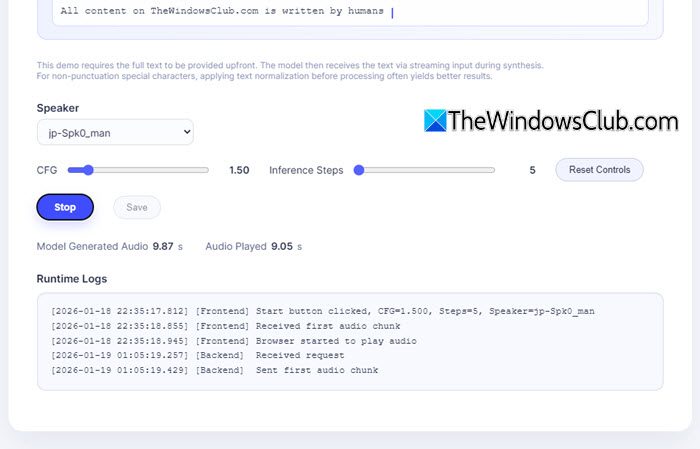
After opening the public URL, you will see the official VibeVoice web interface. In the text box, paste or type the text you want to convert into speech. Next, select a speaker voice from the available options.
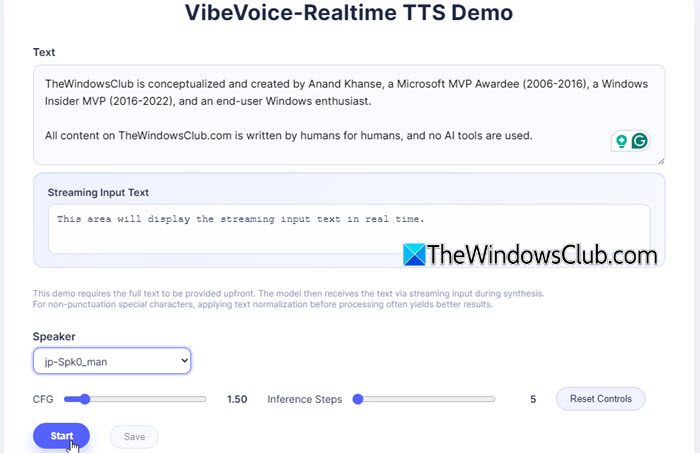
Once everything is set, click the Start button to begin speech generation. VibeVoice will read the text aloud and continue processing the content as you type more text.
At the bottom, you’ll see Runtime Logs. These are on-screen messages that show the progress, status, and any errors while the VibeVoice demo is running in Google Colab. You can stop the playback at any time or modify the text to test different outputs.
Key Features of VibeVoice Text to Speech AI
Here are some of the key features of VibeVoice that are worth knowing:
- Free and open-source: VibeVoice is available as an open-source project under the MIT license.
- Natural, human-like speech output: VibeVoice generates clear and expressive speech with better flow, pauses, tone, and even conversations between different voices.
- Real-time and streaming speech generation: The Realtime (0.5B) variant supports low-latency speech output and can handle continuously updated text, making it suitable for interactive and dynamic audio scenarios.
- Long-form speech handling: VibeVoice can handle longer passages of text while maintaining consistent voice quality and smooth narration.
- Multiple speaker options: VibeVoice allows users to select different speaker voices.
- Lightweight and deployment-friendly model: With a compact 0.5-billion-parameter size, the Realtime model is easy to run and does not require heavy infrastructure.
I hope you find this useful.
Read: New Google MusicLM AI tool turns Text into Music.
Is Microsoft text-to-speech free to use?
Microsoft offers open-source TTS models like VibeVoice, which are completely free to use, modify, and deploy on your own system. Additionally, Microsoft Azure Text to Speech provides a free tier with limited monthly usage for testing and development. However, if you exceed the free limits or use premium voices and features, paid plans apply.
What are the best AI text-to-speech tools?
There are several powerful AI text-to-speech tools available today. For example, Microsoft VibeVoice is a powerful, open-source text-to-speech tool built for real-time and long-form speech generation. Similarly, ElevenLabs AI Voice Generator
is widely praised for its realistic voices and multilingual support, while Murf.ai Text‑to‑Speech offers 200+ voices and customization options.
Read Next: How to use Speechify To Do Text-to-Speech AI online.
