
Do you want a specific paper size for your document, especially if you plan to print your notes? In OneNote, there is a feature called Paper Size that allows you to customize the paper size of notes.
What is the Paper Size feature in OneNote?
The Paper Size Feature in OneNote is used to change the paper and margin size of your notes. The margin is the area between a page’s main content and the page edges; it helps define where a line of text begins and ends.
How to change Page size and margins in OneNote
To set or change the Paper Size feature in OneNote, follow the steps below.
- Launch OneNote
- Click the View tab
- Click the Paper Size button
- click the drop-down arrow of the Size list and choose a size format in the Paper Size pane.
- Then select a Top, Bottom, Right, and Left margin size if desire.
- Then close the pane.
Launch OneNote.
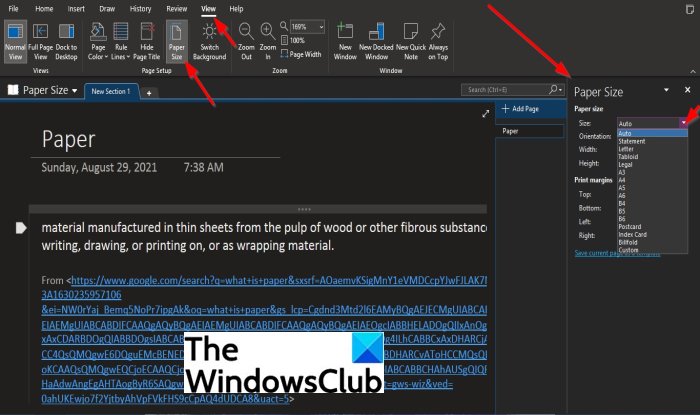
Click the View tab.
Click the Paper Size button in the Page Setup group.
A Paper Size pane will open on the right.
Within the Paper Size Pane, you can click the drop-down arrow of the Size list and choose a size format.
If you choose to select a size format from the list, for instance, Letter, you can choose an Orientation, Width, and Height for the notes.
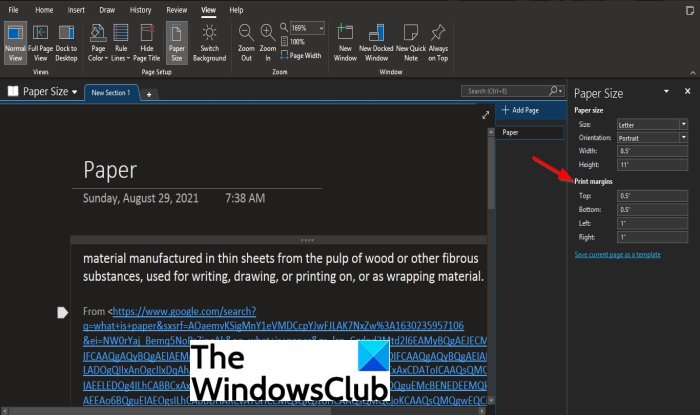
On the Paper Size pane, you can change the Top, Bottom, Left, and Right margins to the desired margin size you want in the Print margin section.
We hope this tutorial helps you understand; how to use the Paper Size feature in OneNote; if you have questions about the tutorial, let us know.
How to use the Paper Size feature in OneNote
The Paper Size feature is easily accessible and straightforward to use in OneNote. It is pretty easy. In this tutorial, we will discuss the steps to use the Paper Size feature.
