
Are your important videos not playing properly? Have they become corrupted? Video corruption can occur in any video file stored in the camera, computer, SD card, or other media. It becomes irritable when the videos are unplayable. Whether you are a professional or one, who loves to capture memories, losing out your precious recordings due to corruption can be a professional or a personal loss.
Today, we will share how you can repair your corrupt videos and play them back smoothly. But before that, let’s understand why the videos get corrupted.
Why do videos get corrupted
There can be various reasons for videos getting corrupt, right from – wrong camera settings during the time of the shoot to having a virus-infected storage drive. Videos can get corrupted during the shoot, editing, processing, or even while performing a simple file transfer.
Common reasons for video corruption
- Virus infection
- Computer crash
- Interruption during the download or transfer of a video file
- Sudden shutdown of the computer while watching the video
- Improper camera settings or others.
The corrupt videos become truncated, jerky, flicker, broken, have no sound, are out of sync, show errors, stop running after a few minutes, freeze, show a black screen, or do not play at all.
How to repair corrupt videos which are unplayable
You will need a video repair tool to fix any kind of corruption in the video. The advanced repair tools work on various file formats such as MOV, MP4, AVI, WEBM, DIVX, etc. However, if your videos are not playing at all, it doesn’t always mean they have turned corrupt. Videos may not be playing due to incompatible codecs or an unsupported media player.
Thus, before you move to troubleshooting methods, try the workarounds below. They might fix the video problem.
- Start with workarounds to fix unplayable videos
- Play your video file on a different media player
- Convert the video file format to another like MOV to AVI
- Re-download/re-transfer the video file from the source
- Update your video editor, if the video is not playing in it.
Now, if these sidesteps don’t work in your case, try the methods below to repair corrupt videos.
Methods to repair corrupt videos
- Video Repair Software
- Noise Reduction Video Plugins
- Repair with VLC Media Player.
1] Use video repair software
Here are some of the best free video repair software that can help you.
You can also use Digital Video Repair to repair pixelated videos.
2] Repair with VLC Media Player
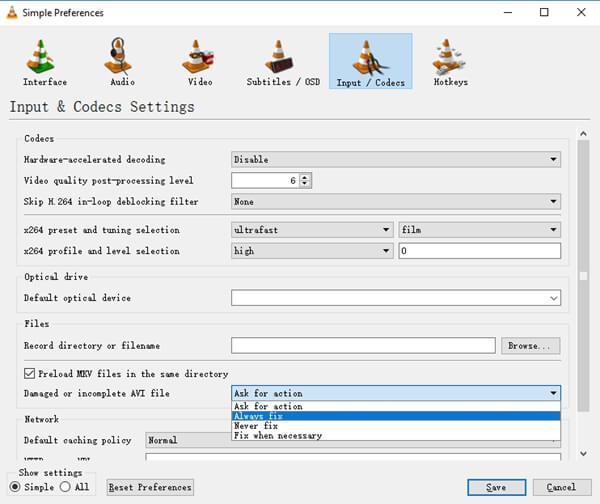
The popular VLC Media Player not only plays your videos but also has an added capability to fix the corrupt videos. You may use it to fix minor corruptions in your video files.
Steps to fix corrupt video file in VLC Media Player
- Make a copy of the original corrupt video file
- Open VLC Media Player and click on Tools on top
- Select Preferences from the dropdown
- Click Input & Codecs
- Go to Damaged or incomplete AVI file
- Select Always fix in the dropdown
- Click Save.
3] Use Noise Reducing Video Plugins
Video noise reduction plugins like Red Giant Magic Bullet can remove grains, flicker, color loss, etc., from your digicam, DSLR, or GoPro videos. Free and paid plugins are available online. Choose one that is compatible with your video editing software.
You may try VLC Media Player, which fixes minor issues or the plugins that can remove grains, color loss, or flicker from your videos. It is important to note that although VLC and noise removal plugins are helpful, they have limited repair capabilities. The complex and severe corruptions are well tackled by efficient video repair software only.
How to uncorrupt a video for Windows?
To uncorrupt a video on Windows, try using VLC Media Player. Open VLC, go to “Media” > “Convert/Save,” add the video file, and click “Convert/Save” again. Select the desired output format and start the conversion. Converting the file can often repair minor corruptions in MP4 videos.
Can corrupted video files be repaired?
It is not always possible to repair corrupted video files. But you can try the suggestions in this post to do so. Corrupted video files can be repaired using tools like VLC or Stellar Repair for Video.
