
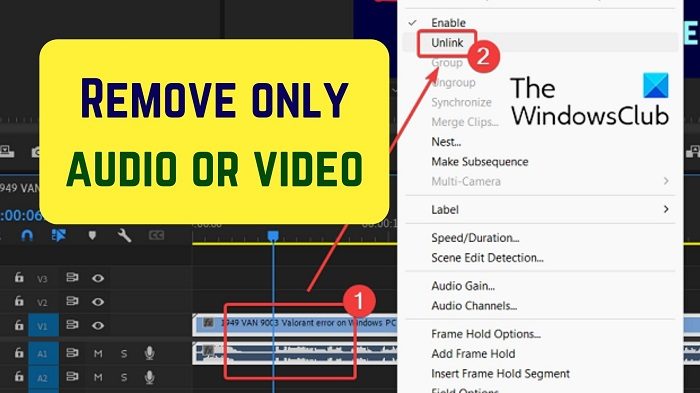
Want to remove audio from video OR video from audio in Premier Pro? This tutorial will show you how to remove only Audio or only Video from a clip or element in Adobe Premiere Pro.
Remove only audio or only video from a clip or element in Adobe Premiere Pro
It is quite possible to remove only the audio or video from a video clip by unlinking the two elements.
Let us assume you wish to replace part of the audio or video with another element. In this case, the original audio or video will have to be removed. Thereafter, you can replace it. Other than this, if you have pre-made clips and wish to change or remove the audio, separating the audio and video is necessary.
Remove audio from video in Premiere Pro
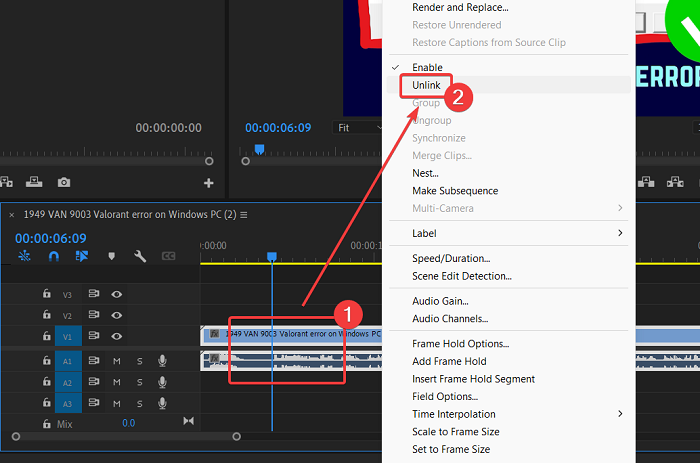
To remove audio from a video in Adobe Premiere Pro, so you can add your own voice (or someone else’s) follow this procedure:
- Add your clip to the Project monitor window.
- Drag the clip to the timeline.
Right-click on the clip. - Select Unlink from the menu.
- You will notice two parts in the clip. The upper part and the lower part. The upper part represents the video section. The lower part which has the waveform symbol represents the audio part.
- Click on the lower part, the one with the waveform symbol.
- Make sure that only the lower part (audio part) is selected.
- Hit the DELETE key on your keyboard.
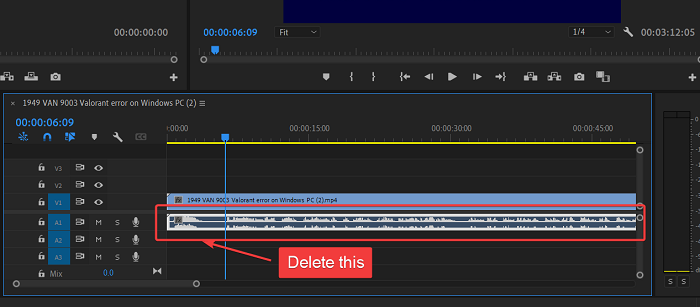
The audio will be removed from the clip.
Read: How to remove Audio from Video in Windows 11 using Clipchamp or VLC.
Remove video from audio in Premiere Pro
If you need to change the video while keeping the audio the same, then the procedure is as follows:
- Import your clip to the Project monitor window.
- Shift the clip to the timeline section.
- Now, right-click on the clip.
- Select Unlink from the menu. The video and audio would be unlinked.
- Now, select the upper band which represents the video.
- Hit the DELETE key to remove the video.
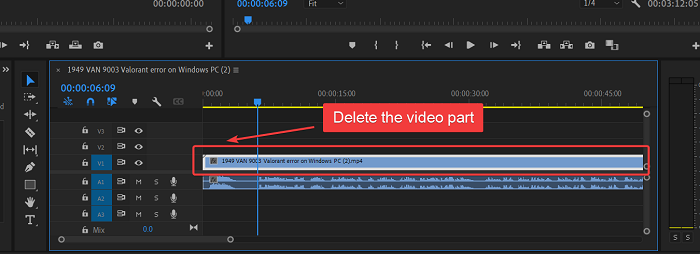
Now, you can add the replacement video as a separate band to the same section.
Was this helpful? Please let us know in the comment section.
Read: How to add Shapes in Premiere Pro
Why do we need to unlink the audio and video before removing it?
If we don’t unlink the audio and video, they will be deleted together when we press the DELETE key. Other than this, you will need to select or cut a part of the clip before replacing it. Thus, unlinking the audio and video is necessary.
How do I delete just the audio in Premiere Pro?
The procedure for deleting just the audio in Adobe Premiere Pro is simple. First, unlink the audio and the video. Then, select the audio only. To distinguish, the audio is the lower band with the waveform symbol in it. Hit DELETE to delete the audio.
Read: How to add and create animated Text Effects in Premiere Pro
How do I delete a video but not audio in Premiere Pro?
At times, you might want to delete the video, but not the audio part from a clip. However, since both the audio and video are attached, you will have to unlink them first. Once they are unlinked, you can select the video in the upper band. Then, hit the DELETE key to delete the video while keeping the audio intact.
