
Although not common, losing files does happen to many Windows users. The only backup Windows offers is the Recycle Bin, and once deleted from there, there is no way to recover the files. On top of this, there are many ways someone can lose a file. It can be because of permanent deletion, accidental partition deletion when using disk management tool, formatting of an incorrect drive, etc. This post will guide you to recover deleted files using WINFR on Windows 11/10.
What is WINFR Tool?
WINFR is a command-line tool from Microsoft that can recover files such as JPEG, PDF, PNG, MPEG, Office files, MP3 & MP4, ZIP files and more. It supports all storage devices and formats, including HDD, SSD, USB, memory cards and NTFS, FAT, exFAT and ReFS file systems. Using this tool, you can search based on file names, keywords, file paths or extensions.
How to Recover Deleted Files using WINFR on Windows 11/10?
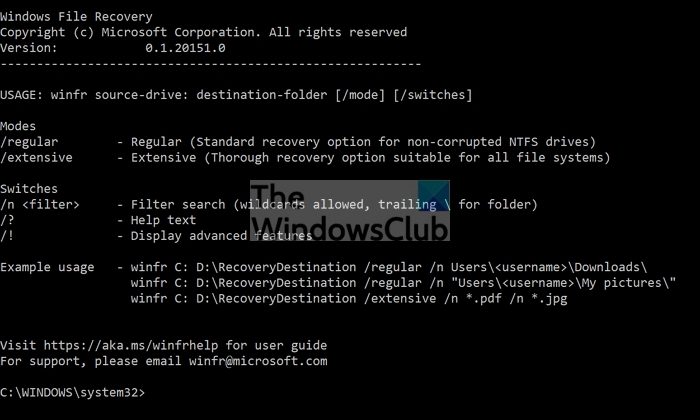
Once you have installed the tool from Microsoft Store, it will be listed as one of the apps in the Start Menu. When you launch it, it opens a command prompt to execute Winfr-related commands. Here is the list of modes and switches it supports:
- Command: winfr source-drive: destination-folder [/mode] [/switches]
- Modes:
- /regular – Regular (Standard recovery option for non-corrupted NTFS drives)
- /extensive – Extensive (Thorough recovery option suitable for all file systems)
- Switches:
- /n <filter> – Filter search (wildcards allowed, trailing \ for folder)
/? – Help text
/! – Display advanced features
- /n <filter> – Filter search (wildcards allowed, trailing \ for folder)
So if you want to recover deleted files in D drive, you can use the following command:
winfr D:\FamilyPhtos D:\Recoveryn /regular /n *.jpg
If you are looking for a document such as a PDF file, then you can use the following command:
winfr C:\Desktop\Documents D:\Recovery\Documents /extensive /n *.pdf
If your NTFS drive is not corrupt, you can use the regular option. However, if you have a drive you are unsure about, you can always use the extensive mode, which will support all file systems.
WINFR Advanced Mode
This tool also comes with an advanced mode which allows for micro-control of the options and filters. While most users will not need this, if you are developing a tool with a user interface, you can build it using this tool. On top of it, the advanced options can be super handy for search based on logic.
Advaned Options
- /ntfs – NTFS mode (Fast recovery option for healthy NTFS drives using the master file table)
- /segment – Segment mode (Recovery option for NTFS drives using file record segments)
- /signature – Signature mode (Recovery option for all file system types using file headers)
- /n <filter> – Filter search (NTFS/Segment mode only, wildcards allowed, trailing \ for folder)
- /y:<type(s)> – Recover specific extension groups (Signature mode only, comma separated)
- /# – Displays signature mode extension groups and file types
Advanced Switches
- /p:<folder> – Specify recovery log destination (default: destination folder)
- /a – Accepts all user prompts
- /u – Recover non-deleted files (NTFS/Segment mode only)
- /k – Recover system files (NTFS/Segment mode only)
- /o:<a|n|b> – Overwrite (a)lways, (n)ever or keep (b)oth always (NTFS/Segment mode only)
- /g – Recover files without primary data stream (default: false, NTFS/Segment mode only)
- /e – Disable extension exclusion list (NTFS/Segment mode only)
- /e:<extension> – Disable specific extension(s) (default extension list no longer applies) (NTFS/Segment mode only)
- /s:<sectors> – Number of sectors in volume (Segment/Signature mode only)
- /b:<bytes> – Number of bytes in cluster (Segment/Signature mode only)
- /f:<sector> – First sector to scan (Segment/Signature mode only)
Overall, it’s an excellent tool as long as you are comfortable using the command-line interface. If not, then check out ior recommended list of free data recovery software.
How do the recovery tools work?
Any recovery tool works on the same principle, but the algorithm then makes each of them stand out. Similarly, Winfr searches for deleted files that are not available in the master table but are physically available on the drive. The recovery tools search directly in the drive instead of looking up its location in a master table and list the files.
Can I recover files for a formatted drive?
It is possible to an extent. If the drive has not been formatted multiple times and overwritten with something else, then yes, you should be able to recover data from a formatted drive. Most of the advanced recovery software should be able to do that.
