
One of the more underappreciated and unheard-of tools in the Microsoft Office suite is Microsoft Access. For those unaware, Access is a database management system that uses Microsoft’s Jet Database Engine. Databases created with this application are stored in a proprietary format, making them not readily accessible to everyone. While it is very easy to set this tool up on a Windows computer, the case is different on Macs.
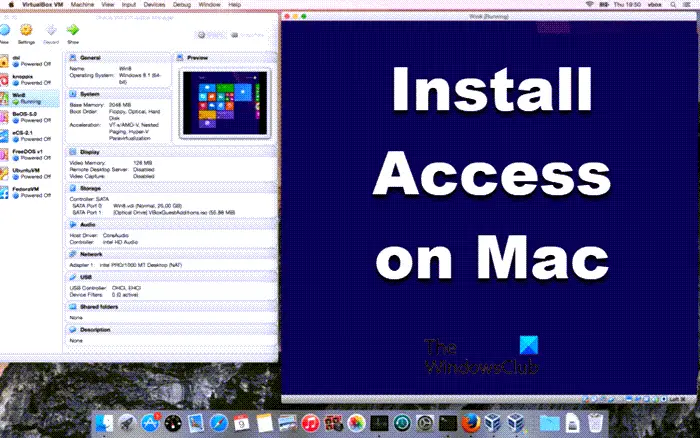
Officially speaking, Microsoft Access is not available on the macOS. However, you can use a virtual machine on your Mac and run the tool’s Windows version there. Today, we will be discussing how you can install MS Access on Mac using a tool named VirtualBox.
How to install Microsoft Access on Mac
For some, it can be a little confusing to understand what virtual machines like VirtualBox do. Essentially, these tools help you run different operating systems on top of existing ones, bridging platforms that don’t coexist readily. Here, we will use VirtualBox to run Windows inside Mac and then run Access on that virtualized version of Windows.
Readers should note that all MS Office applications, except Access, have official Mac versions. You don’t have to follow this process to run PowerPoint or Excel on Mac, for example. Let’s begin!
First things first, you’re going to have to download a .iso file of Windows from Microsoft.com. An ISO file lets you create bootable installation media or a virtual machine, as we will do here. Fill out the details i.e., the version of the OS, the language you prefer, bit version, etc., and confirm your download.
Then, visit VirtualBox’s official website and from the Downloads page, download the OS X hosts version.
Once downloaded, run and set it up on your Mac. Open the app and click on New.
Here, enter a name for your virtual machine, select your OS version, and allocate the appropriate amount of RAM. Enter the credentials for the hard disk drive you will use for this process.
In the final prompt, you’ll be asked to select the optical disk file that you want to start the virtual machine from. Here, select the .ISO file and click on ‘Start’.
Wait a while after clicking Start, and a demo of your Windows 11/10 will be loaded.
After that, you have to set up Windows on VirtualBox as you would do on a normal PC. Fill in all the required fields and select the OS edition you want to install.
Your computer will boot once, and that can take some time, depending on the specifications of your Mac, but after that, you’ll have to enter your Microsoft account’s credentials. Do so, wait a while, and you’ll finally see an interface the same as in any Windows computer.
The process is pretty straightforward thereon out. Simply download Microsoft Office on your Windows device and open Access.
If you notice Windows lagging in VirtualBox, open Windows Settings and check for any pending updates.
We hope this post answered all your questions about VirtualBox on Mac and how to use it with ease.
Read: How to download Microsoft Word, Excel, PowerPoint on Mac
Can you install Microsoft Access on a Mac?
No, Office for the MAC doesn’t include Access, and the only way to install Microsoft Access on a Mac is to use a Virtual Machine.
Does Office 365 have Access for Mac?
No. Unfortunately, Microsoft Access is available only for Windows PCs. But you can run it in a virtual machine.
