
Anisble lets you automate your IT tasks directly. If you are looking to install Ansible on your Windows computer, you require a specific approach as it doesn’t run natively. This guide walks you through a few simple steps to get Ansible up and running on your Windows 11 system so you can start writing playbooks and automating your workflow.

Can you install Ansible directly on Windows 11?
No, you cannot install Ansible directly on Windows 11 as it requires a Python environment that is not natively supported. To run Ansible, you must use a compatibility layer like Windows Subsystem for Linux (WSL) to create a Linux environment. This allows you to install and run Ansible as you would on a native Linux system.
Install Ansible on Windows 11
Ansible is an open-source automation tool used for configuration management, application deployment, and task automation. It uses simple, human-readable YAML scripts (called playbooks) to define and execute tasks across a set of servers or computers, all through an agentless architecture that typically uses SSH for Linux and WinRM for Windows.
If you are looking to install Ansible on Windows 11, follow one of the methods listed below.
- Using Windows Subsystem for Linux (WSL)
- Using a Virtual Machine
- Using Docker
Let us talk about them in detail.
1] Using Windows Subsystem for Linux (WSL)
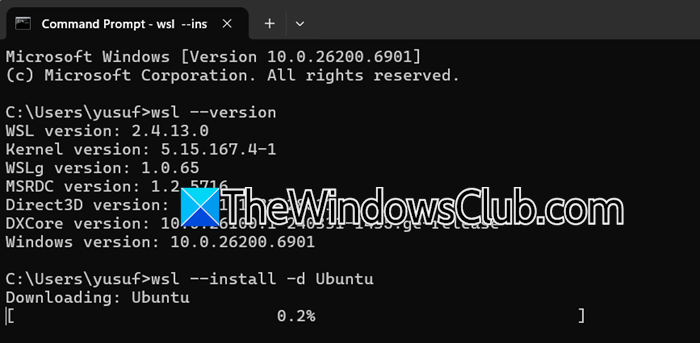
Since Ansible is built for Linux-based environments, you cannot install it directly on Windows. Instead, you create a Linux environment on your Windows 11 system. WSL allows you to run a full Linux distribution alongside your Windows system.
First, we need to ensure WSL is installed on your computer. For that, in Command Prompt or Terminal, run wsl --version.
Once installed, launch “Ubuntu” from your Start Menu. You will create a username and password for this Linux environment. Inside the Ubuntu terminal, update the package list and install Ansible.
sudo apt update && sudo apt upgrade -y
sudo apt install ansible -y
Check the installation with ansible --version.
2] Using a Virtual Machine
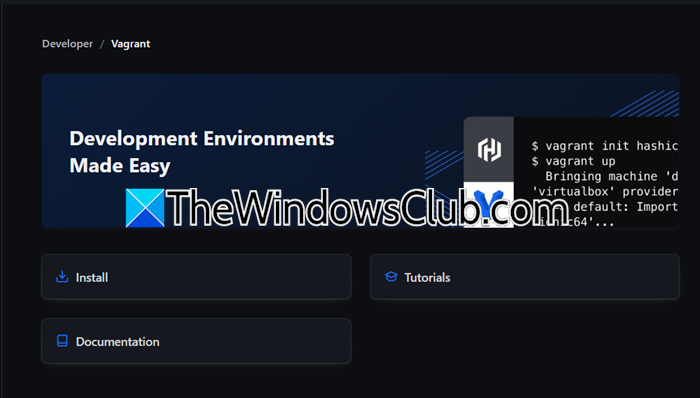
First, you need to install two programs on your Windows 11 machine – VirtualBox from virtualbox.org and vagrantup.com (choose the Windows version and download it).
Now, we need to create a project folder. Create a new folder wherever you like (for example, on your Desktop or in Documents). Now, create a new folder, and name it something like ansible-vm or ansible-test.
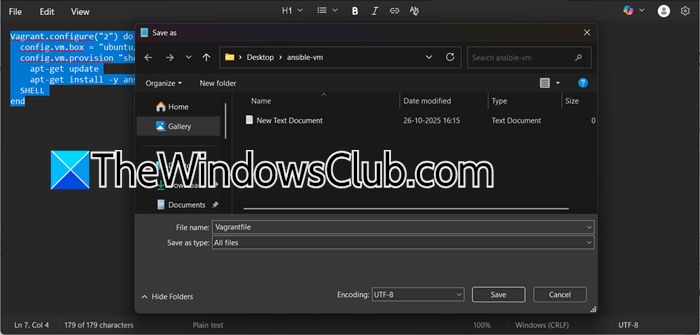
Open Notepad (or any text editor). Copy and paste this exact code.
Vagrant.configure("2") do |config|
  config.vm.box = "ubuntu/focal64"
  config.vm.provision "shell", inline: <<-SHELL
    apt-get update
    apt-get install -y ansible
  SHELL
end
Save this file in your ansible-vm folder as Vagrantfile (no .txt extension). In Notepad, click on File > Save as. Navigate to your ansible-vm folder, for File name: type Vagrantfile, for Save as type: select All Files, and click on Save.
Now, open Windows PowerShell (not Command Prompt), and navigate to your project using the CD command.
cd C:\Users\YourUsername\Desktop\ansible-vm
Note: Replace the path with wherever you created your folder
Run the following command.
vagrant up
When you do that, the command downloads a Ubuntu Linux image (this might take 5-10 minutes), creates a virtual machine using VirtualBox, automatically installs Ansible inside that VM, and sets up everything for you.
Once vagrant up finishes, run vagrant ssh
This command will log you into the Linux virtual machine. You’ll see your command prompt change to something like vagrant@ubuntu-focal:~$
Inside the virtual machine (after running vagrant ssh), type ansible --version.
Read: How to import and export WSL distros on Windows 11
3] Using Docker
This method uses Docker to run a lightweight, ephemeral Linux container with Ansible installed. For this, you must install Docker Desktop on Windows 11 and ensure the WSL 2 backend is enabled, which allows Docker to run efficiently on Windows.
Before you begin, make sure Docker Desktop is running in the background. – You should see the Docker whale icon in your system tray. Pull a Docker image that has Ansible, for example, the official Ansible community image:
docker pull quay.io/ansible/ansible:latest
You can then run Ansible commands directly from a container by mounting your project directory, which allows you to access your playbooks and configuration files from within the container. For example, to check the version:
docker run --rm -it -v ${PWD}:/workspace quay.io/ansible/ansible:latest ansible --version
For a more interactive experience, you can run a container and work inside it with docker run --rm -it quay.io/ansible/ansible:latest bash.
Once inside the container, you can run multiple Ansible commands, edit files, and test playbooks just like in a regular Linux environment. When you exit, the container is automatically removed, leaving your Windows system clean.
Hopefully, with the help of this post, you will be able to set up Ansible on your computer.
Read: How to access Windows Subsystem for Linux files on Windows 11
Can I use Ansible on Windows 11 without WSL?
Yes, you can use Docker Desktop as an alternative to WSL. By running an official Ansible container image, you can execute Ansible commands without a full Linux installation. This containerized approach is ideal for testing and keeps your system clean, as the environment is ephemeral and removed after use.
Also Read: Run RHEL/Fedora on Windows Subsystem for Linux (WSL).
