
At times, you might want to insert images in Google Sheets to display data, charts, or anything else. If so, you can follow this step-by-step guide to add images in Google Sheets. Whether you use a template or a blank sheet, you can follow the same guide to get the job done.

Google Sheets is one of the best spreadsheet editing apps you can use for free. Whether you need to create a spreadsheet for your office, school, business, or anything else, you can use Google Sheets to get it done. Like Excel, it is easy to insert alphabets, digits, characters, etc., in any cell in Google Sheets. However, if you want to insert images into a cell or over multiple cells, you may need to take additional steps.
You cannot use the drag-and-drop technique to get an image on the spreadsheet cells. On the other hand, it is not that difficult since Google Sheets comes with in-built options so that you can insert any image from almost any source in the spreadsheet.
For your information, you will be getting two options –
- Insert image in cell
- Insert image over cells
If you want to insert an image into a specific cell in your spreadsheet, use the first option. However, if you have a chart, graph, or any other content you want to display at large size, you need to opt for the second option. In this case, you can choose a custom image size, assign a script, use alt text, etc.
How to add an Image in Google Sheets
To insert an image in Google Sheets, follow these steps:
- Open the Google Sheets.
- Go to Insert > Image.
- Choose Insert image in cell or Insert image over cells.
- Choose an image and click the INSERT button.
First, open the spreadsheet in Google Sheets. However, if you want to create a new file, you can create a blank document.
Next, you need to decide on the place where you want to display the image. If you want to insert an image into a specific cell, click that cell first. However, if you want to display the image over multiple cells, you can skip this step.
Click on the Insert option in the top menu bar and select the Image option. As mentioned earlier, you can find two options here – Insert image in cell and Insert image over cells.
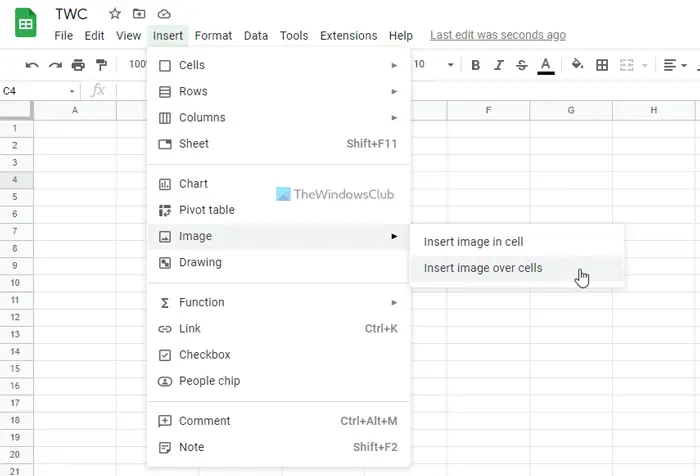
Select an option based on your requirements. Next, select a source where you want to insert your image. For example, you can upload an image from your computer, capture a photo with your webcam, insert an image from a website, or select one from Google Photos, Google Drive, etc. Last but not least is Google Image Search.
Once you get the image, click on it and click the INSERT button.
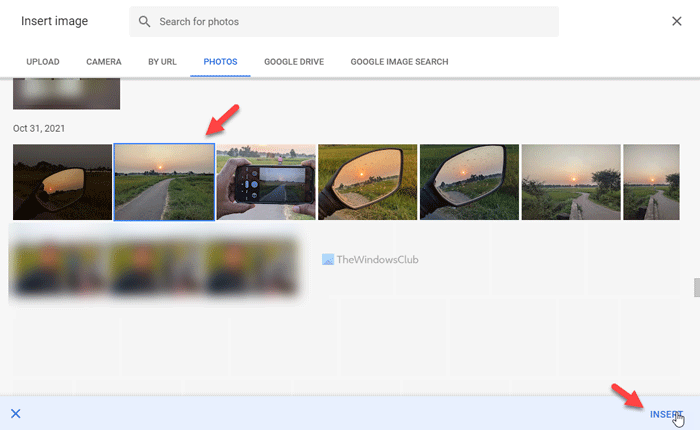 The image will be visible immediately. If you selected the Insert image over cells option, you could change the position, size, etc.
That’s all! Hope it helped.
How to insert multiple images in Google Sheets?
You cannot insert more than one image in one cell in Google Sheets. However, if you select the second option, Insert image over cells, you can add multiple pictures in your spreadsheet. On the other hand, if you select a different cell each time, you can insert multiple pictures in Google Sheets.
Can you insert images into Google Sheets?
Yes, you can insert images into Google Sheets. To do that, follow the steps above. There are two main ways to insert an image into a spreadsheet. You can add images in a cell or over multiple cells. You need to select an option based on your image and requirements.
Read: How to insert WordArt in Google Sheets using Google Drawings.
