
In this post, we will show you how to grey out unused cells in Excel on a Windows 11/10 PC. When you create a spreadsheet in Excel, it displays thousands of blank rows and columns. While this is useful for large datasets, it may make your sheet look incomplete or cluttered when you’re working with smaller datasets. This is because there’s too much space around your data, which makes it harder to focus on the actual content.

By greying out unused cells, you can make your worksheet look cleaner, highlight only the important data areas, and prevent accidental editing.
How to grey out unused cells in Excel
To grey out unused cells in Excel on a Windows 11/10 PC, you may follow one of these methods:
- Apply a solid fill color
- Use Conditional Formatting
- Set a Print Area
- Hide unused rows or columns
Let us see this in detail.
1] Apply a solid fill color
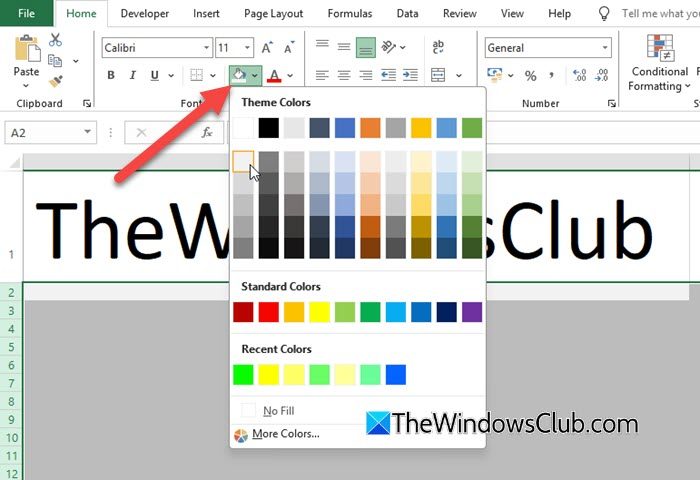
If you want to visibly grey out the unused area of your worksheet, the easiest method is to apply a fill color. This highlights only the active data section and separates it from the rest of the grid.
Select the first unused row below your data (for example, if your data ends at row 25, select row 26). Press Ctrl + Shift + Down Arrow to select all rows till the end.
Go to the Home tab. Click the drop-down arrow next to Fill Color under the Font group, and choose a light grey shade.
Do the same for unused columns. Select the first unused column letter (e.g., column G if your data ends at F), press Ctrl + Shift + Right Arrow, and apply the same grey fill.
2] Use Conditional Formatting
Conditional Formatting is a powerful way to grey out unused or unwanted cells automatically. Unlike manual formatting, the color changes dynamically as your data changes. You create a rule to grey out unused cells, and if a value no longer meets the rule, Excel instantly removes the grey shading.
Select the range where you want to grey out unused cells.
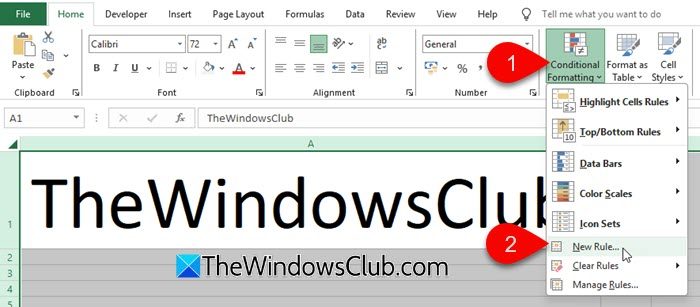
Go to Home > Conditional Formatting > New Rule…
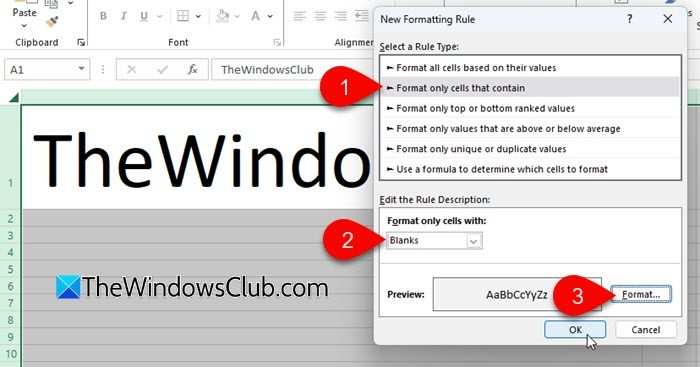
Select “Format only cells that contain“. In the dropdown under “Format only cells with:“, choose Blanks.
Click Format…, open the Fill tab, and select a light grey shade. Keep clicking OK until you exit all dialog boxes.
All empty cells in the selected range will now appear grey. The moment you type something in a cell, the shading disappears.
3] Set a Print Area
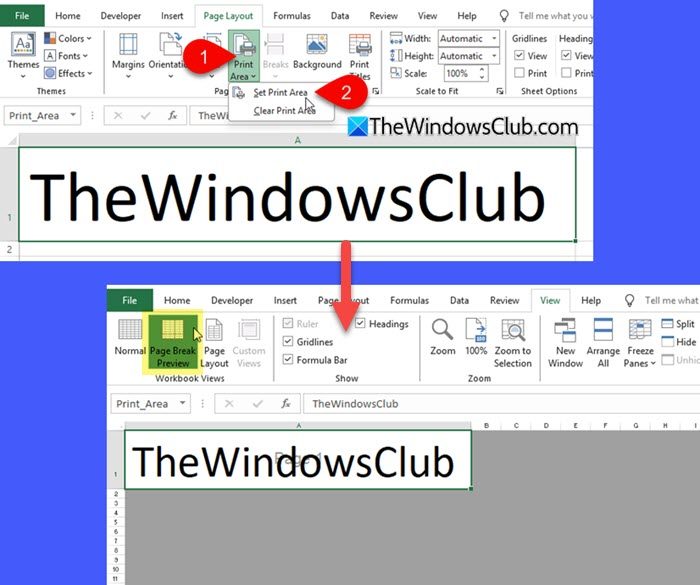
If you want to grey out unused cells for printing, you can define a Print Area. The Print Area tells Excel exactly which part of your worksheet should be treated as the active, printable section. Anything outside this range is considered unused and is automatically excluded from the print layout, keeping your output clean and focused.
Select the range of cells that contains your actual data.
Go to the Page Layout tab on the ribbon. Click Print Area, then select Set Print Area.
Now, when you switch to Page Break Preview, only your selected range appears white, and everything else is greyed out.
You can clear the print area anytime via Print Area > Clear Print Area.
4] Hide unused rows or columns
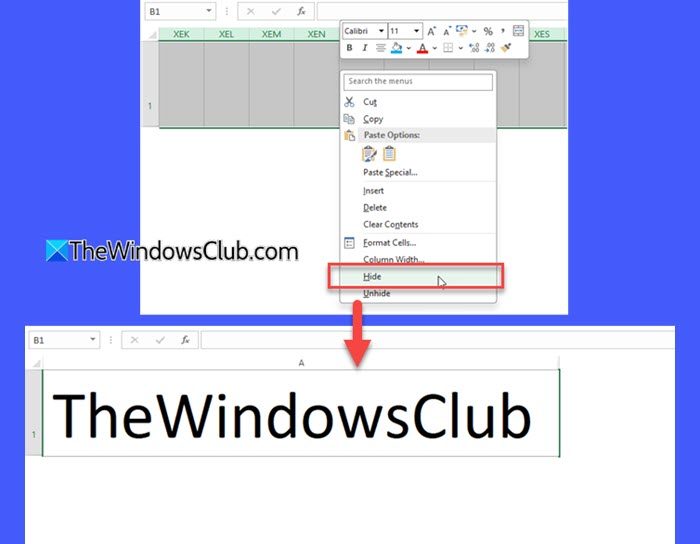
Hiding unused rows or columns doesn’t actually grey them out; it simply removes them from view and leaves a white background. However, it is still a useful way to clean up your worksheet and keep the focus on your active data area.
Select all unused rows as described above. Right-click and choose Hide. The unused rows are removed from view (the sheet remains white), and Excel shows a visual break where the hidden rows begin.
You can do the same for unused columns. This makes the sheet look neat and restricts scrolling to only your data area.
Alternatively, instead of hiding, you can set the height of unused rows or the width of unused columns to 0. This collapses them completely and removes them from view, achieving the same effect as hiding.
Grey out cells based on their value
If you want to grey out cells based on their value, here are two Conditional Formatting methods you can use:
1] Grey out specific cells

This method greys out a cell when it contains a specific word, number, or status. For example, in a project tracker, you may want to grey out tasks once their status is marked “Complete”. To achieve this, follow these steps:
Select the range you want to apply the rule to (for example, B2:B5). Go to Home > Conditional Formatting > New Rule…
In the New Formatting Rule window, select “Format only cells that contain“.
Under “Format only cells with:”, set:
- First dropdown: Cell Value
- Second dropdown: equal to
In the text box, type Complete (without quotes).
Click Format…, go to the Fill tab, and choose a light grey shade. Keep clicking OK until you exit all dialog boxes.
Now, whenever you enter “Complete” in the selected cells, the background will automatically turn grey.
2] Grey out an entire row based on a single cell
If you want to highlight an entire row, for example, when a task, order, or record is complete, you can use a formula-based rule.
Select your full data range (excluding headers), such as A2:C5. Go to Home > Conditional Formatting > New Rule…
Select “Use a formula to determine which cells to format“.
Enter this formula:
=$B2="Complete"
In the above formula, “B” represents the column that contains the Status values.
Click Format…, choose a light grey fill under the Fill tab, and click OK. Click OK again to apply the rule.
Note: The row number in the formula must match the first row of your selected range. For example, if your data starts at row 16, the formula should begin with =$B16, not =$B2.
I hope you find this useful!
Read: How to write vertically in Excel.
How to make unused cells disappear in Excel?
You can make unused cells disappear by hiding the extra rows and columns. Select the first unused row, press Ctrl + Shift + Down Arrow, right-click, and choose Hide. Do the same for unused columns using Ctrl + Shift + Right Arrow. This removes all empty areas from view.
How to highlight unused cells in Excel?
You can highlight unused or empty cells by using Conditional Formatting. Select the range, go to Home > Conditional Formatting > New Rule, choose Format only cells that contain, and set it to Blanks. Pick any fill color you want, such as yellow, and Excel will highlight all empty cells automatically.
Read Next: How to change Text Direction in Excel from Vertical to Horizontal.
