
In this post, we’ll show you how to change text direction in Excel from vertical to horizontal. “Vertical text” in Excel can mean different things depending on how your sheet is set up. Sometimes your data is arranged vertically in a column when you actually need it laid out horizontally in a row. Other times, the text is rotated or stacked within a single cell.
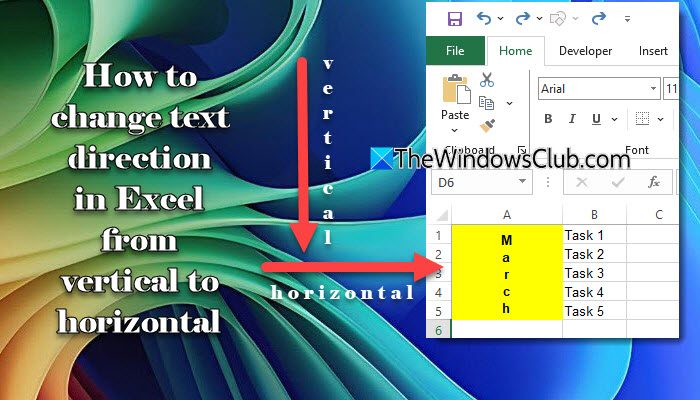
In some situations, the text appears vertical because the column is too narrow and Excel has wrapped the content onto multiple lines. Each scenario needs a specific solution, and this guide walks you through all of them step by step.
How to change text direction in Excel from vertical to horizontal
To change text direction in Excel from vertical to horizontal on a Windows 11/10 PC, use these fixes:
- Change Text Orientation
- Transpose data
- Turn off Wrap Text
- Remove Text Box Rotation
- Use Power Query
Let us see this in detail.
1] Change Text Orientation
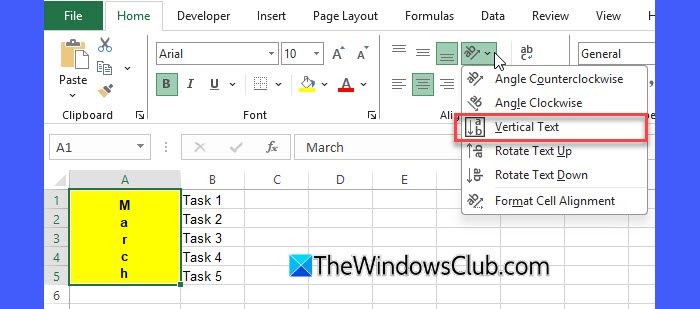
If you see the text appearing sideways or each character stacked on top of the other inside a single cell, a text rotation or stacked alignment has likely been applied from the Alignment settings. This is purely a formatting issue. The data doesn’t need to be moved; only the text angle needs to be reset.
- Select the cell(s) with vertical text.
- Go to the Home tab.
- In the Alignment group, click the Orientation dropdown.
- You’ll notice the applied rotation highlighted. Click it again to toggle it off and restore the text to normal.
2] Transpose data

If each item is listed one below the other in a column, and you want them arranged horizontally in a row, changing orientation won’t help because the data itself is structured vertically. To fix this, transpose the data using Paste Special.
- Select the vertical range (e.g., A1:A10).
- Press Ctrl + C to copy it.
- Right-click the cell where the horizontal data should appear.
- Select Paste Special.
- Tick the Transpose checkbox.
- Click OK.
Your column instantly converts into a row.
If your original vertical data is likely to change (such as a list that gets updated frequently), use the TRANSPOSE function instead. It creates a dynamic link between the original column and the horizontal layout, so any updates to the source data are automatically reflected in the transposed output.
Select the empty cells where you want the horizontal output to appear.
(The number of columns you select must match the number of rows in your source data.)
Type the formula:
=TRANSPOSE(A1:A10)
Replace A1:A10 with the actual range of your vertical data.
Press Enter (in Excel 2019, 2016, 2013, 2010, and 2007, press Ctrl + Shift + Enter to enter it as an array formula). Excel will automatically spill the data horizontally.
Any changes made to the original vertical range will update instantly in the transposed output.
3] Turn off Wrap Text
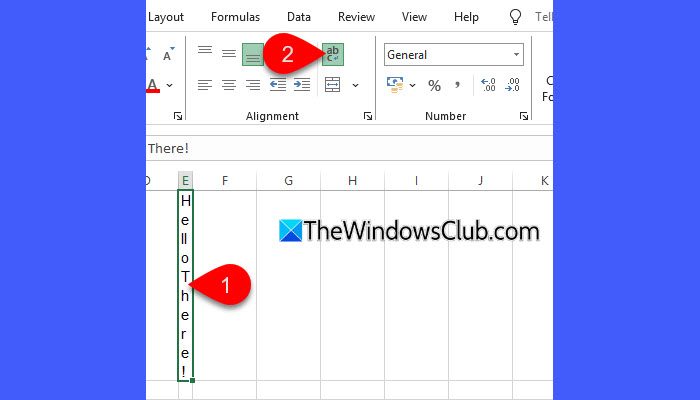
Sometimes, text only looks vertical because the column is too narrow and Excel has wrapped the content into multiple lines, placing one word or character below the next. This isn’t actual vertical text; it’s just a width issue. To fix this, disable Wrap Text or widen the column.
- Select the affected cell(s).
- Go to the Home tab.
- In the Alignment group, click Wrap Text to turn it off.
- If needed, drag the column boundary to manually increase the column width. If you need the text to stay on one line without widening the column, you can optionally use Shrink to Fit. It slightly reduces the font size to prevent wrapping.
The text will appear in a single horizontal line again.
4] Remove Text Box Rotation
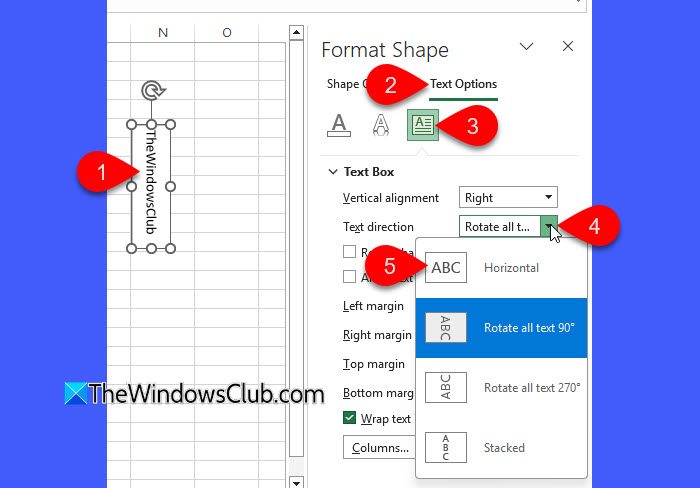
If the text appears vertical only inside a text box, shape, or WordArt, the issue isn’t with the cell; it’s with the object being rotated.
To fix this, reset the rotation of the text box or shape.
- Click the text box, shape, or WordArt containing the vertical text.
- A rotation handle (a circular arrow) will appear at the top of the object.
- Drag the rotation handle until the object is horizontal again.
If the text inside the shape still appears vertical, follow these steps:
- Right-click the shape or text box and select Format Shape.
- In the Format Shape pane, click Text Options.
- Select the Text Box icon.
- Under Text direction, choose Horizontal to restore normal text flow.
The text will now appear horizontally.
5] Use Power Query
If you deal with large or messy datasets or regularly import or update the source data, Power Query can help transform data quickly and efficiently. It lets you build a repeatable, automated workflow for transposing data, so you don’t need to repeat the steps every time your source data changes.
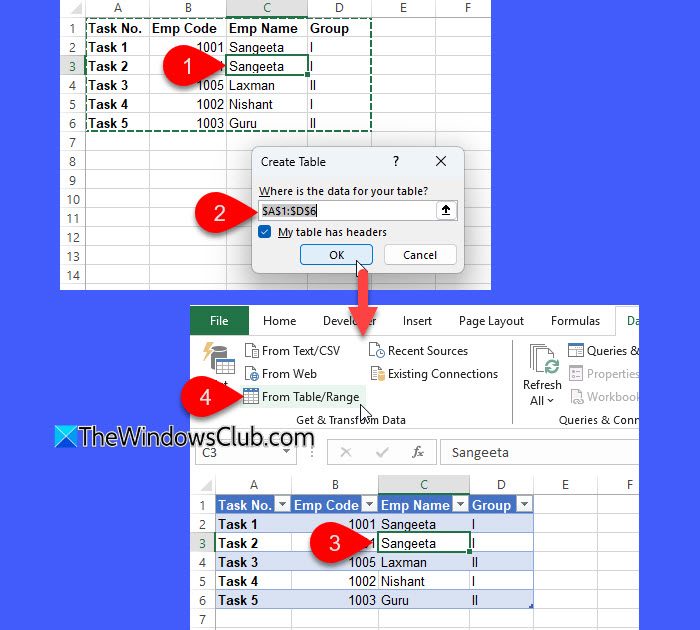
Power Query works best with tabular data, so the first thing you need to do is to format your data as a table. Click anywhere inside your data range and press Ctrl + T. A Create Table dialog will appear; ensure the correct range is selected and click OK.
With a cell in the table selected, go to the Data tab and click From Table/Range. Excel opens the Power Query Editor.
On the Transform tab, click Transpose. Power Query will flip rows to columns (and columns to rows).
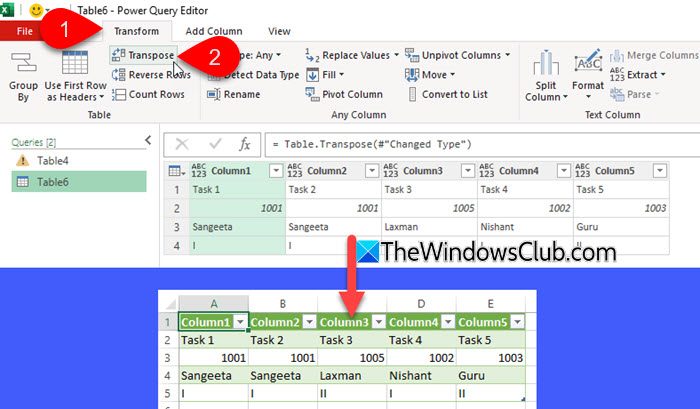
When ready, click Home > Close & Load (or Close & Load To… to choose where to place the result). Power Query creates a new table with the transposed data.
To update the horizontal table after the original data changes, right-click the resulting table in Excel and choose Refresh, or use Data > Refresh All.
I hope this helps.
Read: How to change Text Direction in Word.
How to rotate text horizontally?
To rotate text horizontally in Excel, you may use the built-in Orientation feature. Select the cell, go to the Home tab, and locate the Orientation option in the Alignment group (the icon with tilted “ab”). Click the dropdown arrow and choose the desired rotation option. If the text is inside a text box or shape, use the rotation handle to manually rotate it back to horizontal.
How do I change the direction of text on the horizontal axis in Excel?
To rotate text on the horizontal (X) axis in an Excel chart, click the chart and select the X-axis labels. Right-click and choose Format Axis. In the Format Axis pane, open the Size & Properties tab (the third icon). Under the Alignment section, use the Text direction or Custom angle options to set the rotation you want. The axis labels will update instantly.
Read Next: How to change default Excel worksheet direction from right to left.
