
You might have noticed when you search something on Google, the Search page returns with some results. By default, the Search page is configured to display a maximum of the top 10 results. If you would like to raise this default limit, see the instructions below to change the number of results displayed per Google Search page.
UPDATE Oct 2025: Google has removed the num=100 search parameter. You can no longer view 100 results at once. The default maximum is now 10. This option is now no longer available on the Google Search Settings page.
Get more than 10 results on a single Google Search Page
Want to know how to get 100 search results in Google? Follow these tricks to get more than the default 10 results on a single Google Search Page. There are two easy ways to accomplish this:
- Add a search parameter to the URL
- Change the value under the Global Preferences Page
With a huge search market share, Google is undoubtedly the most popular search engine. You can customize it to your liking furthermore by making it display more search results on a single page.
1] Add a search parameter to the URL
You can choose to use this method when you aren’t signed in to Google or when you would like to only change the results for a query, not all searches.
So, go to the www.google.com and enter the keyword you are searching in the empty search field.
Conduct the search by pressing the ‘Enter’ key.
Instantly, the Search Engine Results Page will return with results.
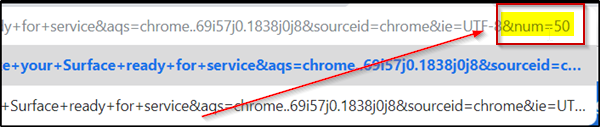
On the Search Results Page, at the end of the URL add the following parameter
&num=x
where x is the number of results you want to display (For example &num=50)
Press Enter to restart the search process with your preferred results per page request.
You will find that the page will be reloaded and display 50 results per page, as you have requested.
2] Change the value under the Global Preferences Page
When you are logged in to your Google account, you can change the ‘number of Results’ that are returned per page. Here’s a way to go about!
Go to www.google.com.
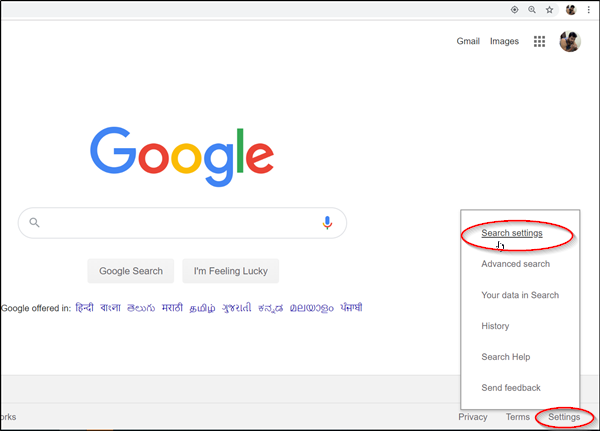
While logged in, look for the ‘Settings’ option located in the lower-right corner of your computer screen.
When found, click ‘Settings’ and from the list of options displayed, select ‘Search Settings’.
The action when confirmed will take you to ‘Search Settings’ page.
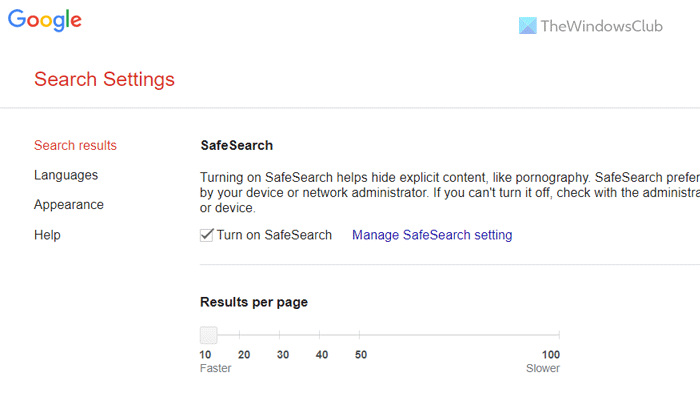
Once there, under ‘Results per page’ section’, you’ll find a slider to change the results displayed per page. Move the slider to the desired value. 10 is the default value. Other options include,
- 10
- 20
- 30
- 40
- 50
- 100
When done, hit the ‘Save Preferences’ button in the bottom right of the page.
Return to Google Search and search with your new value set.
This way, you can change the number of results displayed on a single Google Search Page.
How do I see more than 10 searches on Google?
You could earlier use a parameter os change the Search settings to see more than 10 results per page. However, Google has now discontinued support for the num=x search parameter, meaning users can no longer display 100 results per page. The new default limit is set to 10 results, and the option to adjust this setting has been removed from the Google Search Settings page.
How do I get 100 results per page on Google?
Google has officially deprecated the use of the num=x search parameter, thereby eliminating the ability to display 100 search results per page. The maximum number of results per page is now limited to 10 by default. Furthermore, the option to modify this setting has been removed from the Google Search Settings interface.
