
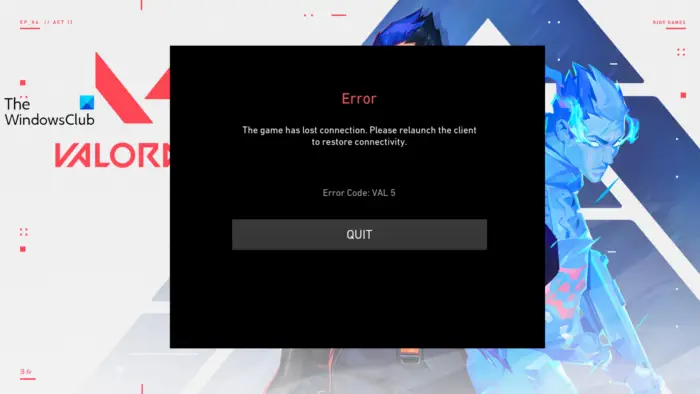
In this post, we will talk about getting rid of Error Code VAL 5 on Valorant. Valorant is a free-to-play game, i.e. you can download and play the game on your system without paying any extra cost. However, like any other game, Valorant isn’t free from errors. Many users have reported encountering Error Code VAL 5 in Valorant. The exact error message says,
Error
The game has lost connection. Please relaunch the client to restore connectivity.
Error Code: VAL 5 on Valorant
Worry not if you are also struggling with the same problem. Just try the solutions below to fix the issue.
What causes Error Code VAL 5 on Valorant?
There isn’t any specific reason why you face the problem in the question. But in most cases, the issue seems to occur due to the following reason.
- One of the primary reasons behind the issue is often weak or unstable internet connection.
- If there’s any ongoing server issue, i.e. if Valorant servers are under maintenance, you are most likely to face the problem in the question.
- An outdated network driver can be another primary cause of Error Code VAL 5 in Valorant.
Now that you have a piece of prior knowledge about different reasons behind the problem let’s check out how to get rid of them.
Fix Error Code VAL 5 on Valorant
Below is a list of effective solutions to get rid of Error Code VAL 5 on Valorant that you may face on your Windows 11/10 PC:
- Restart the client
- Check for server status
- Restart the router
- Reinstall Vanguard
- Flush the DNS cache
- Update Network Driver
- Submit a Ticket
Now, let’s check out all these solutions in detail.
1] Restart the client
As mentioned in the error message itself, you need to restart the client to restore the connectivity. So, restart the game client and check if it makes any difference. If yes, you are good to go. But in case the problem continues, continue with the solutions below.
2] Check for server status

One of the primary reasons behind the problem can be an ongoing maintenance process. The situation mainly arises when Valorant is about to release a new update or when developers are in-between fixing a major bug in the game. In either case, the servers can go down and cause the issue.
To check the server status, visit the Riot Games Service Status website. Select Valorant Service Status from the list. In the following window, you will see if there’s an ongoing problem with the game.
3] Restart the router
The problem can occur due to a weak or unstable internet connection. If this is the case for you as well, you will need to troubleshoot your internet connection to resolve the problem. You can do so by restarting your router.
Plug out the router’s power source and wait for around 2-3 minutes. Reconnect the router, and connect it with your system. Check whether the problem is fixed. Alternatively, you can even contact your ISP and ask them to fix the unstable connection.
See: Can’t install Valorant on Windows PC
4] Reinstall Vanguard
Riot Vanguard is Riot Games’ official security software. Although it does a great job of maintaining the game’s highest levels of competitive integrity, it can also be a primary reason for the issue. You will need to reinstall Riot Vanguard to resolve the issue.
To do so, visit Control Panel > Program and Features > Right-click on Riot Vanguard > Uninstall.
5] Flush the DNS cache
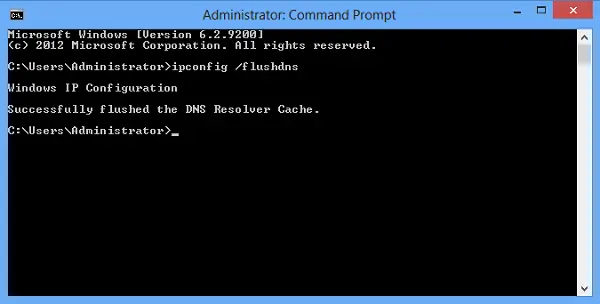
If you are struggling to access the Valorant server, the next thing you can try is to flush the Windows DNS cache. You can do so by following the below steps.
- Open Command Prompt in administrator mode.
- Type
ipconfig / flushdnsand press the Enter key.
Close the Command Prompt once you see – Windows IP Configuration. Successfully flushed the DNS Resolver Cache.
See: DX11 feature level 10.0 is required to run the engine – Valorant
6] Update Network Driver
If you haven’t updated the network driver for a long time, it’s no surprise you are facing Error Code: VAL 5 on Valorant. You will have to download the latest Network driver update to solve the problem.
Once the download is complete, install the update on your system and reboot. Launch the game and check if the problem continues.
7] Submit a Ticket
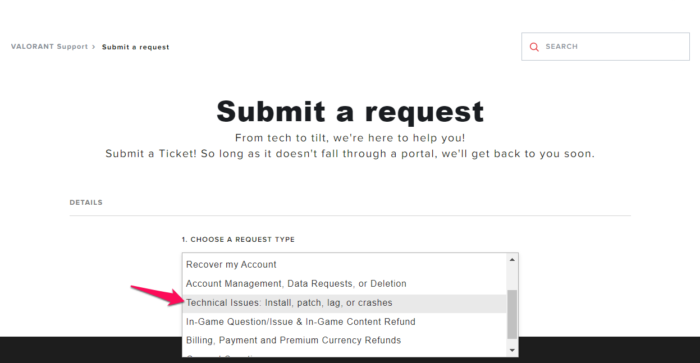
In the worst-case scenario, if you are still struggling with the same problem, it’s time to take further suggestions from the game experts themselves. Riot comes with a Submit a Ticket option, via which you can take guidance from an expert on the problem you’re currently facing. Here’s how to do it.
- To begin with, open the Valorant support website.
- Click on Submit a Ticket option present at the top of the window.
- Click on the drop-down icon present under, Choose a request type.
- From the context menu, select Technical Issues: Install, patch, lag, or crashes.
Now continue with the on-screen instructions to take for the guidance from the experts.
Read: Fix VALORANT Vanguard error codes 128, 57
How can I fix the VAL 51 error code in Valorant?
It’s very easy to get rid of VAL 51 error code in Valorant. The problem mainly arises from internet issues; thus, the first thing you should try is rebooting your router. Along with this, you can download the latest game update, try a VPN service, and reinstall Vanguard to fix the problem.
Why is Valorant crashing?
There can be multiple reasons why Valorant is crashing on your system. But among all, the outdated graphics driver is often the main culprit. The issue can also occur due to a large number of background running applications.
Read Next: Fix VALORANT DirectX Runtime error.
