
Slow Printing is an annoying issue often faced by many of us. The speed of printing depends mainly on the make and model of the printer. If you are experiencing issues with the printer’s printing speed in Windows 11/10, we have provided tips to help you resolve this problem.
Why Do Printers Start Printing Slow?
While printing documents, we all sometimes report issues related to slow printing. There can be various reasons for slow printing, such as:
- If you are using a network printer, the slow printing problem could be the network, the print spooler, or printer drivers.
- Wired printers print faster as compared to wireless printers.
- An inefficient printer server can also cause slow printing.
Whatever the reason, it makes all of this so annoying and also reduces our workflow. Let us now go through some tips to solve this problem.
Slow Printing issue in Printer on Windows 11/10 PC
Follow these steps to resolve the printer issues:
- Hard Reset Printer
- Printer Preferences
- Restart Printer Spooler Service
- Check Network Connection
- Update Printer Firmware and Drivers.
You will need administrative permission and a clear understanding of computer technology. Also, make sure to create a system restore or take backup.
1] Hard Reset Printer
When used for a long time, the printer often gets heated. To avoid overheating issues, printers often reduce the printing speed to reduce heat generation. So first, you should reset your printer by a simple restart. Follow these steps to restart your printer:
- Long-press the Power button on the printer to turn it off.
- Disconnect the power cable.
- Wait for few minutes to completely drain off power from all-electric components of your printer.
- Then reconnect the power cable and turn on the printer
To check the printer’s speed, issue a test print command. Check if your printer has started working properly now; else, try other methods.
2] Printer Preferences
Printer preferences are one of the causes of slow printing issues. Hence it can be fixed by changing the print speed and print quality settings. The printout quality is inversely proportional to the print speed of the printer. So the print quality decreases with a faster printing speed. You need to change the print quality settings from ‘Best’ to ‘Normal’ or ‘Draft’ for quick printouts.
Note: This is a tradeoff. It is possible that the current setting of the Printer output quality is high, and hence printer takes a longer time. Usually, it’s not the default setting, but someone may have changed it.
Check the following steps to make changes in your printer speed settings:
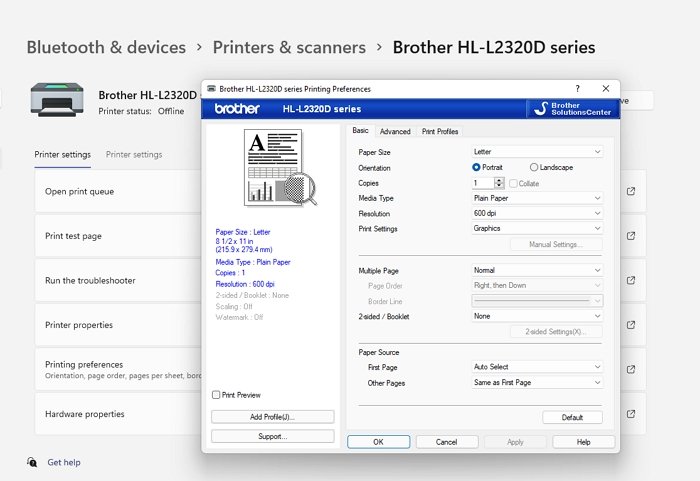
- Open the search box using Windows + S and search for the Printer.
- Click to open the Printers & Scanners when it appears in the list
- Select the printer which is working slow, and then click on Printing Preferences.
- In the Printing Preferences window, change or lower the quality to default, or if you need, set the quality further lower to increase the speed. Change resolution, toner setting, and others.
- Click on Apply and OK.
If you do not want colored printouts, choose Black & White. Now take a test to check the speed of the printer. Post this; the speed should improve but can impact the overall quality.
3] Restart Printer Spooler Service
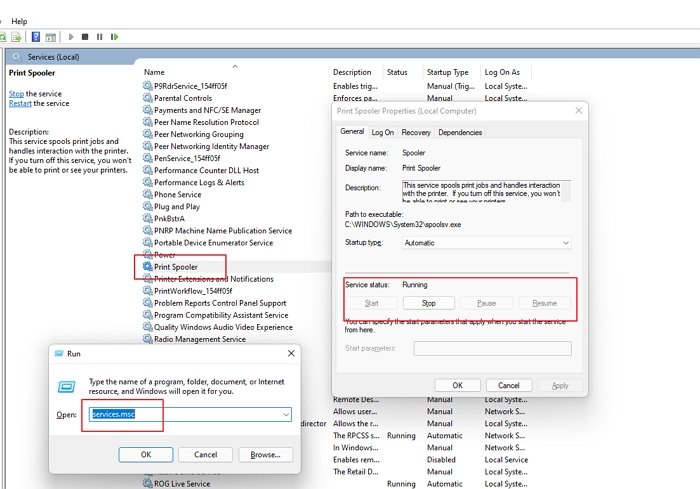
The Printer Spooler is used to create a queue of all that has to be printed. Sometimes when there are many print commands, the printer spooler gets clogged. Due to excessive data, the printer’s response time is slowed. In such cases, restart the printer spooler service. Follow the steps to do so:
- Open the RUN box using Windows + R.
- Type Services.msc and click the OK button.
- Now locate the Printer Spooler and right-click to open the context menu.
- Then click Stop and minimize the window.
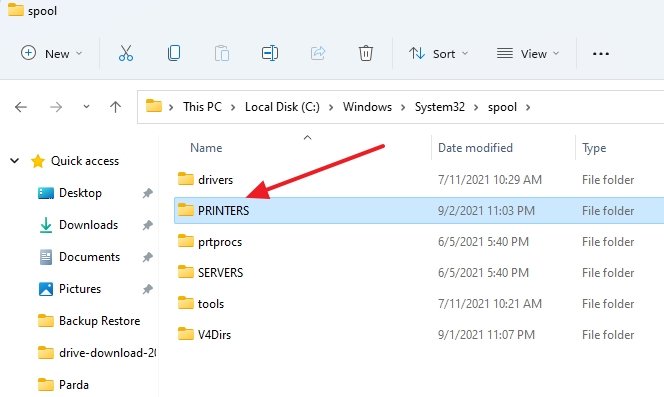
- Again open the RUN box and type Spool. Press Enter.
- It will open the System32\spool folder. Double click to open the PRINTERS folder.
- Here you will find a print queue. Delete all the pending files present in this folder.
- Then go to the Services window again and right-click the Print Spooler. Click Start.
- Now give a new Print command to check the printer’s speed.
4] Check Network Connection
For network printers, the slow printing problem may be because of network issues. If you are using a network connection, it is advisable to reboot it at least once every 24 hours. For wired printers, ensure that the Ethernet cable is securely in place. For wireless printers, try rebooting your router and closing all unnecessary bandwidth-draining applications to increase the printer’s speed.
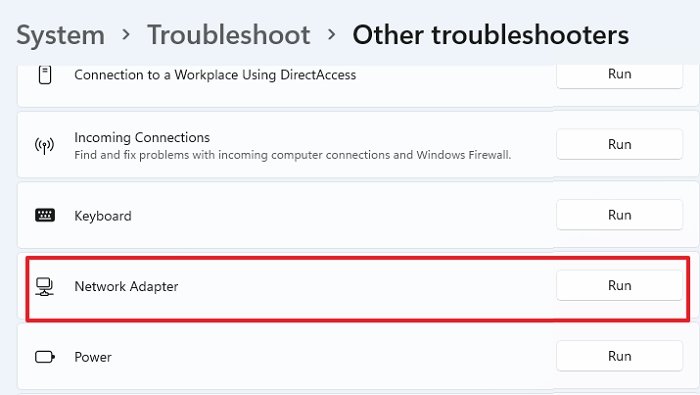
Alternatively, you can run the Network Troubleshooter wizard available under Settings > System > Troubleshoot > Other troubleshooters > Network Adapter.
Recheck your network connection and print. If the issue still exists, try the next method.
5] Update Printer Firmware and Drivers
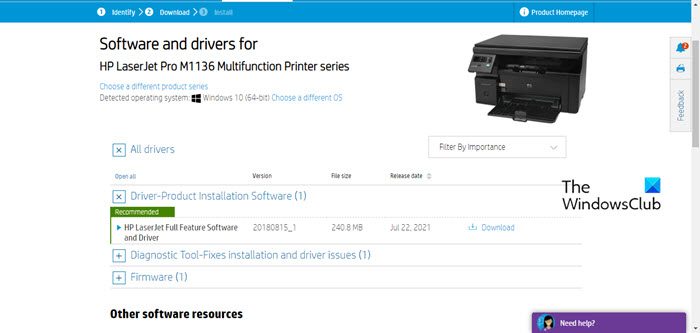
To resolve the slow printing issues with your printer, ensure that its firmware and drivers are up to date. For the wireless printers, you may get the manufacturer’s push notifications from time to time for updates. For wired printers, you need to download and install firmware updates from the official website of the printer manufacturer.
Ensure that you install the Printer Software from the OEM website. It will be able to notify you about new firmware or drivers and assist you in its installation.
Ensure that you restart the PC after installing a new driver or firmware.
We hope that the suggested method will help you resolve slow printing issues on your Windows PC. Please let us know in the comment section below which method worked successfully for you. Now your printer’s printing speed must improve. However, if you continue to experience issues, please get in touch with your printer manufacturer for further assistance.
How Do I Change Printer Settings In Windows?
- Go to Start, select Settings, and then go to Printers & Faxes.
- Right-click on Printer and select Properties.
- Then go to the Advanced tab.
- Click on Printing Defaults.
- Here you can change the settings.
How Do I Fix A Print Queue Issue?
While you can stop the Print Spooler service and then delete all the files at C:\Windows\System32\spool\PRINTERS to clear the print queue, you can use an alternate solution.
Go to System > Troubleshoot > Other troubleshooters and run the Printer troubleshooter.
Why Is Printer Slowly Printing The PDF Files?
The reasons for the slow printing of the PDF files include large PDF Files, high-quality image size included in the file, and excessive number of pages. All these factors increase the printing time, even at normal speed. Ensure you check how to optimize the print by adjusting the speed, lowering the output quality, and so on.
