
You can take screenshots in Minecraft with ease, but do you know where they’re saved? Not many people know about this, which is why we have decided to explain. Now, we should point out that there are two versions of Minecraft, and they all save screenshots in different places. This is quite strange, but it is the decision the developers have chosen to make, and there is nothing we can do about it right now.
How to find Minecraft screenshots in Windows 11
Locating the screenshot folder across various versions of Minecraft is not difficult if you know what you’re doing. Thankfully, we have an idea, and as such, we have decided to explain everything.
How to locate screenshots from the Java version of Minecraft?
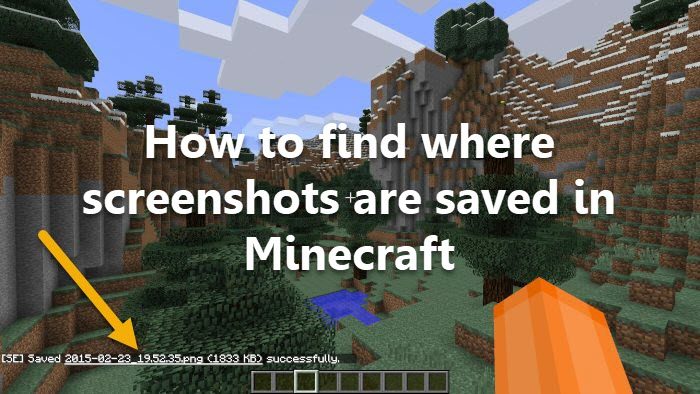
The Java version of Minecraft usually saves all screenshots into a folder located in the primary Minecraft directory. There is a simple way to access this folder without opening the File Manager.
You see, whenever you take a screenshot in the Java version of Minecraft, you will see the file name appear on your screen. The good news is, that this filename is clickable, so all you have to do is click and right away it will open the image in the default Photos app.
Once the app is up and running and the image is being showcased, it’s time to find the screenshot folder.
- Click on the File Information button. You cannot miss it, as it is located right next to the three-dot button.
- You should now see a sidebar appear to the right of the screen. Simply click the link below “Folder Path,” and that should take you to the correct location.
Where are Minecraft screenshots saved in the regular version?
When it comes down to the regular version of Minecraft or the Vanilla version as some like to say, the screenshots are located in the installation folder. The installation folder is at C:\Users\AppData\Roaming\.minecraft, and within it is the Screenshot folder containing all of your photos.
There is another way that relies on the Minecraft Launcher, and to some, it is either easier or more time-consuming. You will have to decide for yourself.
- Download the Minecraft Launcher from the Microsoft Store if you haven’t already.
- After launching, click on the Installation tab at the top.
- Look for the option that reads, Latest Release, and from there, click on the folder icon to the right across from it.
- Look for a folder called Screenshots, and that’s it, you’re done and ready to tango.
How to find the folder where screenshots are saved in Bedrock Edition of Minecraft?
Minecraft: Bedrock Edition is the version of the game Microsoft wants everyone to switch over to. It will take some time, but we do expect that, in the future, most players will gravitate toward Bedrock rather than Java.
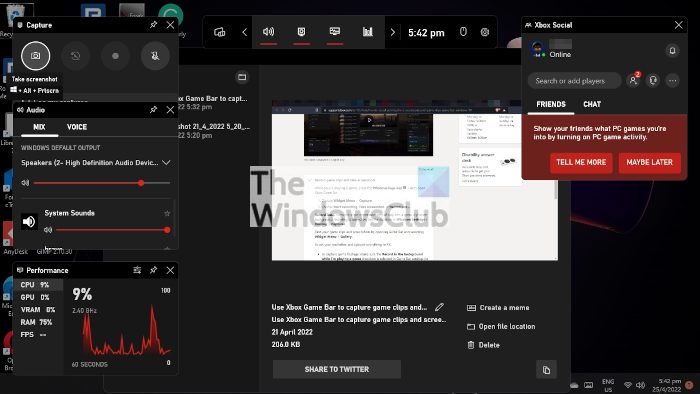
Now, since taking screenshots in the Bedrock Edition requires using the Xbox Game Bar, the images will be located in the folder associated with that app. Let us explain how to get to that location.
- Open the Xbox Game Bar by clicking on the Windows key to fire up the Start Menu
- Then click on All Apps. From there, you will find the Xbox Game Bar. Alternatively, you could simply press the Windows key + G.
- Take a screenshot by clicking Capture from the Widget menu.
- From the Gallery window, please click on Open File Location, and that’s it.
Read: No applicable app licenses found in Minecraft
Is Minecraft free on Android?
No, it is not. However, a first-time user can download the game and get a 30-day trial before paying.
What kind of computer is needed to play Minecraft?
The game Minecraft is not resource-hungry when it comes to CPU and GPU. A simple computer with an Intel i3 processor, 4GB of RAM and an AMD Radeon™ R5 series or NVIDIA GeForce 400 graphics card should be good enough for a long time.
