
Imagine a situation where you’ve spent multiple hours building your Minecraft world, only to have it accidentally deleted. This is a problem faced by thousands of players around the globe, so the question is, how can one retrieve or restore a deleted Minecraft World? There are ways to get your deleted world back for future use, but it depends on certain conditions. For example, if you didn’t back up your world before deleting it, you can’t retrieve it, so make sure you back up your Minecraft content regularly.
How to restore a deleted Minecraft World on a Windows PC
Getting this done on PC is super easy, more so than you might have thought, and that’s a good thing. But as we said above, make sure you back up the game before you start, or you’ll just waste your time. Follow these steps:
- Open the Run dialog box
- Navigate to the AppData folder
- Go to the Saves folder
- Launch the Properties window
- Restore your Minecraft world by clicking the Restore button.
1] Open the Run dialog box
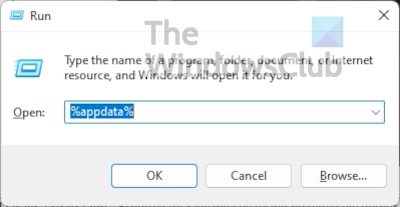
To begin, you’ll be required to launch the Run box, which will appear at the bottom-left corner of your computer screen.
- Press the Windows key + R.
- Look for a small box in the bottom-left corner.
- If it looks like the image above, then you’re in the right place.
2] Navigate to the AppData folder
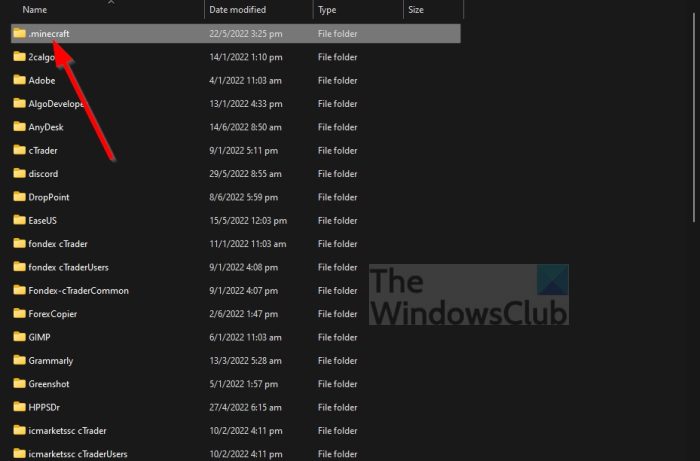
Next, open the AppData folder, where data for your version of Minecraft is stored.
- From the previously opened Run box, please type %appdata%.
- Hit the Enter key on your keyboard.
- The AppData folder should now be visible.
3] Go to the Saves folder
After opening the AppData folder, it is now time to move on to the next step in order to retrieve your deleted world(s).
- Open the .minecraft folder right away.
- Then open the saves folder.
- The directory should look like this: \Users\YourName\AppData\Roaming\.minecraft\saves.
4] Launch the Properties window
- From within the saves folder, right-click on an empty section.
- In the context menu, select Properties.
5] Restore your Minecraft world
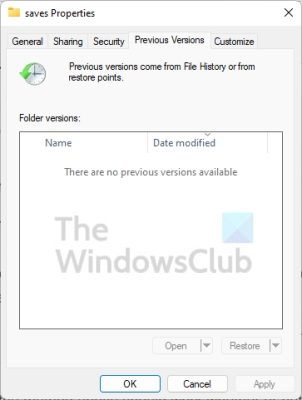
- Next, click on the Previous Versions tab.
- You should now see a list of deleted folders.
- Choose the folder that relates to your deleted Minecraft world.
- Finally, hit the Restore button.
The next time you launch Minecraft, you should have no problems locating the previously deleted world.
Bear in mind that the method above should work whether or not you’re playing the Java Edition or the Bedrock Edition of Minecraft.
How to restore a deleted Minecraft world on a console or smartphone
To be straight, it’s not possible to retrieve a deleted Minecraft world on either consoles or smartphones. You may not like it, but these are the facts right now, therefore, your best bet is to ensure the contents of your device are backed up to the cloud.
How to backup your Minecraft worlds via multiple platforms
The best way to make sure your worlds can never disappear into the void for good is to back up your Minecraft files. There are multiple ways to do this, so let’s discuss them.
- Back up your Minecraft worlds on PC
- Back up Minecraft files on Xbox
- Back up Minecraft files on your smartphone
1] Back up your Minecraft worlds on Windows PC
If you are running Windows 11, then there are two ways you can backup your Minecraft saved files. If you want to learn how then we suggest reading How to automatically backup files & folders on Windows computer.
2] Backup Minecraft files on Xbox
When it comes down to backing up your Minecraft files on Xbox, well, this is not something you need to worry about. As long as you have an Xbox Live account, then your files will be backed up automatically to the cloud.
You can access your saved files anywhere, even on different machines.
3] Backup Minecraft files on your smartphone
For iOS and Android, you’ll need to use the provided cloud platforms. For Android, you can choose to use Google Drive or download OneDrive instead. For iOS, you can use iCloud, or, if you want, download and use Microsoft OneDrive.
Read: How to install mods in Minecraft for PC and Consoles
What happens if you delete your Minecraft Worlds?
If you manage to delete your Minecraft world without backing up, then everything is gone for good. This can be frustrating, but it is what it is, and you will need to follow the rules regardless of what you think.
Can you retrieve deleted Minecraft Worlds?
Yes, you can, but in order for that to happen, you must have a backup of your Minecraft files on your computer or in the cloud.
