
Discord has a developer mode, but we suspect most people do not know this unless they are developers. Now, the developer mode is great because it enables users to add new bots they’ve created. As it stands, if you are a developer, you will want to enable developer mode first before moving forward.
When developer mode is turned on in Discord, users should notice that additional information is now available through the client. Whatever bot you’re planning to create, you will need certain data that only the developer mode can provide.
Which Discord client version supports developer mode?
Currently, we understand that the Discord clients for Windows 11/10, Mac, and the web all support developer mode. Now, when it comes to Android and iOS, users will not be able to get the job done with the native apps, but can do so via the web client using mobile web browsers.
How to enable Developer Mode on Discord for PC and Web
When enabling Developer Mode on Windows 11/10, users must open the native Discord app or the web client. From there, individuals must sign in with their credentials immediately. Learning how to do this task is very important if you’re a developer, so keep reading:
- Log-in to Discord
- Navigate to the Advanced menu
- Enable Developer Mode
- Add your application ID
- Disable Developer Mode
1] Log-in to Discord
The first step is to launch either the native Discord app or the web app through your web browser. From there, sign in with your Discord credentials to get started.
2] Navigate to the Advanced menu
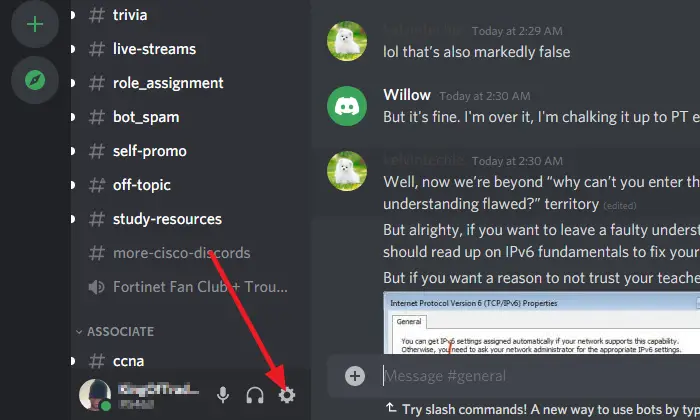
After you’ve signed in with your Discord credentials, please click on the Settings icon, then from the newly loaded window, select Advanced. It is quite easy to find if you look at the list of options in the left section of the window.
3] Enable Developer Mode
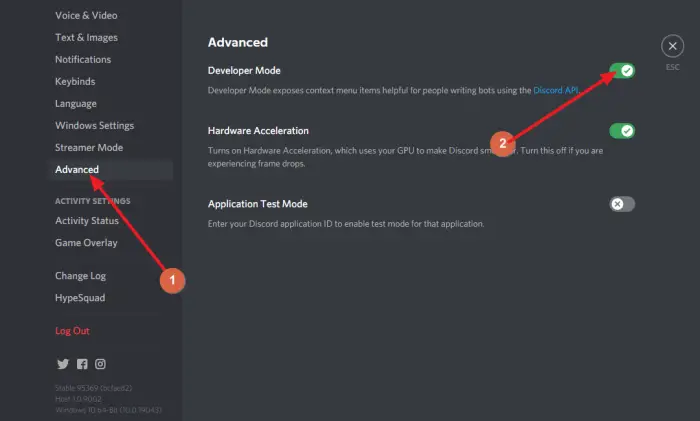
After selecting Advanced, you should see a section to the right that reads, Developer Mode. Next to it is a toggle button, which should be in the off mode by default. Click the button to enable it, and Developer Mode should be active on your Discord account immediately.
4] Add your application ID
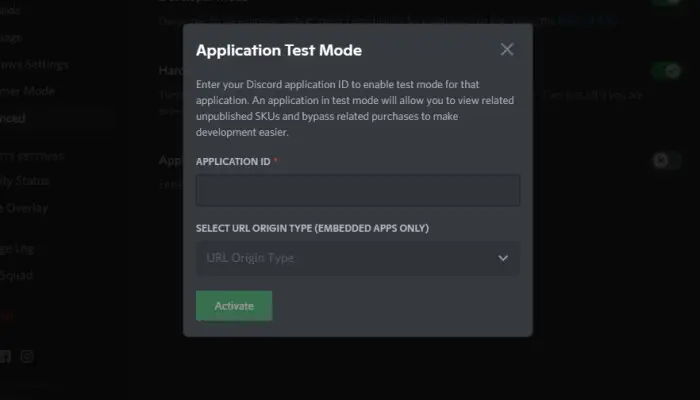
From the same section, look to the very bottom and be sure to enable Application Test Mode. Finally, add your application ID along with the URL origin type. Complete the task by hitting the Activate button.
5] Disable Developer Mode
This is easy to accomplish. Simply return to where you originally enabled the feature. Do this by clicking on the Settings icon. From there, click on Advanced, then navigate to a section that reads, Developer Mode.
You should see the toggle button again. Click it to disable Developer Mode until you need to use it again in the future.
Why can’t I see developer mode in Discord?
If you’re not able to see the Developer Mode option, then chances are your Discord’s appearance is the culprit. You can change the settings to determine how Discord appears to you. This should make it easier for you to access the Developer Mode option whenever you need to.
How do I use developer mode in Discord?
We explained the basic steps of using the Developer Mode feature, but perhaps you would like to learn more advanced methods. You can read more via this official Discord page as it contains many things we do not understand, but you might.
Read next: How to improve Discord audio quality on PC.
