
The Digital Markets Act feature was initially exclusive to the European Economic Area (EEA), but after some system modifications, users from around the world can now use this feature. In this post, we will explore how to enable Digital Markets Act settings in Windows 11.
What is Digital Markets Act?
To make Windows fairer under the Digital Markets Act, users get more control over their experience. You can now uninstall built-in apps like Microsoft Edge, Bing, Photos, and the Microsoft Store. When choosing a web browser, you can set it as the default for all links and file types with one click, and Windows won’t push you back to Edge. You can add other search tools to Windows Search and news feeds to Widgets, Microsoft apps won’t sign you in automatically just because you use a Microsoft account, and Windows clearly labels which apps are part of the system versus those you installed yourself.
Enable Digital Markets Act Globally in Windows 11
To enable Digital Markets Act on Windows 11, you can follow one of the following methods.
- By Editing the JSON File
- By using WinToy app
Let us talk about them in detail.
1] By Editing the JSON File
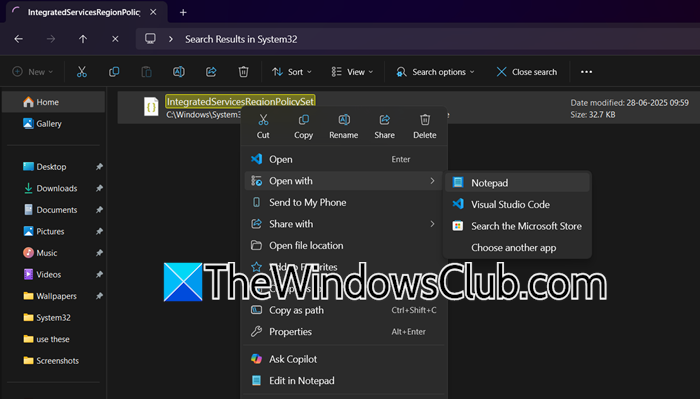
To enable Windows’ Digital Markets Act (DMA) features outside Europe, you’ll edit a special settings file called IntegratedServicesRegionPolicySet.json located in C:\Windows\System32. This file controls which regions get access to DMA features like uninstalling Edge or blocking Microsoft auto-sign-ins. By adding your country’s 2-letter code (e.g., “US” or “IN”) to the “allowedRegions” section for each DMA feature in this file, you instruct Windows to recognize your PC as being in an approved region.
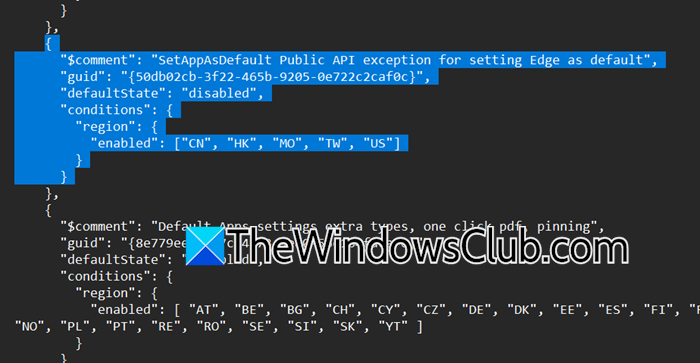
To do the same, follow the steps mentioned below.
- First of all, we need to take the onwership of the file using the commands mentioned below.
takeown /f "C:\Windows\System32\IntegratedServicesRegionPolicySet.json"
icacls "C:\Windows\System32\IntegratedServicesRegionPolicySet.json" /grant "YourUsername:(F)"
Note: Replace YourUsername and drive letter if needed
- Open IntegratedServicesRegionPolicySet.json in Notepad. The file will be located in C:\Windows\System32. However, we recommend creating a backup of the file before making any adjustments to it.
- For each DMA feature, settings, or options (for example: SetAppAsDefault Public API exception for setting Edge as default), add your region’s 2-letter code (e.g., “US”) to the allowedRegions list. Something like the following.
{
"$comment": "SetAppAsDefault Public API exception for setting Edge as default",
"guid": "{50db02cb-3f22-465b-9205-0e722c2caf0c}",
"defaultState": "disabled",
"conditions": {
"region": {
"enabled": ["CN", "HK", "MO", "TW", "US"] //Added US here
}
}
Finally, save the file and reboot your computer.
2] By using WinToy app
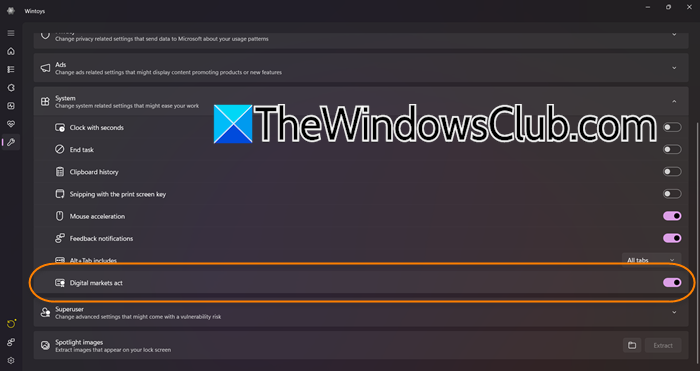
If your goal is automation, WinToy is the way to go. It edits the same IntegratedServicesRegionPolicySet.json system file for you, adding your region to all DMA features automatically. If you are someone who want DMA benefits quickly without commands or file editing, this method is for you. The only problem is that all DMA features are enabled simultaneously, which can be a blessing in disguise.
Follow the steps mentioned below to use WinToy
- Download WinToy from apps.microsoft.com.
- Now, click on the Tweaks from the left bar.
- Then, click on System.
- You then have to enable the Digital markets acts toggle.
- Click on the “Action Required” from the bottom left section (it will be a yellow Refresh icon).
Once done, DMA will be enabled on your system.
Read: How to open and use Windows Settings
How do I change my Windows region to EU?
To change your Windows region to the EU, you’ll modify your system’s regional format or location settings to reflect a country within the European Union. This adjusts date, time, currency, and other locale-specific displays to EU standards, which may affect app/content availability in services like the Microsoft Store. You can check our guide on how to change Windows region to know how to do the same.
Also Read: Reset Windows Security Settings to default values in Windows 11.
