
When it comes to saving time, everybody has their way of performing tasks. Take the example of our social lives, we share things on every platform – either by links or by embedding posts. Embedding posts not only saves our time but also makes our blogs look good. But when it comes to sharing files, we always tend to share the links. Why? When we can embed the files too, then why share links? We have already seen how to embed a Word document on a website. In this article, we will learn how to embed Excel Sheets on your website or blog using OneDrive or Excel Online.
Embed Excel Sheets on your website using OneDrive
To embed a spreadsheet, need an active OneDrive account and the document you need to embed. When you open any document on OneDrive, it uses the Web versions of the applications you use on the system to open it.
Display live data from Excel on your website!
Before you begin, make sure you haven’t added any important or private information to the file before embedding it.
Log in to your OneDrive account and upload the sheet to it. It is preferable that you keep the file in .xlsx format.
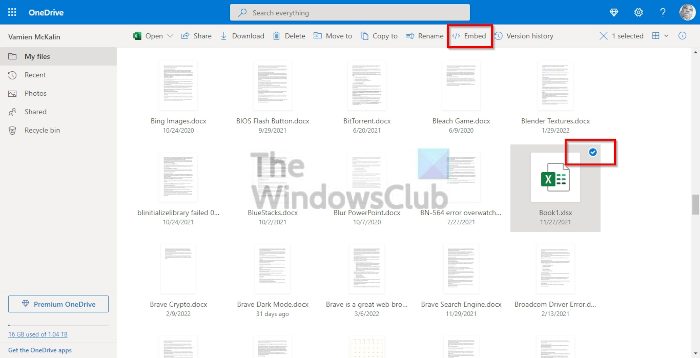
Once uploaded, right-click on the file and select the Embed option.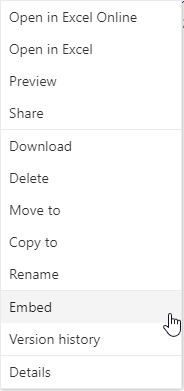
A new panel will open up on the right side of the window. In the panel, click on Generate. It will generate the code to embed the file.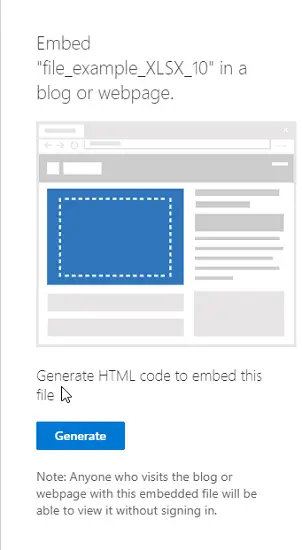
Now paste the code wherever you want in your blog or website.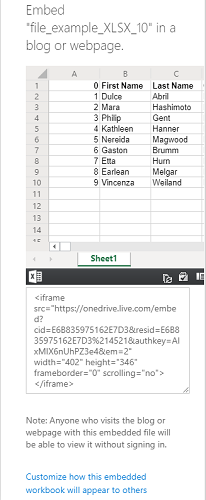
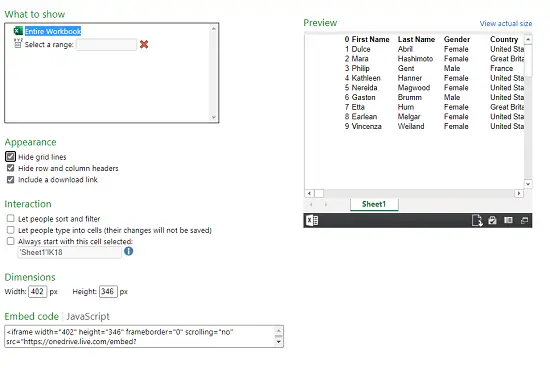
When you copy the embedding code, below it you will also find an option as “Customize how this embedded workbook will appear“. Click on it and you will discover some new settings on how the widget of your sheet should appear. The options will include:
- What to show
- Appearance
- Interaction
- Dimensions
- Embed Code | JavaScript
1] What to show
In this option, you can either select the entire workbook to be shown or select the range of rows and columns in the widget.
2] Appearance
You can change the appearance of the embedded sheet by the options as “Hide grid lines“, “Hide row and column headers” and “Include a download link“.
3] Interaction
Here you can select whether you want to let people sort and filter the data. Let people type into cells, but the data won’t get saved. Always start with this cell selected.
4] Dimensions
You can select what the width and height of the widget window should be in pixels.
5] Embed Code | JavaScript
You will get two types of codes here; you can select either the embedding code or the JavaScript. If you are running the website on your own and know how JavaScript works, then you can select either of them.
The embedded file will appear as a small widget on the webpage. A viewer can download it, edit it and tweak as per his/her choice. Changes made by any viewer will be temporary and won’t be saved.
After the spreadsheet is embedded and the website is live, the document will appear as a widget on the webpage.
Display Excel sheet into your blog using Excel Online
To copy the embed code from Excel Online do the following:
1] Visit Excel Online
- From your web browser, you will want to visit Excel on the web.
- From there, sign in with your Microsoft account if you haven’t already.
2] Go to the Embed section
Open the relevant Excel spreadsheet, and then click on File > Share > Embed.
How to customize the embedded code in Excel Online
Now, once you’ve found the code, you can copy and paste it into the website for all to see. However, you can customize the code to display the Excel spreadsheet in a way that better suits your needs.
The customization options are not extensive, but they are enough to make a few sensible changes to improve the output’s appearance.
- Navigate to the customization option
- Make changes to the code
1] Navigate to the customization option
- If you are on the embed section via OneDrive, you must look below the code box and you’ll see Customize How This Embedded Workbook Will Appear to Others.
- Click on it to reveal the customization area.
- For those using Excel on the Web, this area will come up the moment Embed is selected.
2] Make changes to the code
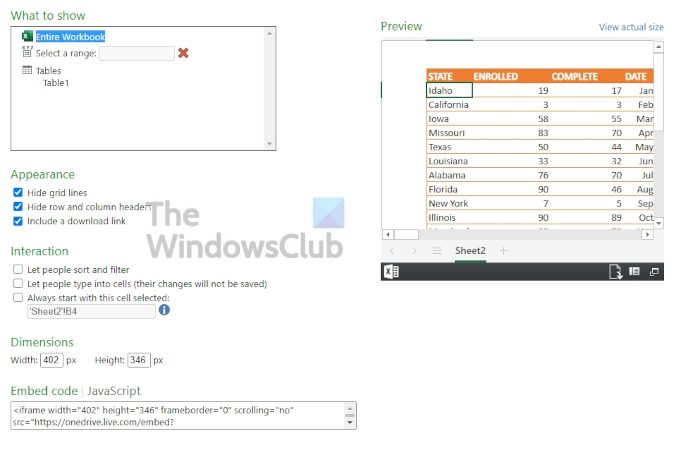
The options available to you here are not significant, but good enough in their own right. From this area, the user can choose what to show, the appearance, the interaction levels, and the dimensions. As you make changes, you can check the preview section on the right side of the page to see if things are headed in the right direction. After completing the edits, copy the JavaScript code, and that’s it; you can now paste it into your blog or website.
Read: Top 15 Financial functions in Excel
Can I teach myself Excel?
Yes, you can. The internet is filled with educational data that can help with what you want to learn. You can find information from basic to advanced, and as long as you have the patience, will, and time, you should have no problem getting your head around it all. Not to mention, if you search The Windows Club, you’ll come across several educational Microsoft Excel articles as well.
How to Publish an Excel Spreadsheet on the Web
Open the File then click Save As. At the bottom of the window, click on the down arrow of the drop-down menu. The next step here is to select Web Page from the list. From the File Name box that appears, type a good name for the file. Complete the task by clicking the Publish button.
Read next: How to embed a PowerPoint presentation on a Website.
