
Brave is a good privacy-based web browser and a solid alternative to Mozilla Firefox. Not too long ago the company did something the folks at Mozilla are finding difficult to do, and that is to get rid of Google Search as the default search engine. The company decided to create its own search engine called Brave Search, which was quite surprising. Many of us expected the company to adopt DuckDuckGo as the default search engine, but instead, the developers went on and did their own thing.
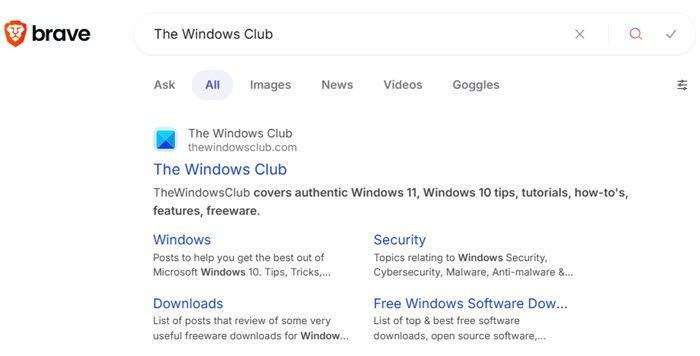
How to use Brave Search engine
Using the Brave Search engine is pretty simple, so let us look into that real quick so you can stay informed.
- Visit the official website
- Choose your preferred language
- Open links in a new tab
- Change the theme
- Perform a search
- The different types of search options
- Set location manually for Anonymous local search
- Using Brave Crypto Basic Attention Tokens (BAT)
1] Visit the official website
To begin the process, you must first visit the official webpage of Brave Search at https://search.brave.com/. You won’t see a ton of options here, just a blank slate with only the search box and the Settings icon to the top-right of the page.
2] Choose your preferred language
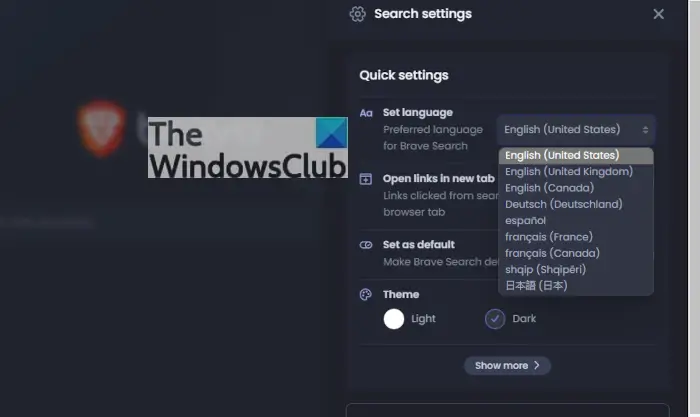
If the current language is not your preferred choice, you can change it by clicking on the Settings icon and selecting your language from the Set Language section. There are only 9 options at the moment, but we expect this to change in the future.
3] Open links in a new tab
Some people want to open links from the search results page in a tab, and that’s a good idea. We can make this happen by returning to the Settings area once more, and from there, look for Open Links in New Tab. Toggle the button next to it to turn it on, and toggle again to turn it off.
4] Change the theme
Yes, you can change the theme from the default white background to dark. Simply click on the Settings icon, and from there, go to the Themes section and select Dark. Switch back to Light whenever you want by using the same method.
5] Perform a search
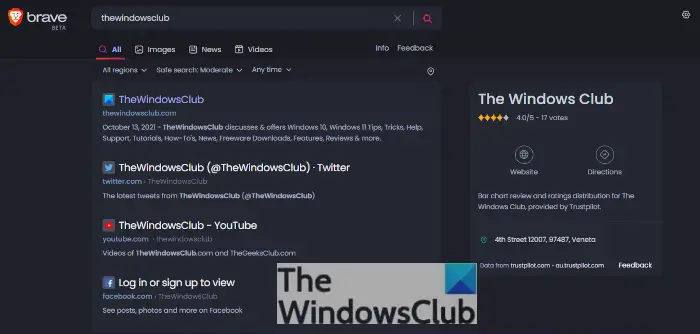
To perform a search, simply click within the box, type your words, then hit the Enter key on your keyboard or click on the search icon.
6] The different types of search options
When you initiate a search, the results will look like any normal search engine. And that includes the option to view Images relating to your query. Not only that, but you can view News and Videos as well.
Additionally, it is possible to change the Region, the Time, and how safe the results are via Safe Search.
7] Set location manually for Anonymous local search
Every search engine has a local search feature, but Brave Search takes things one step further. When you use this feature, it will utilize the IP address broadcast by your Windows 11 computer, but here’s the catch: Brave Search will not store that IP address.
This means that Brave Search will not be able to tie your search results to your location; therefore, all your searches remain private at all times.
Now, to manually set your location instead of having the web browser choose for you, please visit the official Brave Search website and then click on the Settings icon located in the top-right corner. Next, select “Show More” and scroll down until you see “Anonymous local results.” From under it, click on the Set Location Manually button, then wait for the map window to appear.
From that window, drag the map icon to your preferred location then hit the Done button, and that’s it.
8] Using Brave Crypto Basic Attention Tokens (BAT)
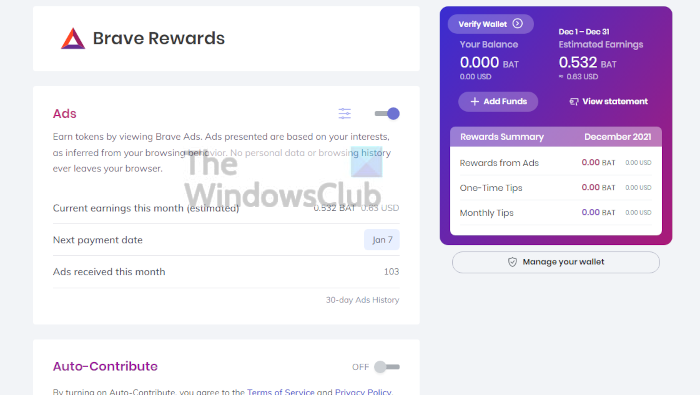
The most unique thing about the Brave web browser is the BAT tokens. If you browse on the correct websites, you can earn some BAT. But not only that, if you click on the Brave advertisements, you can also earn some BAT.
From the Brave Reward page, you can see how many BATs you’ve earned along with the US dollar conversion. For example, at the time of writing, I have earned 0.478 BAT, which rounds out to a solid 0.57 USD.
To view your rewards, click on the hamburger menu at the top-right corner, then select Brave Reward. Here you will see the number of BATs you’ve earned, along with other information.
From here you can turn off Brave Ads, decide if you want to automatically contribute some of your earnings to content creators, and more.
How to spend BAT?: Well, when you are setting up Brave Reward, you’ll be required to enable the Wallet feature. This is where all your earnings will sit for a while until you’ve verified with a custodial wallet partner.
The options here are Uphold and Gemini. Once you’ve chosen one and linked it with your wallet, you can easily deposit and withdraw at any time.
How does Brave search engine work?
Brave Search will track the time a user spends on websites and then divide up the Brave Crypto Basic Attention Tokens (BAT) to pay websites each month. Users can withdraw their BAT in or pay it as a tip to their websites with its manual tipping feature.
Is Brave search engine a web browser?
No, it is not. The web browser and the search engine are separate entities. They are combined to enhance the web browser and attract more users to Brave Search in the long run.
Read: Brave browser not loading pages like Outlook.com and other websites on PC.
