
You might not have known this, but Steam synchronizes a lot of your saved files to its servers for easy access. This means if you uninstall a game and reinstall it again, the tile will automatically download the save files from the Steam servers. Now, there is another way to get these saved files. Yes, you can download them from your preferred web browser as well, which is a nice touch from the folks at Valve. The question is, how can we get this done? Well, this is exactly what we’re going to discuss right now.
How to download Steam Cloud Saves to PC
Let us see how to download your Saved Games from Steam Cloud to your Windows PC using the Sync feature. Getting this feature up and running is a simple affair. So, let us look at how to do it before we move on to other steps.
- Open the Steam app on Windows
- Navigate to Properties
- Enable the Sync games feature
1] Open the Steam app on Windows
OK, so to begin, you must fire up the Steam app on Windows. By default, Steam will auto-start after installation, but if that is not the case, open it via the Desktop, Task Manager, or Start Menu.
2] Navigate to Properties
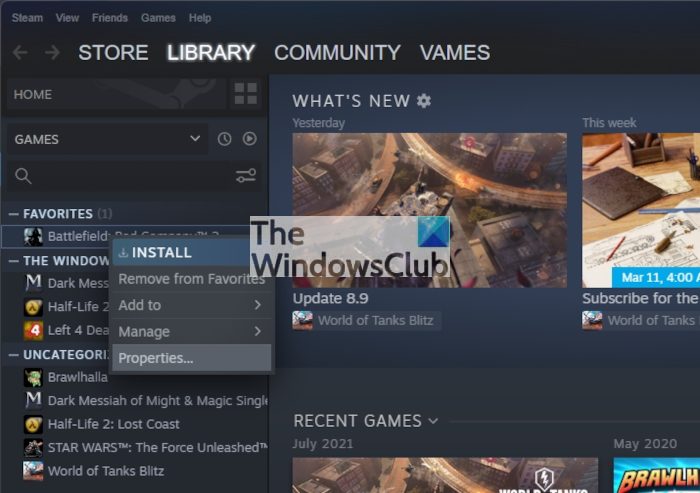
Just go to your games’ library, then right-click on the title you want to sync, and from there, select Properties.
3] Enable the Sync games feature
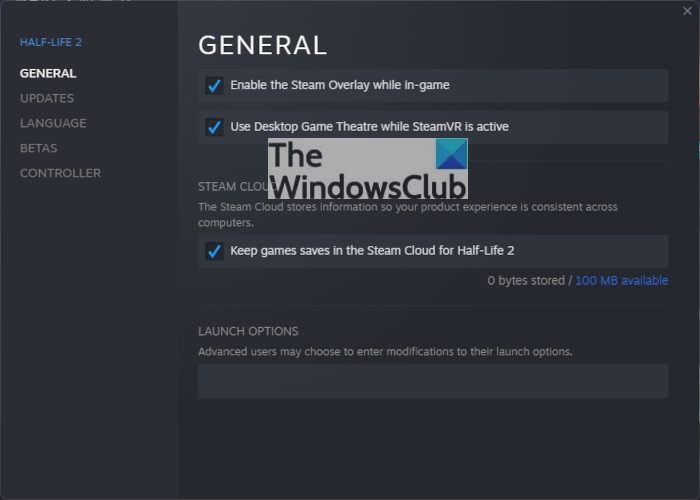
After firing up the Properties section, click on the General tab, and once that is done, be sure that “Keep games saves in the Steam Cloud for Game” option is enabled by checking the box next to it.
Steam Cloud option is not available
We should point out that if the Steam Cloud option is not available, it simply means the game is not supported.
- Launch your web browser
- Visit the official Steam Cloud page
- Select the preferred game from the list
- Download the game files
To begin, launch your favorite web browser. As long as the browser is supported, you should have little to no problems at all.
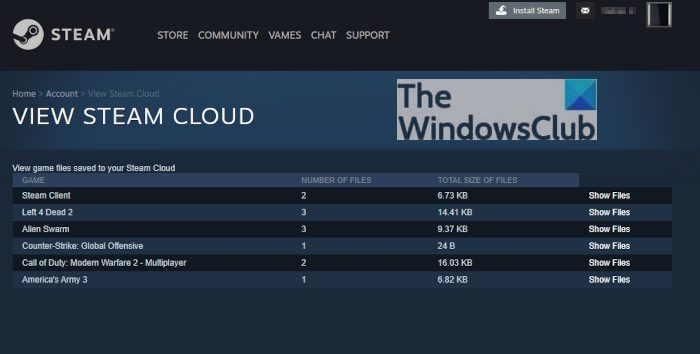
OK, so the next step t take here, is to visit the official Steam Cloud page by clicking on store.steampowered.com. Visiting the page will display a list of games currently storing saved files in the Steam Cloud.
Find the correct game on the list, then click the Show Files button to the right of it. This will load a new page right away.
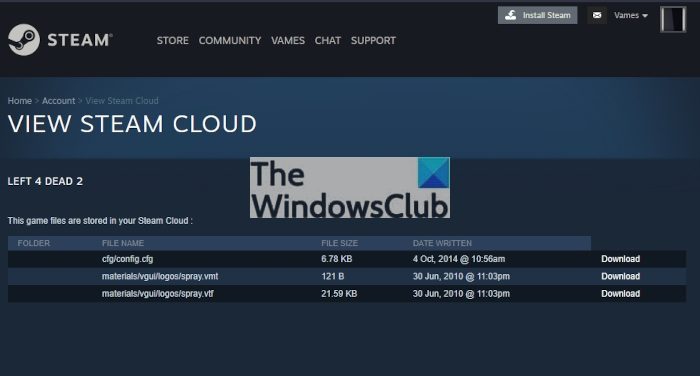
To get the game files on your computer, click the Download button to the right of the file name.
Read:
- How to Download, Install Steam and Manage Steam Games on PC
- How to use Steam on PC
- How to install Steam Skins on Windows
Does Steam Cloud have a limit?
At the moment, Valve hasn’t set a limit for cloud save data for a Steam account. While each game has its own size limit, it’s not something you have to worry about. But, you should keep cleaning your Steam Cloud storage regularly. Otherwise, there would be plenty of unnecessary files and unwanted backups.
Where are Steam Cloud saves stored?
Steam cloud files are saved locally to a default location. On Windows, the default location is C:\Program Files (x86)\Steam\userdata. For macOS, cloud files are stored locally under ~/Library/Application Support/Steam/userdata. The game-specific cloud files are stored under the appID folder of the game in the steamID (corresponds to Steam account) folder.
Read next: How to change the Language of individual Games in Steam
