
By now, it should be evident what Discord is all about, but for those new to the experience, it is a chat platform originally designed for gamers. These days, it’s more than that, but it’s still primarily a place for chatting with friends, strangers, and family.
If you frequently communicate on Discord, you may want to consider deleting your chat history. But that is not an easy task. The good news is that we know how to get the job done, and it doesn’t take much either, so let’s get started.
Why delete your Discord messages?
There are multiple reasons to delete your direct messages on Discord, but the primary reason is largely related to privacy. Perhaps you said something that could be used to compromise your privacy or be used against you in the future.
How to delete Direct Messages in Discord
Deleting your direct messages is easier than you might think. The following information should bring you down the right path:
- Open the Discord app
- Open the preferred chatbox
- Right-click to Delete
- Shift + Delete Message
1] Open the Discord app
OK, so you should begin by opening the Discord app via desktop or the web, then sign in if prompted to do so.
2] Open the preferred chatbox
The next step is to locate and open the message area where you were speaking with. To access this, click on the name of the person you were speaking with, and you should immediately see your conversation history.
3] Right-click to Delete
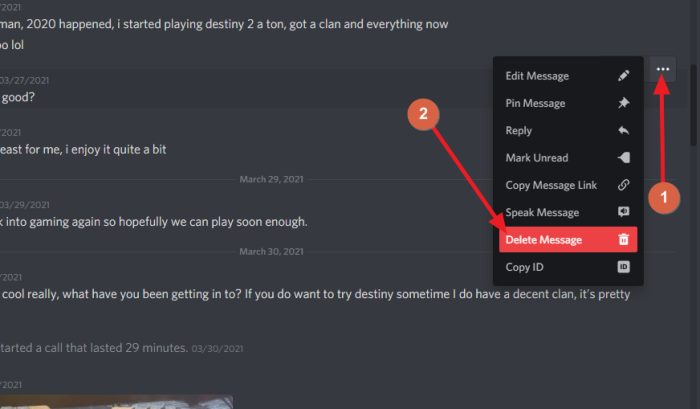
In order to delete a comment for good, you must right-click on the comment itself, then select Delete Message. You will then be asked to confirm you want to delete this message. Click the Delete button to complete the task.
4] Shift + Delete Message
Alternatively, right-click on a message, then press Shift + Delete Message to remove the comment without having to confirm your action.
Another way to do this is to hover your mouse cursor over the comment, then click on the More button. From there, click Delete Message.
How do you mass delete Discord messages?
- Open the preferred chatbox
- Select recent comment and activate the editor
- Choose multiple messages and delete
1] Again, open the preferred chatbox
OK, so in terms of removing several messages all at once from your DM, you must first open the chatbox in the same way you’ve done it above.
2] Select recent comment and activate the editor
From here, you must press the Up button on your keyboard. Doing this will select the most recent comment. From there, press the Up button once more in order to activate the editor.
3] Choose multiple messages and delete
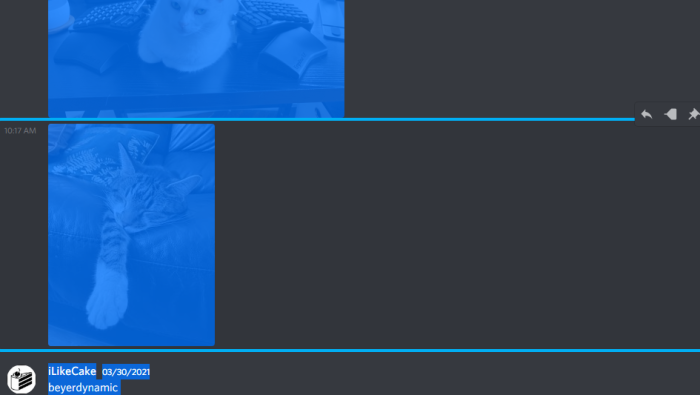
The final step then is to click CTRL + A to select all comments in your DM. Press the Backspace button to delete all of them. Hit Enter to confirm, and that’s it.
Read next: How to improve Discord audio quality on PC.
