
If you spend a lot of time working in Windows Terminal, keeping your workspace organized is a good idea. Over time, you may have created many Windows Terminal profiles you no longer use, and deleting them can keep your workspace neat and clean. So, how do you delete a Terminal Profile in Windows 11?
How to delete a Terminal Profile in Windows 11
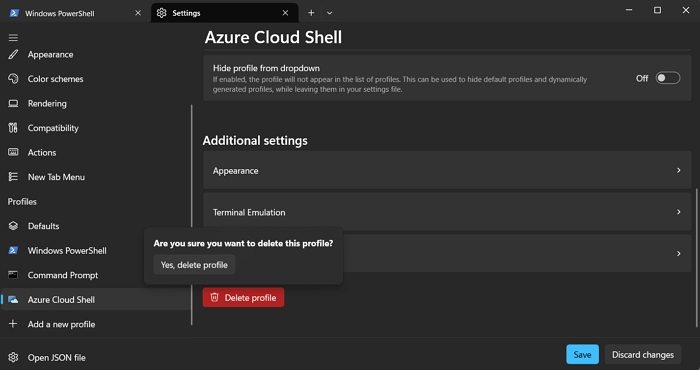
Windows Terminal offers a built-in option to delete any terminal profile. However, we suggest backing it up before you delete it. Here are the steps to delete it:
- Open Windows Terminal and go to Settings.
- Now, from the sidebar, you will see the Profiles section.
- Now on the sidebar, you will see the Profiles section.
- Click on a profile that you would like to delete and scroll down. For example, we selected Azure Cloud Shell.
- Click on the Delete button > Yes, delete profile to get rid of it.
That’s all. With that, you have successfully deleted a profile in Windows Terminal. You can also use Add a new profile to add any other terminal profile you would like.
How to backup the Terminal profile
Before you go ahead and delete your Terminal profile, it’d be wise to take a backup. So, if things don’t go as expected, you’ll have a restore point. But Terminal doesn’t offer a one-click option to back up. Instead, here’s what you need to do:
- Press Windows key + X to access the quick menu.
- Select Terminal and open it.
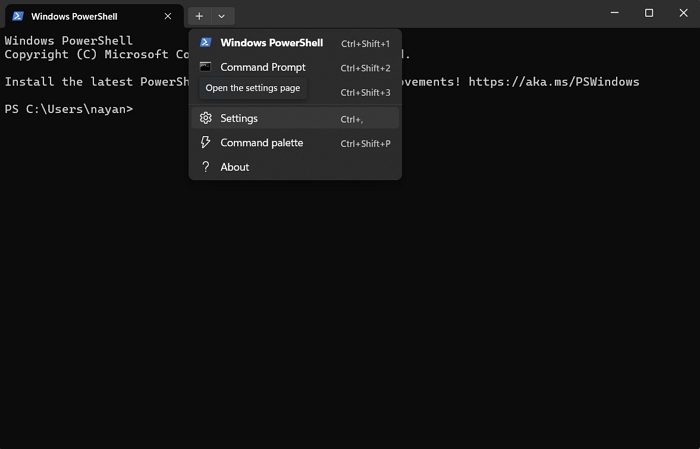
- In Windows Terminal, click on the dropdown icon and select Settings.
- Click on Open JSON file from the sidebar and select your preferred text editor or you can use Notepad.
- Please copy the entire content of the JSON file, create a new file, and paste it there.
- Once done, save the file with a new name like terminal-settings-backup.json.
- If you need to restore the backup, copy the contents of your backup JSON file into the actual file.
Now read: How to change Font Size and Font Weight for Terminal profile
Can I restore a deleted Windows Terminal profile without a backup?
Unfortunately, no. Once a Windows Terminal profile is deleted from the Settings UI (or removed from the settings.json file), it cannot be restored automatically unless you have previously saved a copy of settings.json. If you want to recover it, you will need to recreate the profile manually or restore it from a backup JSON file.
Why is the Delete button missing for some profiles in Windows Terminal?
Some profiles, such as the default PowerShell or Command Prompt profiles, are automatically generated by Windows Terminal from installed shells. Therefore, they cannot be deleted from the UI. If you want to hide them, you can set “hidden”: true for that profile in the settings.json file instead of deleting it.
