
Are you looking for a solution to convert GPX files to TCX format on your Windows 11/10 PC? Here is a complete guide that you can follow to learn different GPX to TCX conversion methods.
GPX (GPS eXchange Format) is a common GPS data file format that stores routes, waypoints, and tracks. Similarly, Training Center XML (TCX) is also a GPS data file format natively used in Garmin’s Training Center product. Garmin introduced it with Training Center. If you want to convert your GPX files to TCX format, you have two options. Let’s look at these methods.
How do I convert a GPX file?
To convert a GPX file, you can use a free desktop application like GPSBabel. This software lets you convert GPX to a variety of GPS file-formats including FIT, TCX, KML, KMZ, WPT, and more. You can also use a free online tool to convert GPX to other file formats. Try a free web service called Online GPS-track converter.
What opens a GPX file?
To open and view a GPX file on Windows, you can use dedicated free software. There are plenty of free software that let you do so. Some of these software include GPX Editor, Garmin BaseCamp, and RouteConverter. You can simply download and install this software on your PC, and then start viewing your GPX file.
How to Convert GPX to TCX in Windows 11
Here are the methods you can use to convert a GPX file to TCX on your Windows 11/10 PC:
- Use a free online tool to convert GPX to TCX online.
- Use free GPX to TCX converter software.
1] Use a free online tool to convert GPX to TCX online
Here are the free online tools that you can use to perform GPX to TCX conversion online:
- AllTrails
- Online GPS-track converter
1] AllTrails
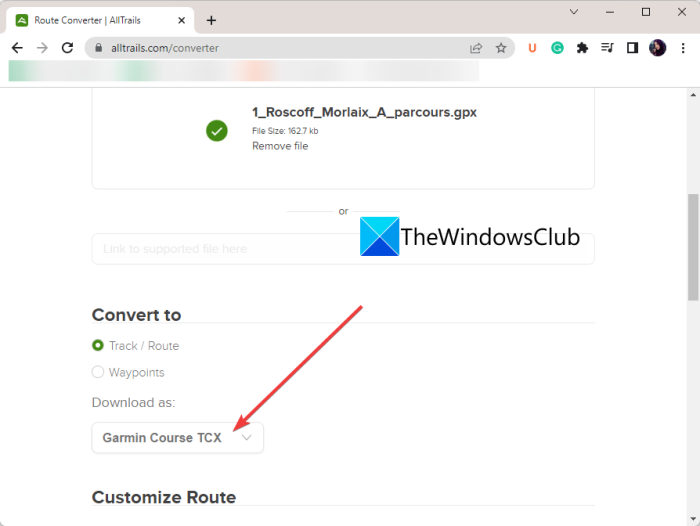
Use this free online tool, AllTrails, to convert GPX to TCX. It’s a web service that lets you convert routes and GPS data files. You’ll need to create a free account on its website to use the tool.
Besides TCX, you can use it to convert GPX to many other file formats including FIT, KML, KMZ, Excel, RTE, and many more. You can even customize multiple route configurations before starting the conversion. These options include reverse route, add/ replace elevation, combine multiple routes into one, simplify route, cue sheets, etc.
How to convert GPX to TCX online using AllTrails?
Here are the basic steps to convert GPX to TCX online using AllTrails:
- Firstly, go to its website in your web browser.
- Now, import the input GPX file that you want to convert or you can also drop the source files onto its interface.
- After that, choose Convert to format to Track/ Route or Waypoints.
- Next, select Download as format to Garmin Course TCX.
- If needed, you can configure various options as per your need.
- Lastly, you can start the conversion by clicking on the Convert file button.
When the conversion is finished, you can download the resulting TCX file.
Read: How to edit KML Files in Windows.
2] Online GPS-track converter
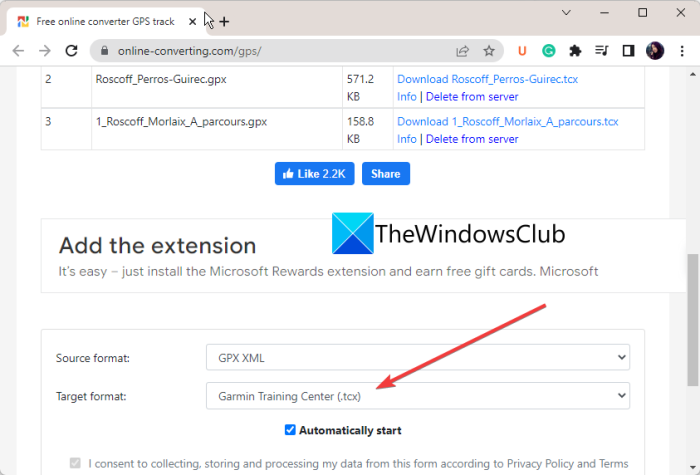
As the name suggests, an online GPS-track converter is a free online GPS file converter tool. Using it, you can convert GPX to TCX and many other file formats including TRL, TRK, WPT, KML, etc. It supports batch file conversion. Hence, you can convert multiple GPX files to TCX format at once.
The conversion process is very simple. Open the website in your browser, set the Source Format to GPX XML, and the Target Format to Garmin Training Center (.tcx). Now you can add the source GPX files you need to convert. Once you do, it will convert the files to TCX format. You can download the output files after the conversion.
Try it here.
2] Use free GPX to TCX converter software
These are the free desktop applications to convert GPX files to TCX:
- GPSBabel
- RouteConverter
- JGPSTrackEdit
1] GPSBabel
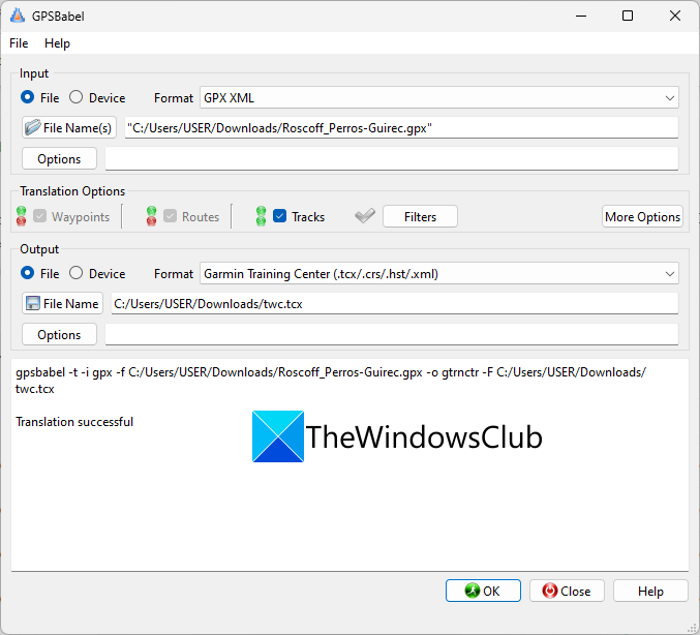
GPSBabel is a free GPX-to-TCX converter for Windows 11/10. You can also apply some data filters to the output TCX file. These track filters include title, move, start date and time, stop date and time, and more. Besides that, it also lets you duplicate waypoints, swap coordinates, reverse the track, simplify the track, etc. You can click on the Filters button to use these filters.
It is primarily a dedicated GPS data converter that lets you convert various GPS data files. Supported input and output formats include KML, KMZ, GPX, FIT, CSV, TXT, WPT, TRK, XML, LOG, and RTE. You can also customize some output options like name, description, encoding, etc., before conversion.
Now, let’s have a look at the steps to convert GPX to TCX using this free desktop application.
How to convert GPX to TCX using GPSBabel?
Follow the below steps to convert a GPX file to TCX format using this free software:
- Download and install GPSBabel.
- Launch the application.
- Select the source GPX file.
- Set up the Translation options.
- Set output format to TCX.
- Click on the OK button to start the conversion.
Let us discuss the above steps in detail.
First, download the software and install it on your PC. Then, start the software’s GUI.
Next, from the Input section, select the Format as GPX XML and then press the Filename button to import your source GPX file. After that, you can set up multiple Translation Options and apply some filters as per your need.
Now, set the output format as Garmin Training Center and tap on the Filename button to enter the output filename. If you want, you can use the Options button to configure options like “Read all points even if latitude or longitude is missing” and “Attempt to recovery data from corrupt file.”
Finally, press the OK button and it will convert GPX to TCX in a blink of an eye.
It is a great free GPX to TCX converter software using which you can convert a variety of GPS files from one format to another. You can get it from gpsbabel.org.
See: What is a FIT file? How to view and convert it in Windows?
2] RouteConverter
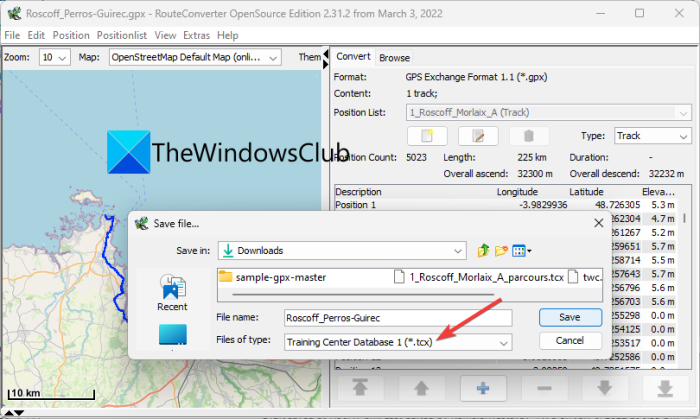
Another free option for converting GPX to TCX is RouteConverter. As its name suggests, it lets you convert routes, tracks, and waypoints. It supports a lot of GPS data files that you can view, edit, and convert such as GPX, TCX, FIT, KML, TRK, RTE, LOG, ASC, CSV, etc.
The good thing is it is a portable application. So, you can download it and then run it without installation. It lets you open a GPX file, and view and edit the data before conversion. Let us discuss the conversion steps now.
How to convert GPX to TCX using RouteConverter?
Here are the steps to convert GPX to TCX using RouteConverter:
- Download and run RouteConverter.
- Open a GPX file.
- View and edit the GPX file, if needed.
- Click on the File > Save as option.
- Set the output format to TCX.
Firstly, simply download the software from routeconverter.com and then run the application file. After that, press the File > Open option to import your source GPX file to this software.
You can now view the tracks and waypoints on the map. If needed, you can edit the GPS data as per your requirements.
Once done, go to the File > Save as option and select the output format to TCX in the Save file dialog. And then, type the output filename and click on the Save button to initiate the conversion.
See: How to convert Excel XLSX or XLS to GPX in Windows?
3] JGPSTrackEdit
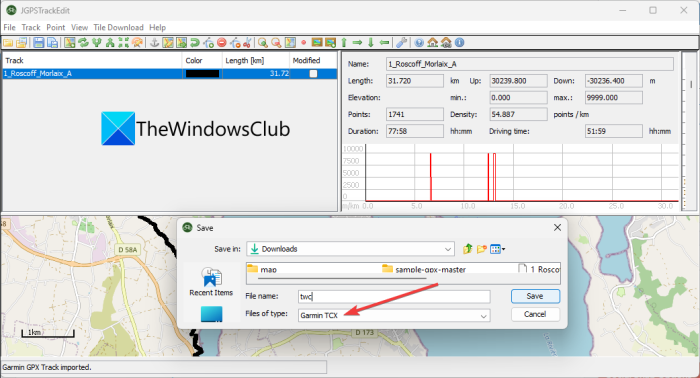
JGPSTrackEdit is another free, portable GPX-to-TCX converter on this list. It is a portable application that you can use to convert GPX to TCX, ASC, and KML formats. Prior to conversion, you can even make modifications to tracks, routes, and waypoints as it is basically a GPS track editor.
How to convert a GPX file to TCX format using JGPSTrackEdit?
Here are the main steps to converting GPX file to TCX format using this free portable application:
- First, download and launch the software.
- Now, click on the File > Open Track option to load a GPX file.
- Then, you can view the waypoints and tracks on the map.
- If needed, you can use tools like Split, Merge, Update Elevation, Append, and more to modify the GPX file.
- Finally, click File > Save As, select TCX as the output format, and click Save to convert GPX to TCX.
You can download it from sourceforge.net. It is free, open-source GPX-to-TCX converter software.
Hope this article helps you find a suitable online tool or software to convert GPX to TCX.
Now read: Convert FIT to GPX using these free software and online tools.
