
Twitch is a YouTube for gamers or game lovers. You may feel as if you are a kid in a candy store if you are a gamer. It offers free content, and to access exclusive content, you need to sign up for its premium membership. Either way, you first need to activate the service and that’s where it gets tricky. There are numerous streaming platforms that Twitch supports, and activating on some of them is straightforward, while on others, you need to follow a specific process. This is what we will outline in this article. We will show you how to activate a Twitch Account on Xbox, Roku, Android, iOS, PlayStation, Apple TV, and Fire TV Stick.
Activate Twitch Account on Xbox, Roku, Android, iOS, PlayStation, Apple TV, and Fire TV Stick
Activating a Twitch Account on Xbox, Roku, Android, iOS, PlayStation, Apple TV, and Fire TV Stick is not difficult; you need to follow some instructions, and you will be good. In fact, the process for doing the same on all major platforms is not significantly different from one another, but some notable differences need to be addressed. That’s what we are going to do here.
1] Activate Twitch on Xbox
Let us start with Microsoft’s gaming console. If you have bought an Xbox, you are probably a gamer, and if you have decided to install Twitch, then you are going to amp up your gaming skills. And who knows! Probably make a carrier in the gaming industry. Whatever it is that you want to do with Twitch, here are the steps to activate the service on your gaming console.
- Open Microsoft Store and download Twitch.
- Launch the app and sign in using your credentials.
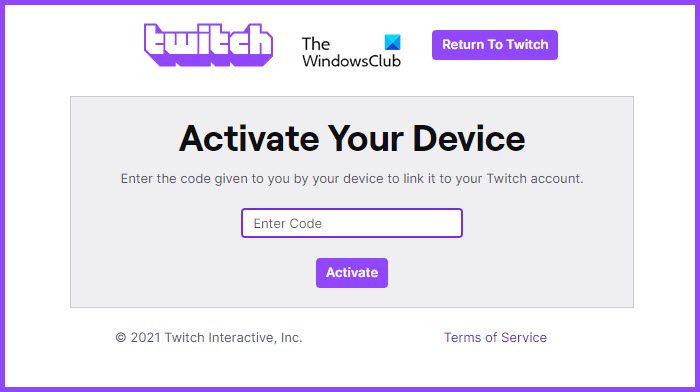
- You will be redirected to the activation page, where you will see an Activation Code, you need to copy that code.
- Then go to twitch.tv/activate on your browser and write that code.
- Finally, click Activate.
Once your account is activated, you can enjoy Twitch.
2] Activate Twitch on Roku
You can definitely use Twitch on a TV platform such as Roku. Just follow my lead and you will be good to go.
- Click on the Home button from your Remote.
- Search for “Twitch”.
- Once the Twitch screen appears, you need to add it to your channel by clicking Add channel.
- Then open the Twitch app and try logging in.
- You will be given an Activation Code.
- Go to twitch.tv/activate on a computer or phone.
- Paste the code and click Activate.
This way, Twitch will be activated on your Roku.
3] Activate Twitch on Android and iOS
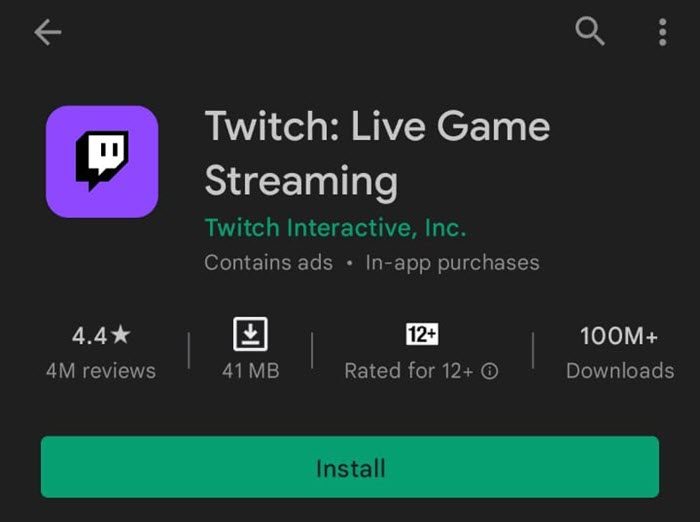
If you want to activate Twitch on a Mobile platform, then you need to follow two easy steps: download the app and sign in. It’s probably the easiest to use Twitch on mobile platforms, Android and iOS than to do the same on any other platform.
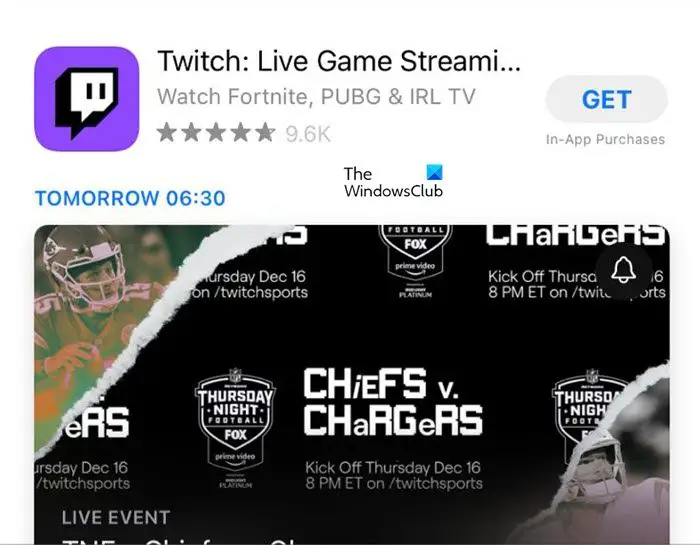
So, go to Play Store for Android and App Store for iOS and download Twitch. Then open the app, log in using your credentials, and you will be good to go.
4] Activate Twitch on PlayStation
If you have a PlayStation 3, 4, or 5, you can use Twitch on it as well. Just follow the prescribed steps and you will be good to go.
- Download Twitch on your console.
- Then open the app and click on Sign In.
- You will be asked to enter your credentials, to do that, and an activation code will appear, you need to copy that code.
- After copying the code, go to twitch.tv/activate on your computer or phone to paste the code
- Finally, click Activate.
This will activate the service for you.
5] Activate Twitch on Apple TV
To use Twitch on Apple TV, follow the given steps.
- Open App Store in Apple TV.
- Then download the Twitch app.
- Open the application and sign in with your credentials.
Here, you don’t have to enter an activation code.
6] Activate Twitch on Amazon Fire TV Stick
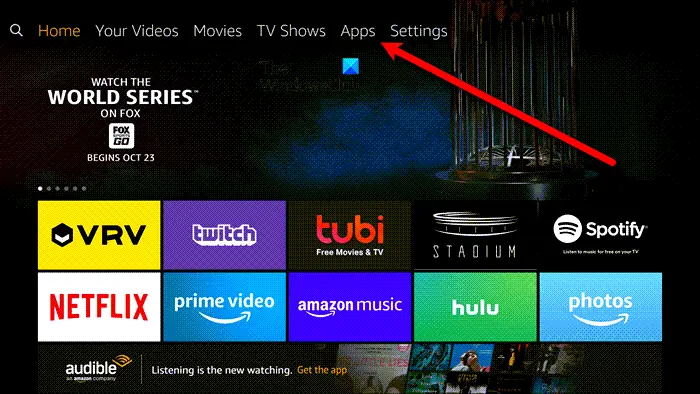
Follow the prescribed procedure to activate Twitch on an Amazon Fire TV Stick.
- Go to Apps and download Twitch.
- Then open the application and try signing in.
- You need to enter your credentials and fetch the activation code.
- Once you do that, head to twitch.tv/activate on your computer or phone to paste the code.
- Finally, click Activate.
This will activate your account.
Why am I not getting my Twitch verification code?
If you are not receiving the Twitch verification code when activating it on any device, check your Internet connection. Make sure that your bandwidth is high; if it’s not, then try contacting your ISP and consult them. You should also check Twitch’s server to ensure it’s not down. However, if you are not getting a verification code while creating an account, then you should check your Spam and Promotion folders; sometimes, these emails get misidentified.
Why can’t I log in to my Twitch account?
If you can’t log in on Twitch, then first refresh the login page and try again as this could be a temporary issue. If that doesn’t help, try using incognito mode or private mode in your browser, or consider using a different browser altogether. It’s also possible that Twitch servers are down. If that is not the case, then reset your Twitch credentials or contact Twitch support for assistance.
Read Next:
