
Office software has been one of the most widely used Microsoft products, and it is now the backbone of many activities we carry out on our personal and professional computers. Microsoft Office 2024/21 is available, and it comes with a few new features and enhanced security.
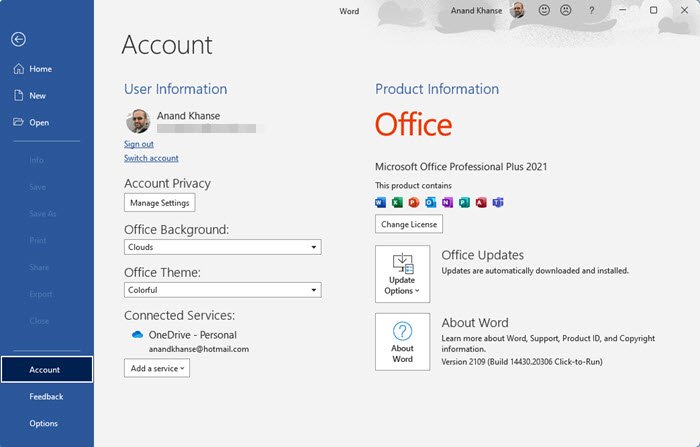
Most people are moving to Office 365, which is a cloud-based subscription product. The activation key is tied to your email account, and you must renew the subscription according to your plan. But if you are still not ready for the cloud and prefer lifetime licenses over subscriptions, Microsoft Office 2024/2021 is the way to go. This post covers everything you need to know to activate your copy of Microsoft Office on Windows 11/10. The procedure is the same for Office 365 license keys.
How to check Office Activation Status
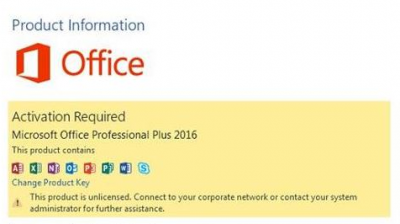
Not sure about the version or activation status of your copy of Microsoft Office? These steps can help you find out.
- Open any Office application (Word, Excel, PowerPoint, etc)
- Go to File > Account
- The program’s activation status is visible right under Product Information heading. If it says Product Activated, it means that you have a validly licensed copy of Microsoft Office. But a yellow highlighted box that reads Product Activation Required signifies that you need to activate your copy of Microsoft Office. Read on to find out how to activate Microsoft Office.
Another method to check activation status would be using CMD. Follow these steps to check activation status using CMD.
- Locate the Microsoft Office installation folder (e.g., C:\Program Files (x86)\Microsoft Office\Office16).
- Open a new command window.
- Enter CD <office installation path> (from step 1).
- Now execute cscript ospp.vbs /dstatus.
After running this script, you will be able to see the current license status. Furthermore, you can even see the expiry date, the last five characters of your product key and other similar details.
How to activate Office
Activation is possible in a few ways, and we have tried to cover them here. All these methods apply mostly to Microsoft Office 2024/2021 and Microsoft 365. Before we start with the process, we assume that you have an unlicensed copy of Microsoft Office installed on your computer.
Sign in to Office using Microsoft Account
If you have already purchased a license or you are just reinstalling Office on a new computer, you don’t need any product keys. Instead, all you need to do is sign in using the same Microsoft Account you used to buy the license.
Office will automatically pick up the eligible license from your account. If you have multiple Office licenses tied to your account, Office will list all of them, and you can select which license you want to use for activation.
This is a simpler and more secure way of activating your copy of Office. By following this, you don’t need to keep product keys somewhere. Here are the steps to activate Office by signing in.
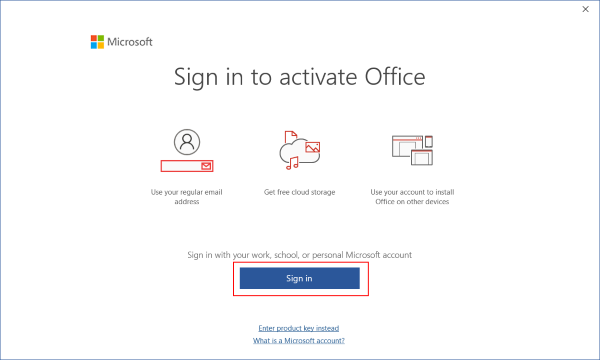
- Open any Office application (Word, Excel, etc.)
- A pop-up will prompt you to sign-in, click on the Sign In button. Or you can go to File > Account > Product Activation.
- Enter the credentials for the account that has an Office license tied to it.
- Select one of the licenses displayed in the list. This is only applicable if you have multiple licenses.
Activate Office using Product Key
If you bought an Office License from a physical or online store, you must have received it in the form of a product key. Office can be activated directly with the product key. But it is best to link the product key with your account first and then Sign In with the same account. To do so, you can follow these steps. Make sure you have the product key ready.
Go to office.com/setup. Sign in using your Microsoft account.
Now enter the 25-character long product key as mentioned.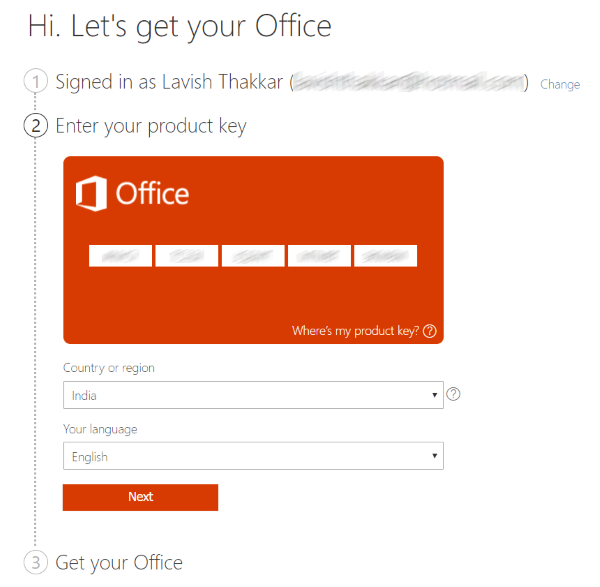
Select your country and your language. Click on Next.
After this, you will be redirected to Microsoft Services and Subscriptions Page.
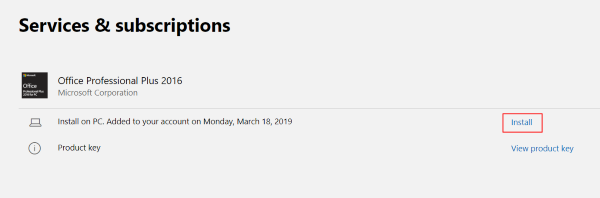
Locate the product you just activated and click on Install Now to download the setup.
Run the setup to install Office on your computer.
When prompted, Sign In using the same Microsoft Account.
If you already had Office installed, you don’t need to follow steps 6 through 9. You can just sign in by going to File > Account > Product Activation. This procedure was one-time only, and the license is now linked with your account. You do not need to keep the product key, as it will always be present in your Microsoft Account.
Activate using Office Activation Wizard
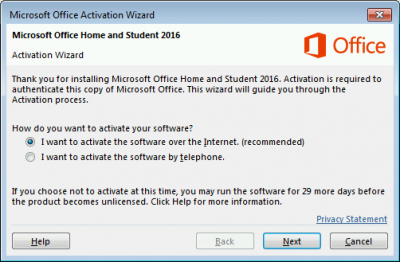
When a copy of Office has exhausted the trial period or is not activated, the user is prompted with an Activation Wizard. Or if you have changed some computer hardware, you will get into activation issues that can be addressed using the Activation Wizard.
Activation Wizard is very helpful, and all the instructions are mentioned in the dialog box itself. If you want to activate Office over the internet, then select I want to activate the software over the Internet, and then select Next. Or you can select the telephone option if you wish to contact Microsoft Support and activate the product over the phone. If you cannot activate your product, it is best to contact Microsoft Support.
The Microsoft Office activation process is very simple and secure. There are many ways to activate Office on Windows. Make sure you follow the right instructions for your situation.
If you face any issues during the activation process, you can use the Microsoft Office Activation Troubleshooters.
