
If Google Docs cannot load your file and you see an error message Unable to load file then here are the solutions to fix this issue. This issue can occur with Google Docs, Sheets, Slides, or Forms. Google Docs doesn’t cost anything; you just need a reliable internet connection, a browser, and a Google account to create documents or spreadsheets.
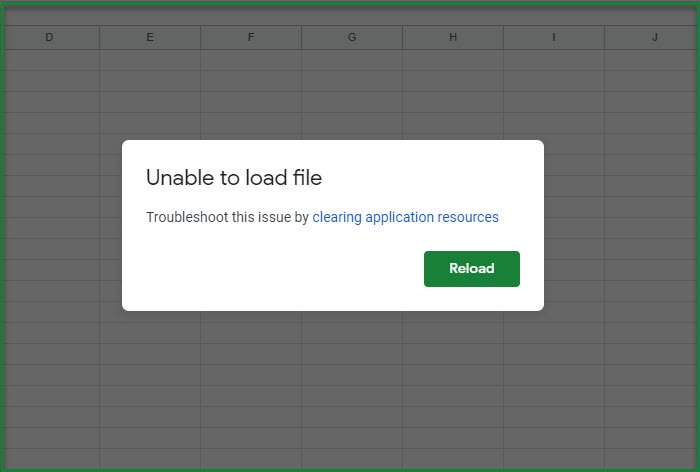
The message you see could be any of these:
Unable to load the file. Try to load it again or send an error report.
The file is unavailable. Sorry, there’s a problem with this file. please reload.
The file could not be opened. Try refreshing the page.
Fix Unable to load file Google Docs error
Usually, this is a non-issue, as you just have to click Reload and you will be good to go. But some users have reported that this issue reappears every now and then while using Sheets. So, if you are on the second camp, you may want to consider having a look at our solutions.
Before trying the solutions, check that your Internet is working properly. You can do that by opening another website or connecting to WiFi on a different device. You can either face a Network connection issue or slow Internet, so, fix them and see if Google Docs or Sheets error gets resolved.
You should also check if there’s some problem with Google’s Server. For that, you can visit downdetector.com. If you are noticing huge spikes then there might be some issue with Google’s server and you can only wait for it to be fixed.
These are the things you can do to fix Unable to load file error in Google Docs or Sheets:
- Sign out and sign back into your Google account
- Clear Cache and Browsing data
- Clear application resources
- Disable one or more Extensions
- Use Incognito Mode or another browser
Let us talk about them in detail.
1] Sign out and sign back into Google account
Sign out of and back into your Google account to see if that helps.
2] Clear Cache and Browsing data
Sometimes the cause is very minor, and a corrupted cache can be one of those issues. So, the first thing you need to do is to clear the Cache and Browsing data of the browser (Chrome, Firefox, and Edge) that you see the error message on.
Do that and check if the issue is fixed.
3] Clear application resources
Pretty evident from the error message itself you can troubleshoot the error by clearing application resources.
If you aren’t in an organization, you can skip this solution.
To clear application resources, follow the given steps.
- Use an administrative account to log in to Google Admin Console.
- Go to Buildings and resources
- Click Open from the Resource Management section.
- Now, click Delete resources to clear application resources.
Do this and check if the issue is fixed.
4] Disable one or more Extensions
If you are not in an organization and clearing the cache doesn’t help, try disabling Extensions and see whether the issue persists.
5] Use Incognito Mode or another browser
Use the Incognito Mode of your browser or try another browser and see if it helps.
Hopefully, these solutions will help you resolve the Google Sheets error.
Read Next: A browser error has occurred message when accessing Google Docs.
Why can’t I open a file in Google Docs?
While Google Docs supports various documents and formats, certain types of files may not be. Google Drive converts supported documents into a format it supports and lets users edit the file. PDF files are exceptions to this, except if you plan to edit it, the document will e converted into DOCS which you can later export as PDF.
How do I fix unable to access a document on Google Drive?
If you cannot access a document, there may be several reasons, including access permissions, download permissions, availability, the correct Google account, access to a shared folder, and file format. Contact the person who shared the document or folder with you to get this sorted.
