
‘Aw, Snap’ is a common error page most Google Chrome users must have seen. This error occurs when a page fails to load in your browser. It can also occur if your system is low on virtual memory. I’ve often encountered this error when trying to connect to Facebook, and I’ve always presumed that too much load on the server side is the reason. What always puzzled me was that clicking the RELOAD button just a second later made the website load fine. So in this post, we will learn about what is the cause behind the Aw Snap error page on Google Chrome.
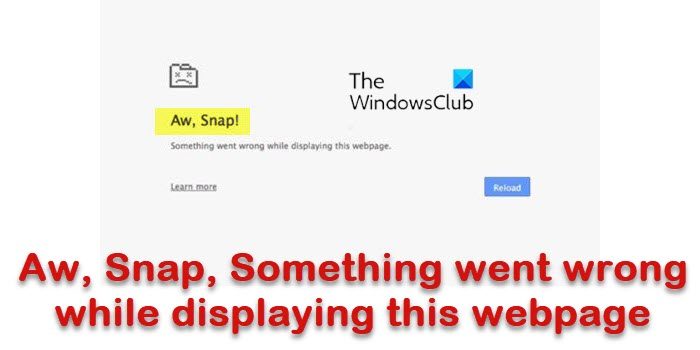
Aw, Snap, Something went wrong while displaying this webpage. To continue, reload or go to another page. Reload.
Do check your internet connection before proceeding with the fixes. An intermittent internet connection is the most common cause of this error page.
Aw, Snap! page crash error in Chrome
Try the following suggestions to resolve the Aw, Snap! error message on Chrome browser:
- Run in Incognito Mode
- Reload the page
- Clear the cache
- Malware Check
- Update Chrome
- Disable Renderer Code Integrity
- Create a new user profile.
1] Run in Incognito Mode
When you get this error on a web page, the first thing you should do is check whether other websites are loading. If you are getting the error on a specific website, there could be extensions or user scripts blocking it. Try opening the website in Incognito mode in this case. If the website is opening, disable your extensions and try again. It might work.
2] Reload the page
The quickest, temporary fix for this error message is to click the RELOAD button. You can also refresh the page using the keyboard shortcut (Ctrl+R) or simply the F5 key. This fix is only passable if you get this error occasionally; if you are getting the error message often, you need to check the permanent fix.
3] Clear the cache
If the RELOAD button doesn’t help, clear your browser cache and try loading the page again. Cache files are sometimes corrupted or contain outdated files, which can make your browser load slowly. Also, these cache files clutter your PC’s storage, which may slow down loading. Thus, deleting the cache may help you avoid the Aw, Snap error.
4] Extension/Tabs/Apps
When running many extensions and apps, your device might run out of memory, which can result in the Aw, Snap page loading error. Disable/uninstall some of your extensions and try loading the page again. Opening many tabs may also slow down your device. Close all other tabs except the one showing a slow-loading error and see if it helps. You can start Chrome in Safe Mode by typing chrome.exe –disable-extensions in Run box and hitting Enter. This will open Chrome in Safe Mode, with plugins, extensions, etc. disabled.
5] Malware Check
Malware tends to slow down your internet speed and your operating system. If you are getting this slow-loading error frequently, you should check for malware on your PC. It is always recommended to use good anti-virus software to keep your PC protected against harmful Trojans and Viruses.
6] Update Chrome
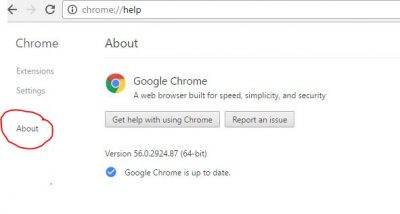
An outdated browser is one of the major reasons for slow loading, and thus, updating your Chrome browser is a good idea to avoid the Aw, Snap error. To do this, go to Chrome Settings and click on About tab in the left panel. Check for the available updates here.
7] Disable Renderer Code Integrity
Right-click on Chrome desktop shortcut and select Properties
In the Target field at the end, append the following command-line switch, then click Apply.
--disable-features=RendererCodeIntegrity
Use it to launch Chrome and see if it helps.
8] Create a new user profile
Sometimes, a corrupt user profile can also result in this error. If you are getting this error, you’d better create a new user profile, where you lose all your saved bookmarks, extensions, etc.
Do leave your comment below if you have some more fixes for this issue.
