
Many users rely heavily on GlobalProtect to access their work or school network securely. However, recently, there’s been a huge surge in complaints from users about VPN not working when connected to a mobile hotspot. In this article, we are going to explore some common reasons why GlobalProtect VPN is not working on a hotspot connection. We will talk about solutions for your Phone and computer.
Why is my GlobalProtect VPN not working?
GlobalProtect VPN may not be working due to various potential issues. An unstable Internet connection, particularly on a mobile hotspot, can disrupt VPN connectivity. Getaway settings as well as improper MTU settings can also be one of the reasons for improper authentication. DNS conflicts and IPv6 interference are some other common factors.
Global Protect VPN not working on hotspot
If GlobalProtect VPN is not working on the hotspot, execute the solutions mentioned below.
- Refresh the connection
- Change DNS settings
- Re-enable SIM on the hotspot device
- Disable IPv6
- Change the MTU value
- Reinstall GlobalProtect
Let’s get started with the troubleshooting guide.
1] Refresh the connection
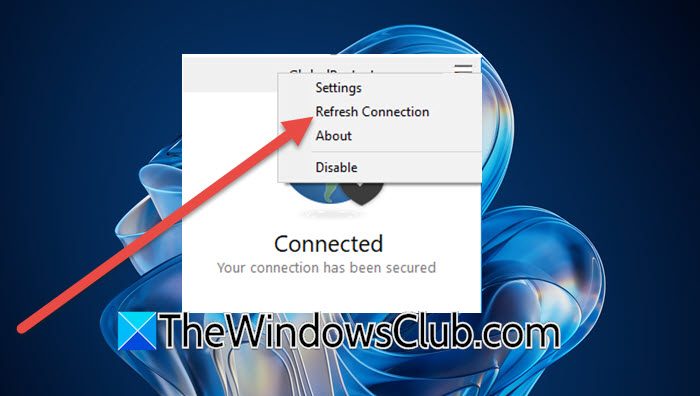
It’s often due to network configuration glitches, IP Conflicts, or authentication errors that GlobalProtect VPN fails to work. Refreshing the connection resolves these underlying network problems. To do the same, click Win + S, type GlobalProtect, and select the Open option. Then, navigate to the top right corner, and click on the three horizontal lines symbol to open Settings, and select the Refresh Connection button. Lastly, hit the OK button to save the changes, and see if the VPN is now functioning properly. If the issue persists, slide to the next troubleshooting solution.
2] Change DNS settings
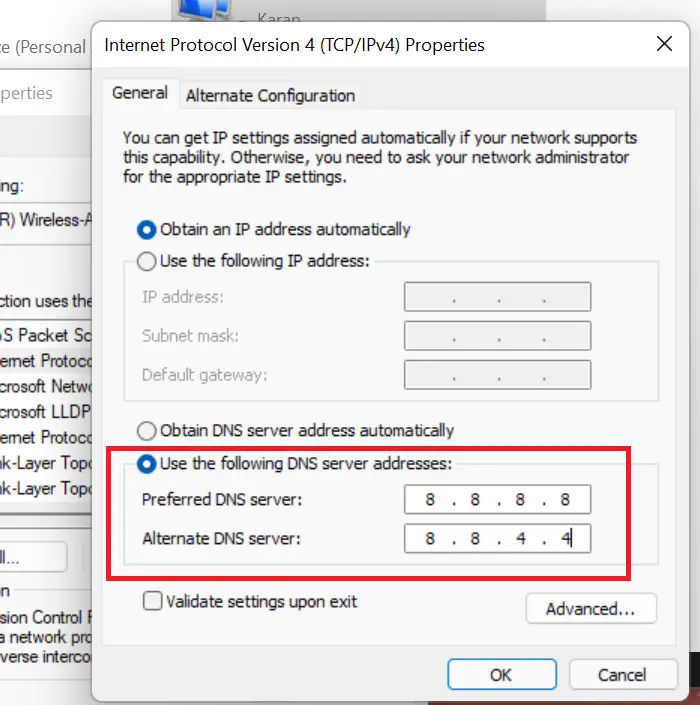
Switching to Google’s DNS bypasses the limitation that comes with a slow or restrictive DVS server that mobile carrier often uses. However, for Android, disabling private DNS eliminates potential conflicts with VPN encryption. Follow the steps mentioned below to execute the same.
- Launch the Control Panel, and click on the Network & Sharing option.
- Select Change adapter settings, and right-click on the active connection.
- Now, Go to Networking > Internal Protocol Version 4 (TCP/IPv4) and click on Properties.
- Choose Use the following DNS server addresses, and enter the following:
- For Preferred DNS server: 8.8.8.8
- For alternate DNS server: 8.8.4.4
- Lastly, select the OK and close buttons to apply the changes.
For Androids, open the Settings app, and then go to Network or Connection and Sharing tab. Next, click on the Private DNS section, and click on the Off button to disable it. Do keep in that every phone has a different UI, so, take the Android’s tutorial as a reference.
See the next solution if the VPN is still causing you trouble.
3] Re-enable SIM on the hotspot device
Launch the Settings app, and click on the Mobile Network tab. Next, if you have a dual SIM, select the SIM that you are using for the hotspot, and toggle off the Enable option. Wait for a few seconds, switch it on, and close Settings. Turn Hotspot off, wait for a few seconds, and then turn it back on. Try connecting GlobalProtect VPN again.
4] Disable IPv6
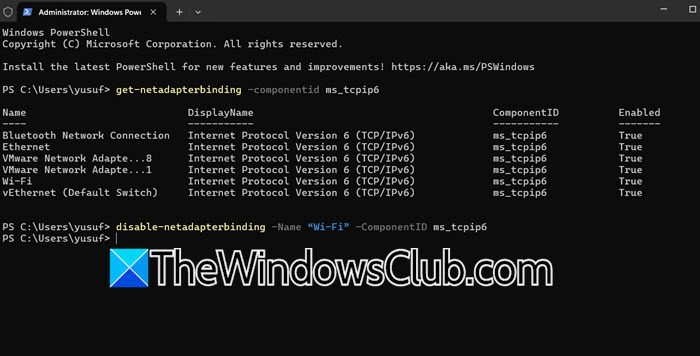
Many corporate VPN are configured primarily for IPv4 networks. When both IPv6 and IPv4 are enabled, this causes conflicts or misrouted traffic. We will disable IPv6 to force all traffic through IPv4, ensuring compatibility with the VPN’s expected network path.
- Click Win + X to open the Quick Link Menu, and select the Admin option to open PowerShell with admin rights.
- To know the current status of IPv6, run the following command.
get-netadapterbinding -componentid ms_tcpip6
- To disable it, run the following command and hit Enter.
disable-netadapterbinding -Name “Wi-Fi” -ComponentID ms_tcpip6
Note: Replace ‘WiFi’ with the hotspot name.
- Now to restart it, run the command mentioned below by replacing ‘WiFi’ with the hotspot name, and hitting Enter:
enable-netadapterbinding -Name “Wi-Fi” -ComponentID ms_tcpip6
Now, check if there’s any issue with VPN. Move to the next solution if the issue continues.
5] Change the MTU value
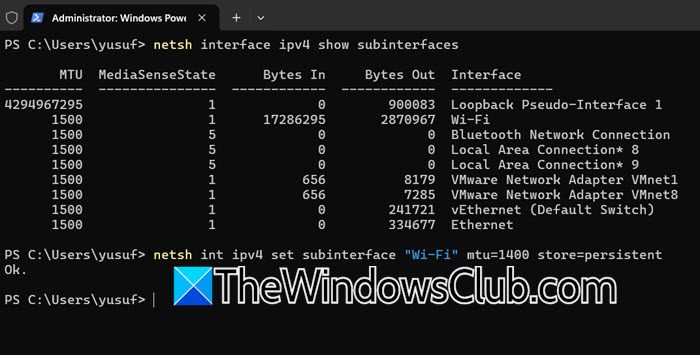
Connection time out or failures can happen due to a high MTU value, as it causes packets to fragment or drop. On the other hand, setting it too low can reduce transmission efficiency. In this solution, we will manually configure an optimal MTU value; here’s how to do that.
- First, ensure that GlobalProtect VPN is connected, and then click Win + X to open the Quick Link menu, and select Command Prompt (admin).
- Run the command given below to verify Ethernet adapter interface:
netsh interface ipv4 show subinterfaces
- To change the MTU size, execute the command below; however, make sure to change YourInterfaceName with the actual interface name.
netsh int ipv4 set subinterface "YourInterfaceName" mtu=1400 store=persistent
Since we are not sure what woul work, we are starting with 1400. If it fails, try 1300. If it works but seems slow, you might try slightly higher values like 1420 or 1440 incrementally. 1300-1400 is often a safe range for hotspots.
Disconnect and then reconnect to GlobalProtect VPN, and try opening websites. VPN should now work more reliably over the hotspot.
Read: How to create a Public VPN Server on Windows 11
6] Reinstall GlobalProtect
Last but not least, reinstalling GlobalProtect is the last resort as sometimes, the corruption goes deeper into the installation and can only be eliminated by a fresh installation. So, go ahead and uninstall GlobalProject, download the latest version, and finally install it.
That’s it!
Can a VPN work over a hotspot?
Yes, a VPN can work over a hotspot; however, the performance depends on network stability and carrier restrictions. Some ISPs throttle or block VPN traffic, while weak signals may cause drops. Moreover, corporate policies also play a role in limiting access to hotspot VPNs.
Also Read: Configure VPN connection in Windows 11.
