
Tech giants like Apple, Microsoft, and Google offer cloud services because they believe cloud services are the future of data storage. Ease of use and free storage capabilities differentiate one service from another. Google, for instance, was among the pioneers in cloud storage services, exceeding the 10 GB threshold for free packages with the rollout of Google Drive. Moreover, the list of features continues to evolve and grow over time, as with Google Drive. It has excellent synchronization capabilities across devices and integrates tightly with Google services.
Tips to free up and create space on Google Drive
Although the amount of free space offered is sufficient for an individual’s needs, the quota can be exhausted soon if you have the habit of uploading large-sized videos and documents regularly; therefore, it can free up some space on your Google Drive account rather than paying a few bucks to buy extra storage space.
Get more space on Google Drive
You should have an eye for an enquirer, so first find which files consume a sizeable amount of free space. To do this, right-click on the Google Drive icon in the system tray and select Preferences. This section shows you a pie chart and the free space available in your account.
After the inspection is done, it is time to free some space, so begin your cleanup mission! Launch Google. Then, near the UI’s lower left side, please find a link and a detailed breakdown of data stored in your account by simply hovering the mouse cursor over it.
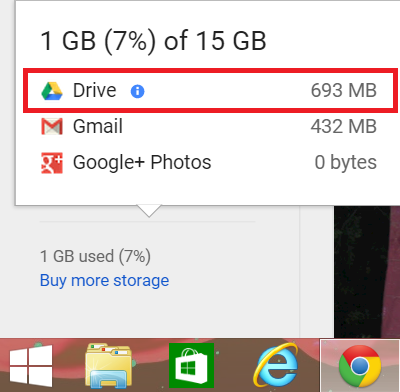
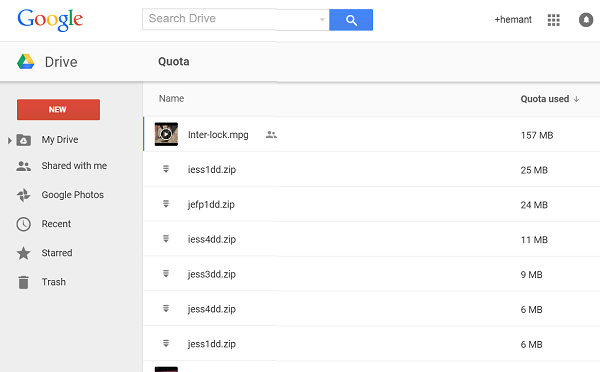
Next, click on the option ‘Drive’ and you should see the view sorted by quota used.
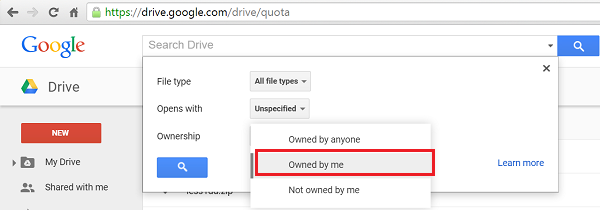
Now, to check large files you created, use the search option and select Ownership as Owned by me. Remove the ones you don’t require.
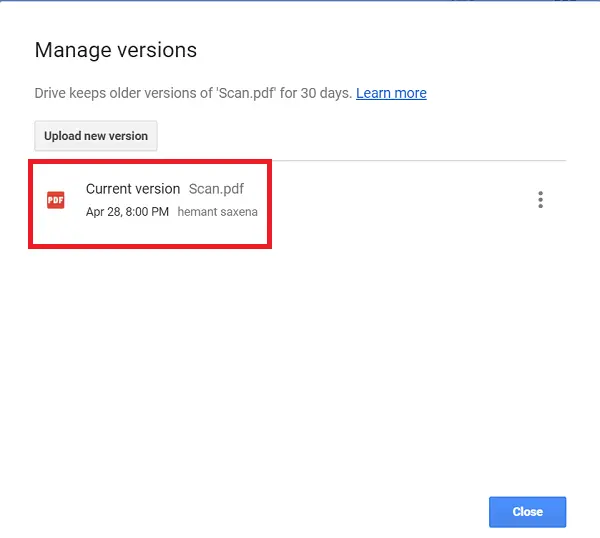
Also, if you know, Google saves earlier versions of files that can consume sizeable amount of space over time. You can create space by right-clicking on a file to check its earlier versions and deleting them to free space. Google deletes the old versions every 30 days by default.
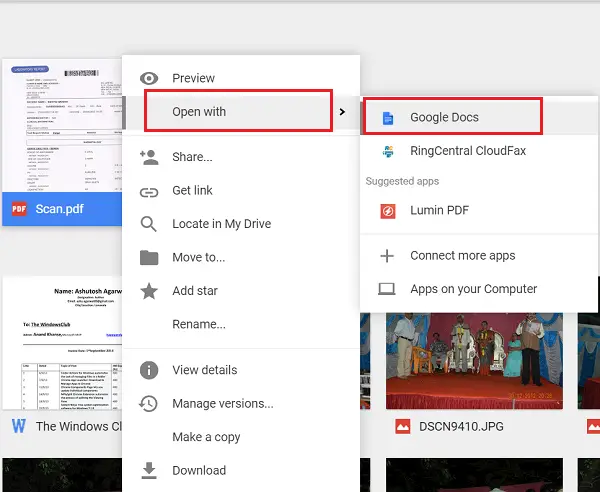
In another case, many PDF files are stored in the Google Drive account, which can consume your available free space. So, while it is not advisable to delete them, it’s prudent to convert such files to Google Docs format to free up precious storage space.
The conversion is simple and a 2 step process. Right-click on the files and select ‘Open with’ and then choose Google Docs. When confirmed, this will create a Google Doc. Delete the PDF file!
Users are not aware that every Gmail email takes up some amount of space and affects the overall storage available on your account. You can use the Advanced Search option and search for emails with large attachments. If not required, delete them.
Finally, clear the trash, as deleted messages in the Trash folder still count towards your storage.
Read: Google Drive search tips and tricks
Is WhatsApp Data storage counted against Google Drive Storage?
Yes, it is. If you have too many videos backed up in the cloud, you have two ways to reduce storage. First, delete whatever is unnecessary, and toggle off the option that backs up the video. Since videos are not compressed when taking a backup, the amount of space occupied is very high.
