
If you are concerned about the security of your computer, you must scan encrypted macros before opening a Word document. To do that, enable this setting in the Local Group Policy Editor or Registry Editor. After that, Word will scan for malware injected into macros before opening the file on Windows 11 and Windows 10 PCs.
Force Microsoft Word to always scan Encrypted Macros before opening
To always scan encrypted macros before opening a Word document, follow these steps:
- Press Win+R to display the Run dialog.
- Type gpedit.msc and hit the Enter button.
- Navigate to Trust Center in User Configuration.
- Double-click on the Scan encrypted macros in Word Open XML documents setting.
- Choose the Enabled option.
- Click the OK button.
To learn more about these steps, continue reading.
To get started, you need to open the Local Group Policy Editor on your computer. For that, press Win+R to display the Run prompt. Then, type gpedit.msc and hit the Enter button.
Once it is opened on your screen, navigate to the following path:
User Configuration > Administrative Templates > Microsoft Word 2016 > Word Options > Security > Trust Center
Here you can find a setting named Scan encrypted macros in Word Open XML documents. You need to double-click on this setting and choose the Enabled option.
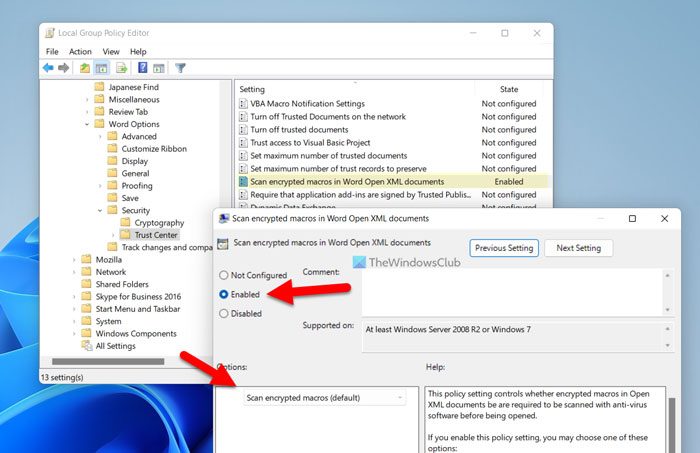
Then, make sure that the Scan encrypted macros setting is selected. If so, click the OK button to save the change.
Otherwise, select the option from the drop-down list and click OK to save the change.
Note: To revert the change and use the default setting, navigate to the same path, open the same setting, and choose the Not Configured option.
Always scan encrypted macros before opening Word document using Registry
To always scan encrypted macros before opening Word document using Registry, follow these steps:
- Press Win+R > type regedit > press the OK button.
- Click the Yes button.
- Navigate to Microsoft\office\16.0 in HKCU.
- Right-click on 16.0 > New > Key and set the name as word.
- Right-click on word > New > Key and name it as security.
- Right-click on security > New > DWORD (32-bit) Value.
- Name it as wordbypassencryptedmacroscan.
- Keep the Value data as 0.
- Restart your computer.
Let’s go over these steps in detail.
First, you need to open the Registry Editor. For that, press Win+R to display the Run dialog, type regedit, press the OK button, and click the Yes option on the UAC prompt.
Then, you need to navigate to this path:
HKEY_CURRENT_USER\Software\Policies\Microsoft\office\16.0
Right-click on 16.0 > New > Key and name it as word. Then, right-click on word > New > Key and name it as security.
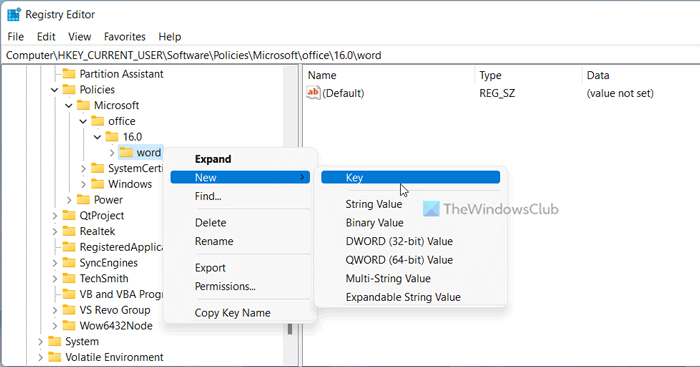
After that, right-click on security > New > DWORD (32-bit) Value and set the name as wordbypassencryptedmacroscan.
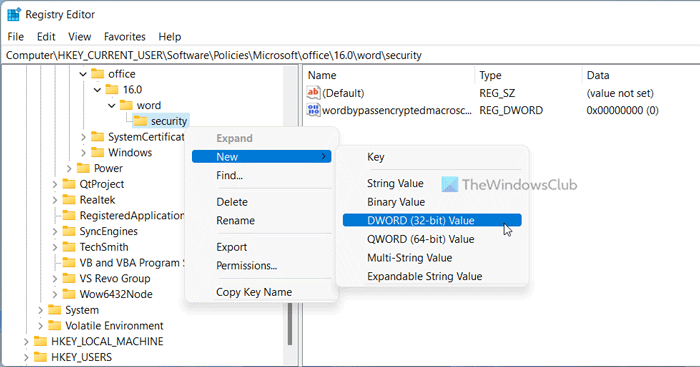
By default, it comes with a Value data of 0, and you need to keep it that way.
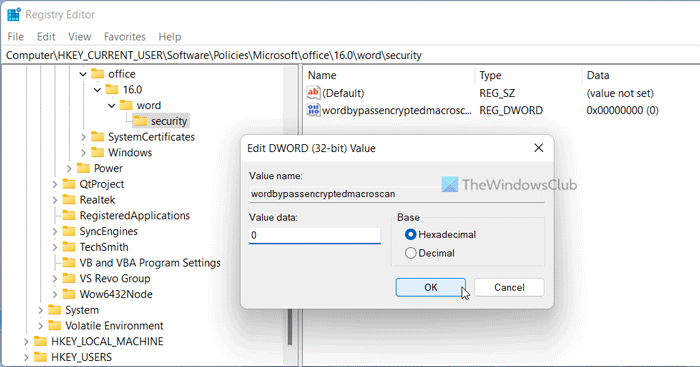
Once done, close all windows and restart your computer to apply the change.
Read: How to open Email Attachments in Reading View in Word
How do I make a macro available to all Word documents?
To use the macro in any Word document, go to the View tab first. Here you can find an option called Macros. Click on this option and select the View Macros option. After that, you can choose any macro from the list to run on your Word document.
How do I know if my macros are safe?
Before running a macro, it is highly recommended to scan it to avoid potential security issues. If a document includes macros, Word blocks it and displays a message. You need to click on the Enable Content button. You can also turn on the aforementioned setting to scan all encrypted macros before opening Word documents.
Read: How to enable or disable Text Predictions while typing in Word.
