
Microsoft Flight Simulator is one of the most hyped games of recent times. It has been loved and appreciated by gamers worldwide, especially for its realistic environment. However, it has been reported that for some users, Flight Simulator fails to start, work, or play.
Why won’t Microsoft Flight Simulator work on my computer?
There are multiple reasons for this issue. But more often than not, it has something to do with your Graphics. First, check if your computer meets the requirements to run the game. Then, you need to check if the Graphic driver installed on your system is outdated. You may face this error in either of the two cases.
However, there are some other reasons, so we have covered every possible solution in this article.
Flight Simulator not working, launching, loading or playable on this device
If Flight Simulator keeps crashing, pausing, or is not working, launching, loading, connecting to the server, or being playable on this device, you first need to check for updates and install all the updates that come your way. After updating your system, try the following suggestions. Ensure that you complete it in the given order; it will save you time.
- Update your Graphics Driver
- Reset the Game
- Run Windows Store Apps troubleshooter
- Reinstall Flight Simulator
- Check System Requirements
Before you begin, restart your PC and router, and ensure you have a stable network connection.
Flight Simulator keeps crashing or pausing
1] Update Graphics Driver
The first and foremost thing you need to do is to update Graphics Drivers. You need to update both the built-in graphics and the Graphics Card that you may have. After updating, check if the issue persists.
2] Reset the Game
Sometimes, the issue can be due to incorrect setting changes. Therefore, you should reset the game settings and check if the issue is resolved. To do that, follow the given steps.
- Open Settings by Win + I.
- Go to Apps, look for Flight Simulator, select it and click Advanced Options.
- Now, click Terminate > Reset.
Wait for it to complete the process and hopefully, the issue will be fixed.
3] Run Windows Store Apps Troubleshooter
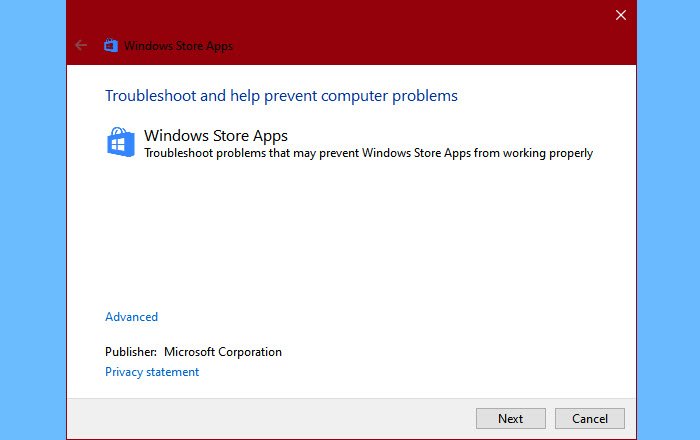
Windows Store Apps troubleshooter is a built-in service of Windows that allows you to fix problems with apps from the Windows Store. To do the same, follow the given steps.
- Open Settings by Win + I.
- Go to Update & Security > Troubleshoot > Additional troubleshooters.
- Click Windows Store Apps Troubleshooter > Run the troubleshooter.
Wait for the process to complete and resolve the issue for you.
4] Reinstall Flight Simulator
If nothing works, try reinstalling the game. You can open Settings and click Apps > Flight Simulator > Uninstall.
Now, redownload and reinstall the game and check if the issue persists.
Hopefully, you can fix the issue with Microsoft Flight Simulator with these solutions.
Read: Alternatives to Microsoft Flight Simulator.
5] Microsoft Flight Simulator System Requirements
The following are the System Requirements to run Microsoft Flight Simulator.
- Operating System: Windows 10/11 64-bit
- Processor: Intel i5-4460 or AMD Ryzen 3 1200 (Minimum), Intel i5-8400 or AMD Ryzen 5 1500X (Recommended).
- Memory: 8GB (Minimum), 16GB (Recommended).
- Graphics: NVIDIA GTX 770 or AMD Radeon RX 570 (Minimum), NVIDIA GTX 970 or AMD Radeon RX 590 (Recomended).
- Storage: 150GB
Ensure your computer is compatible. If not, you should consider upgrading your PC.
If you don’t know your system’s configuration, just open Run by Win + R, type “dxdiag”, and click OK. There, you can view your computer’s configuration and check if an upgrade is necessary.
How to fix loading issues after clicking the fly or ready to fly button?
To fix loading issues after clicking “Fly” or “Ready to Fly,” ensure your device meets the app’s minimum requirements. Clear the app cache, restart your device, and update to the latest software version. If the problem persists, reinstall the game.
How to fix Microsoft Flight Simulator crashing on startup?
If Microsoft Flight Simulator is crashing on startup, ensure your system meets the game’s requirements, update your graphics drivers, and check for system or software conflicts. Disable unnecessary background applications, verify game files through your platform, and consider reinstalling the game.
Read Next: Play Microsoft Flight Simulator game in your Browser.
