
Xbox has become almost like a secondary PC for playing games, watching YouTube, streaming movies, and taking calls. There are some errors that can occur with Xbox. Some users are seeing the error code 0x80070057 on Xbox. We have solutions you can use to resolve the issue in a few steps.
What does error code 0x80070057 mean on Xbox?
Usually, we see Xbox error code 0x80070057 while watching videos on the Xbox app. This means the video file you are trying to play is either corrupted or unsupported.
The same error also occurs when you try to redeem the code on Xbox. This means you didn’t provide all the account details before redeeming the code.
Fix Xbox Error Code 0x80070057
To resolve Xbox error code 0x80070057, follow these steps.
- Download the Video content again
- Check your Xbox Status
- Check your billing and account information
- Clear Xbox Cache
- Reinstall the Xbox app
Let’s get into the details of every method.
1] Download the Video content again
The main cause for the error code to appear is an unsupported video file format or corrupted video. Please remove the file youare experiencing the issue with and redownload it. Delete the video using its options.
You can redownload the content easily in the Settings. Open Settings on Xbox. Then, click on Account and select Download History. Select the item you have deleted and click on Download Again to download it.
2] Check your Xbox Status
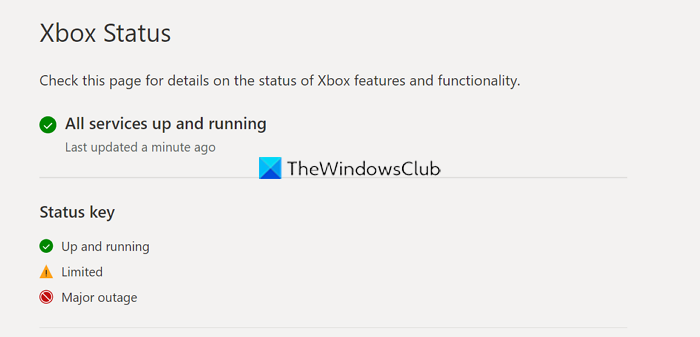
The other way is to check the status of your Xbox. It will give a detailed review of the Xbox and its services, It will detect the issues and suggest solutions to fix the current issues that are detected in the status.
3] Check your billing and account information
You need to fill in all the details in the account information including the payment information. To do so,
- Go to My Account
- Select Payment & Billing
- Then, click on Manage Payment options
- Sign in using your Microsoft credentials, if prompted
- Check the payment information and fill in the missing information
- Now, return to My Account and then to Payment & Billing. Then Click on Billing Info
- Then, fill out the missing information and click Save.
Now, try to redeem the code you have been trying. It will fix the issue and redeem the code.
4] Clear Xbox Cache
Temporary files accumulating on your PC may also be causing the error. You need to delete the temporary files. When you clear the temporary files or cache, the new cached data or files are created when you use the app.
If you are using a console, you can clear the cache as follows.
- Press the Xbox button on your controller
- Go to Settings
- Select Devices and Connections
- Click on the Blu-Ray tab
- Then choose the Persistent Storage
- Click on Clear
This way you can clear the Xbox cache.
5] Reinstall the Xbox app
The final way to fix the issue is to uninstall the Xbox app and reinstall it from the Microsoft Store. To uninstall the Xbox app,
- Open the Settings app
- Click on Apps in the left sidebar
- Select Apps & features tab
- Scroll down to find Xbox app. Click on three-dot button beside Xbox and select Uninstall and follow the on-screen wizard.
You can now install the Xbox app from the Microsoft Store, or download the installer from the Xbox official website.
These are the ways to resolve Xbox Error Code 0x80070057.
How do I clear the cache on my Xbox One?
Clearing cache on Xbox one is pretty simple. You just need to turn it off, unplug the power cable from the power socket as well as Xbox One device. Wait for a minute and replug the power cable. You will see a white light appear after you connect the power cable to both Xbox One and the power socket. Wait till the time it changes to Orange. Now, turn on the Xbox One. The cache is now successfully cleared.
Related read: Fix Xbox error Code 0x8007013d.
