
Windows Updates are necessary for every Windows system. They need to be installed regularly, especially since they include security updates that are crucial to the system. But at times, Windows Update fails and gives out error code 0x80070BC9.
0x80070BC9 – ERROR_FAIL_REBOOT_REQUIRED. The requested operation failed. A system reboot is required to roll back changes made.
Fix Windows Update error 0x80070BC9
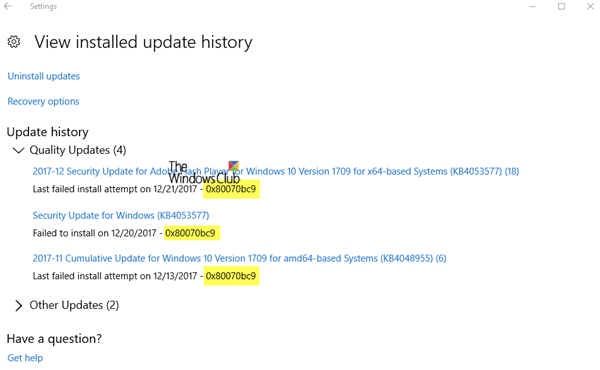
The issue is probably caused by newly installed problematic software, corrupt Windows Update files or policies restricting the behavior of the Windows Module Installer. The Windows Modules Installer Worker or WMIW or TiWorker.exe checks for new updates from the Windows server and installs them on your computer system. Ensure you do not have any policies that control the start behavior of the Windows Module Installer. This service should not be hardened to any start value and should be managed by the OS.
Reboot your system first and then try the following solutions to resolve the issue:
1] Check the status of Windows Modules Installer Worker Service
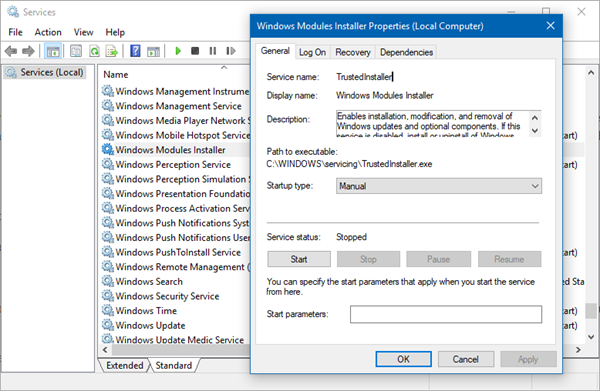
Open Services Manager and check the status of Windows Modules Installer Worker Sevice. Its Startup type should be set to Manual. Click on the Start button and try.
2] Run the Windows Update Troubleshooter
Some users have reported that running the Windows Update Troubleshooter fixed the problem for them. You could try running it before proceeding with further troubleshooting.
Click on Start > Settings > Updates and Security > Troubleshoot. Then select the Windows Update troubleshooter and run it. Restart the system after that.
3] Uninstall recently installed software
If you installed any software recently, uninstall it and see if that resolves the issue.
4] Contact the IT administrator to modify the group policies
For company-managed systems, one of the main causes of this issue is the policy that controls the Windows Module Installer startup behavior. We need to remove them so the Windows Modules Installer Worker Service is managed by the operating system. Since there may be many such policies, it is advisable to contact the IT administrator to modify them as needed.
5] Download and install the update manually
Visit the Microsoft Update Catalog website, search for the failed update by using its KB number and then download and install it. It should work.
Hope this helps!
