
Trying to log into your OneDrive account but received the error message There was a problem signing you in or Please try again in a few minutes? Login errors are one of the most issues common affecting One Drive users. In this tutorial, we will explain how to fix the OneDrive error code 0x8004da9a.
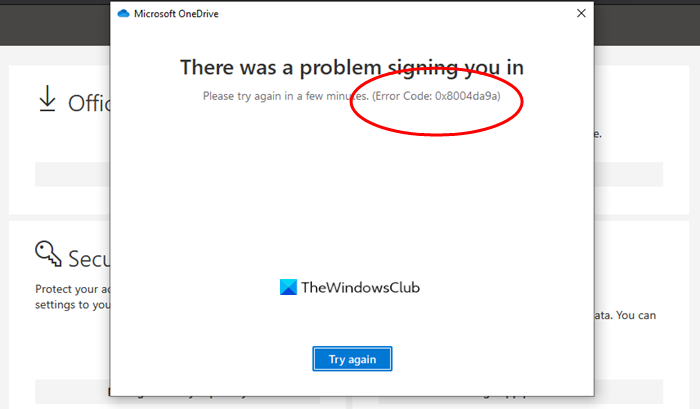
What is the OneDrive error code 0x8004da9a?
OneDrive error code 0x8004da9a is a login error that typically appears when OneDrive users attempt to log in to their OneDrive account.
Fix OneDrive Error Code 0x8004da9a
To fix the OneDrive error code 0x8004a9a, follow the solutions below.
- Install the latest OneDrive app updates
- Reset OneDrive cache
- Check Internet connection and OneDrive server status.
- Repair Microsoft Office suite
1] Install the latest OneDrive app updates
If OneDrive updates fail to update automatically, follow the solutions below.
Click on the OneDrive icon in the taskbar or notification area.
Click the Help and Settings button and then select Settings.
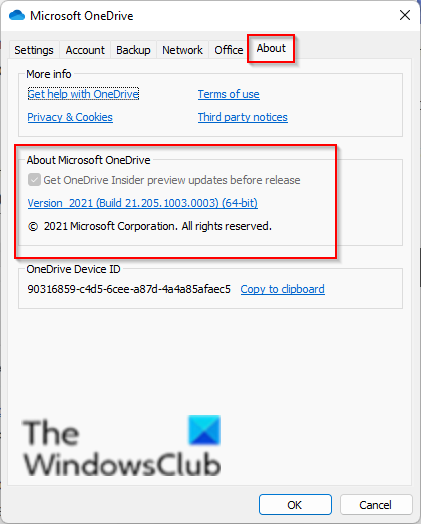
Click on the About tab, then go to About Microsoft OneDrive, and click the version link.
The app will launch the Support page.
Compare your OneDrive version with the latest version listed on the Support page.
Then, click on Download OneDrive for Windows to install the latest OneDrive version.
If the issue persists, follow the other solution below.
2] Reset OneDrive cache
To reset OneDrive follow the steps below.
Press the Win + R key to open the Run dialog box.
In the dialog box type or paste the following:
%localappdata%\Microsoft\OneDrive\onedrive.exe /reset
If you receive an error message, click OK and restart OneDrive.
3] Check Internet connection and OneDrive server status
This error can also occur when the connection to the server times out. There can be several factors contributing to this error.
- You can check your Internet Connection. Use a different one and see.
- You can also check the status of Microsoft Office Online Services.
- Rebooting your device can also be of great help.
- An authentication issue with Outlook may also be causing an error; in this case, you can wait and try again later.
4] Repair Microsoft Office suite
Due to OneDrive being a part of the Microsoft office package any issues affecting the Office installation files will also affect OneDrive, to fix this issue you have to repair Office.
To repair Office, follow the steps below.
Click the Search bar and type Settings.
Click Settings when it pops up.
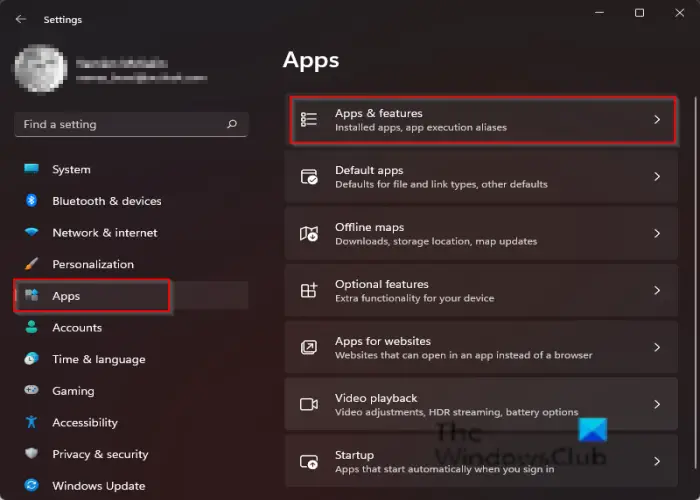
On the Settings interface click Apps on the left pane.
Click Apps and features on the right.
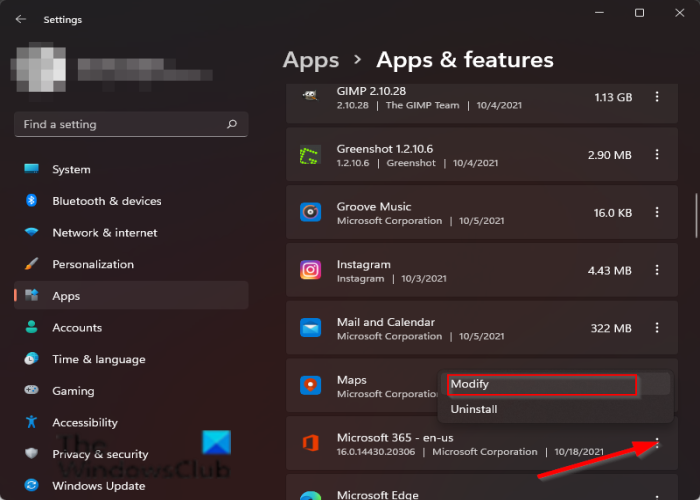
Scroll to the Microsoft Office installation package and click the dots beside it, and select Modify.
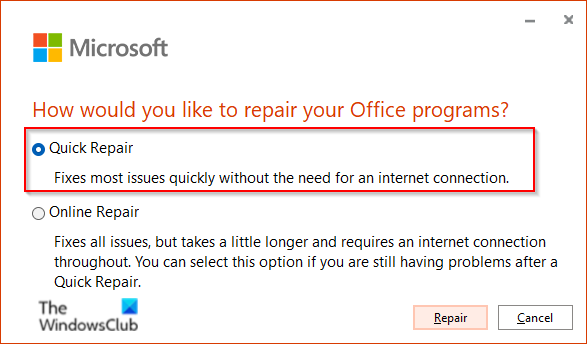
A Microsoft Office dialog box will open asking, “How would you like to repair your Office Program” along with two options Quick Repair and Online Repair.
Select Quick Repair.
If the issue persists, select Online Repair.
Restart your computer to check the results.
We hope this tutorial helps you understand how to fix the OneDrive error code 0x8004da9a in Windows 11/10; if you have questions about the tutorial, let us know in the comments.
Related: Error 0x8004deb4, OneDrive Login was either interrupted or unsuccessful.
