
Error code 0x87E10BCF relates to an issue with the Microsoft Store. Most commonly, users report this error when installing a new app or updating an existing one. In this article, we will be discussing the different ways in which you can prevent the error in question from occurring on your Microsoft Store application again.
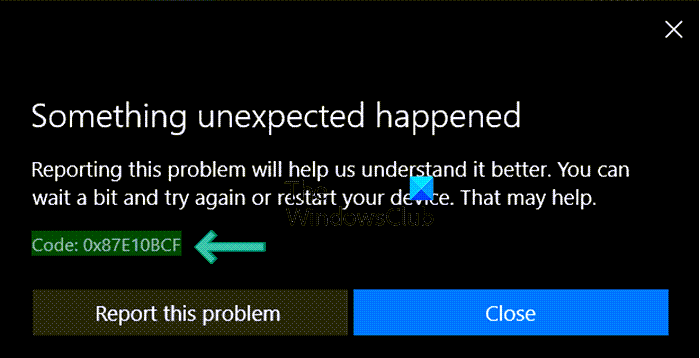
One of the bigger overhauls with the upgrade to Windows 11 is the expanded app catalog in the Microsoft Store. Not only that, but its newer UI is more user-friendly and visually appealing, making it a platform people increasingly rely on to access the latest apps. The primary reason, as reported online, for this error is damaged cache files or misbehaving updated components on your system. Thus, our solutions will address these issues.
How to fix Microsoft Store Error 0x87E10BCF
Try the following suggestions to fix this error:
- Change the internet connection and see
- Reset Microsoft Store
- Try changing the Update Services Startup Type
- Reset the Windows Update Components on your PC
- Reset your PC
1] Change the internet connection and see
At times, the issue may be due to internet connection restrictions. Also, the internet connection could be slow or intermittent. In this case, try changing the internet connection.
2] Reset or Repair Microsoft Store
The first step is to reset the Store app on your Windows PC. Since the MS Store is built into your PC, you can’t uninstall and reinstall it as you would any third-party application. You can, however, reset it via Windows Settings. Here’s how you can do that:
- Open Windows Settings with the Win + ‘I’ keyboard shortcut
- Here, select Apps from the options bar to your left and further click on Apps and Features
- You’ll then be shown a list of installed apps. From that list, locate Microsoft Store
- Select it and further select the Advanced Options button there
- You’ll see an option to reset this application under the Reset head
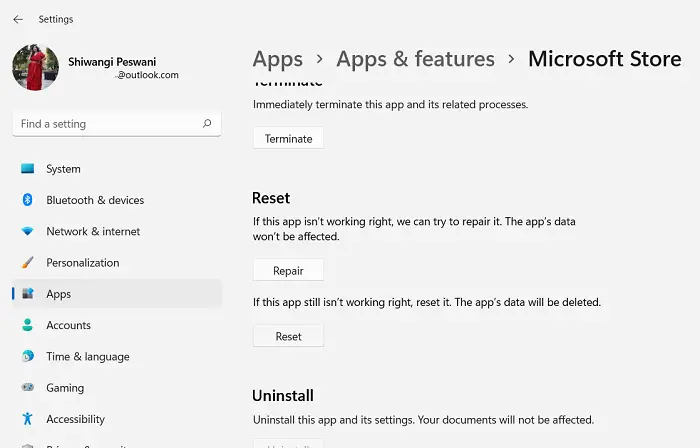
Once you’ve completed the reset, open the Microsoft Store and check whether the issue has been resolved.
3] Try changing the Update Services Startup Type
If the Startup type for your Update Services isn’t configured, it may be turned off, resulting in error 0x87E10BCF and preventing you from installing or updating applications.
The default configuration on a standalone Windows 11/10 PC is as follows:
- Windows Update Service – Manual (Triggered)
- Windows Update Medic Services – Manual
- Cryptographic Services – Automatic
- Background Intelligent Transfer Service – Manual
- DCOM Server Process Launcher – Automatic
- RPC Endpoint Mapper – Automatic
- Windows Installer – Manual.
We are changing the Startup types to Automatic in some cases.
- Open the Start Menu, search for the Command Prompt, and run it as administrator
- Now, type each of the following commands in the CMD window one at a time
SC config wuauserv start=auto

SC config bits start=auto

SC config cryptsvc start=auto

SC config trustedinstaller start=auto
- Once these commands are input and initiated, you can close the CMD window and restart your computer to implement the change
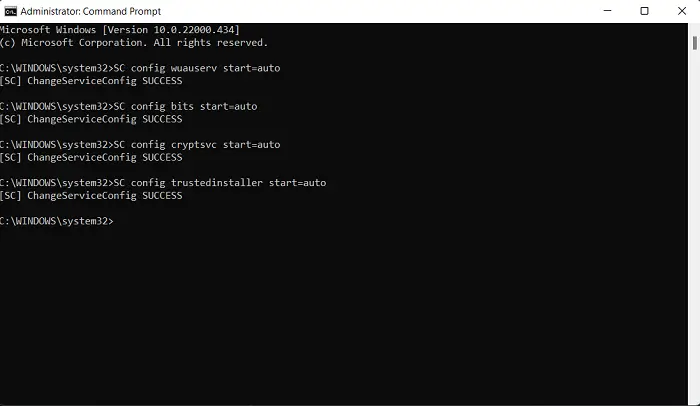
Upon restart, check if the issue has been resolved.
4] Reset the Windows Update Components on your PC
Given how frequent Windows updates are, it is no surprise that the system is highly orchestrated, with many components coordinating with one another. On the off chance that some of these components aren’t functioning properly, you may come across the error in question, and in that case, you can try resetting Windows Update Components.
5] Reset your PC
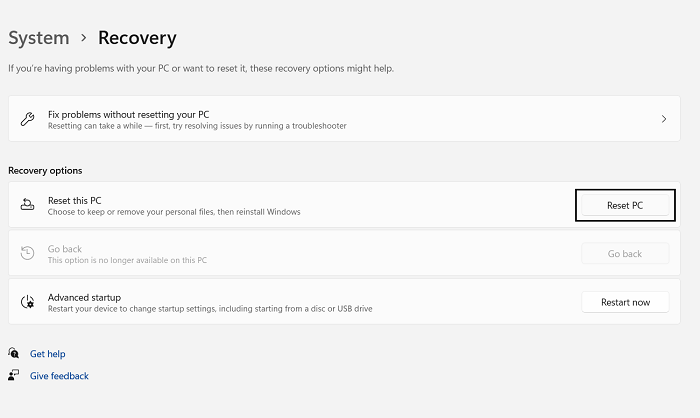
A final resort to solving this error is to reset your operating system as a whole. This process is similar to reinstalling Windows on your PC, except your PC continues to have the files and programs in it. This change is also brought through the Settings app by following the steps mentioned below:
- Open Windows Settings
- Select the System tab and click on Recovery
- Here, you’ll find a button named Reset PC under the Recovery Options head
Do so, follow the instructions that appear on your screen, and wait until your PC is fully reset to check whether the error has been resolved. We hope this helps!
Related: Windows Activation Errors 0x87e10bcf.
What happens if I reset Microsoft Store?
If you reset the Microsoft Store, it will reset the cache and resolve the temporary bugs with your apps. All your app’s data will also be permanently deleted on your device ,including your sign-in details.
How do I reset Microsoft Store?
To reset Microsoft Store, press Win+I on your keyboard to open Settings > Apps > Apps and features > Search for Microsoft Store > Advanced options > Use the Reset button.
