
If you see black boxes or any other graphics glitch in Microsoft Edge after updating your computer, here are some solutions that may help you fix this issue. Generally, the black box doesn’t stay long, but it can be a nuisance while browsing the internet via Microsoft Edge. If you see graphics distortion, a black or white box, or some other glitch while browsing the internet with the Edge browser on Windows 11/10, these suggestions may help you fix the issue.
Fix Microsoft Edge black boxes or graphics glitch
If you see black boxes or any graphics glitches on the Microsoft Edge browser on your Windows 11/10 PC, follow these suggestions:
1] Reinstall/Update the graphics driver
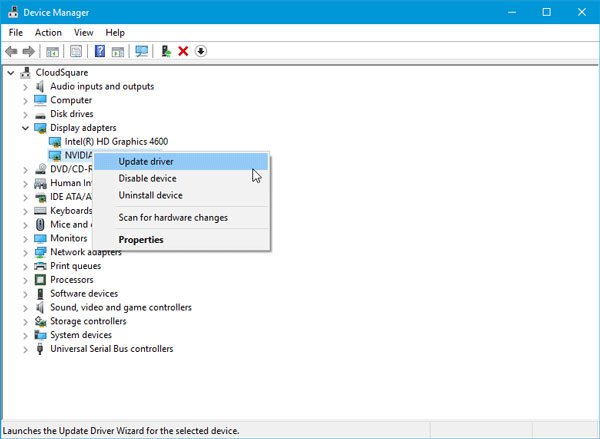
The graphics driver may cause this problem. Although latest graphics cards can keep working even after updating Windows, some old ones may not do the same. In that case, you need to install the update to make it work with the latest version of Windows 10. You can check the manufacturer’s website and see if they have released an update for your graphics card or not. If so, you should install that right away or consider updating the Graphics Drivers.
2] Install & uninstall graphics driver if you have changed the graphics card
Many people often face this issue after changing the graphics card. You should uninstall the old graphics driver after removing the graphics card. You have to install the latest driver along with the new graphics card.
3] Change the Port/Cable
Sometimes this problem occurs due to a corrupted HDMI cable, port, or other issue. If you have another HDMI cable, try using it instead of the existing one and check whether the problem persists. You can also use another port, such as a VGA or DVI port, if your graphics card supports it.
4] Reset Microsoft Edge
If this problem happens with Microsoft Edge only, you can consider resetting Edge browser.
If none of the above solutions you can always consider using an alternative browser.
