
The Xbox One has millions of fans and users worldwide. Xbox One with Game Pass is a dream come true for many. You can play hundreds of games without any issue at your home. Some of the players are seeing Error 0x80270300 on Xbox One Console when they try to open and play a game. In this guide, we have a few solutions to fix the issue.
What is Xbox error code 0x80270300?
Xbox One Error 0x80270300 generally occurs when you try to install, update, or launch a game. This error won’t let you do any of them. This can happen due to game updates in the background or corrupted games. This issue is observed in both digital and disc-based games. Let’s see how we can fix it.
Fix Error 0x80270300 on Xbox One Console
When you see error 0x80270300 while installing, launching or updating a game on an Xbox One console, you can use any of the following methods to fix it.
- Check if the game is updating
- Restart Xbox One console
- Uninstall and reinstall the particular game
- Reset Xbox without losing games
Let’s get into the details of each method.
1] Check if the game is updating
The main cause of the issue is the game updating on its own in the background. The error occurs when you try to launch a game that is getting updated. You need to check if the particular game you are trying to launch is updating in the background.
To check the status of the game,
- Click on My games & apps, then select games.
- Then go to Manage and select Queue
See if the game you are launching is on the list and try to launch after the update is complete. If the game is not on the list, follow the below methods.
2] Restart Xbox One console
Another way to fix the error is to restart the Xbox One. To restart it, press and hold the Xbox button on the Xbox controller. It will show you power options. Select Restart console and then select Restart.
Check if the issue persists even after the restart.
3] Uninstall and reinstall the particular game
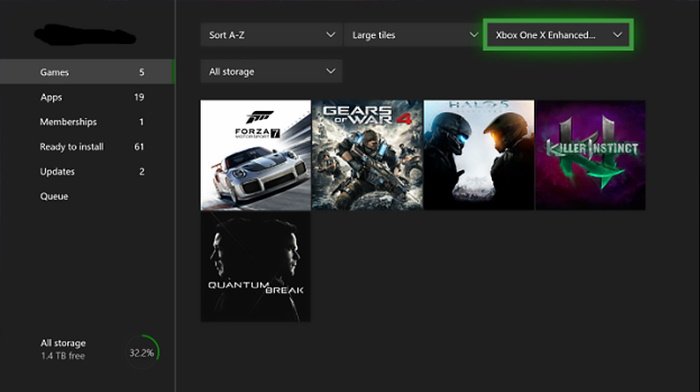
If the issue still exists, try launching another game on Xbox One. If it launches without any issues, uninstall the game you are seeing the error with and reinstall it. To uninstall a game on Xbox,
- Select My games & apps on the Home screen
- Then go to Games
- Select the particular game and press the Menu button
- Select Uninstall and then Uninstall all
Then, go to the Ready to install tab and install the game again. Then, launch the game and see if the issue is fixed or not.
4] Reset Xbox without losing games
If the issue is not yet resolved, you need to reset the Xbox without losing apps and games. To reset Xbox,
- Press the Xbox button on the console
- Select Profile & system
- Go to Settings, then go to System
- Select Console info
- Then, select Reset console
- Choose Reset and keep my games & apps on the confirmation page
These are the ways to fix error 0x80270300 on the Xbox One console and play games without issues.
How do you fix an installation error on Xbox One?
If you encounter an installation error on Xbox One, you can fix it by restarting the console and reinstalling using the Ready to Play tab. If the issue persists, check your internet connection and the Xbox server status. You might also need to reset the Xbox without deleting apps and games.
Read: Fix Xbox One Error Code 0x97e10bca.
