
Here we’re going to talk about different solutions to get rid of Dropbox, Too many requests, Error 429. Dropbox is a popular cloud storage service available. It features paid and free plans, and you can use the platform to share and view files on the cloud. However, similar to any other application, Dropbox has a long list of errors and problems. And in this post, we are going to talk about one of these Dropbox errors. Many users have reported facing Too many requests, Error 429 on Dropbox while sharing a file. If you are also getting the same error code, follow the troubleshooting guide to resolve the issue.
Dropbox Error 429, Rate Limit (Too Many Requests)
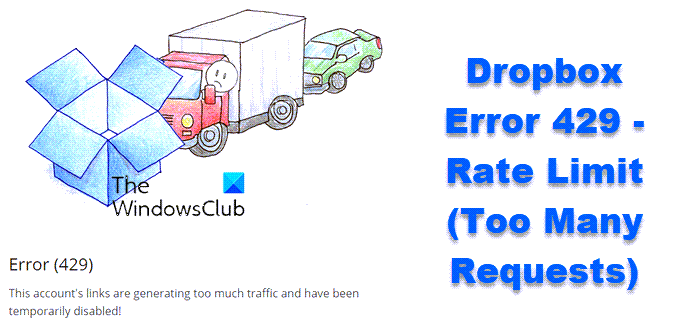
Error (429) – This account’s links are generating too much traffic and have been temporarily disabled
What causes Dropbox error 429?
Before getting into the solutions, it’s essential to understand what this error is and why it occurs. The Dropbox error 429 appears when you exceed the download limit of the shared file. As per Dropbox, there’s a specific limit on the traffic and the file requests your shared link can handle. Additionally, there’s a limit on how many times you can download the shared file in a day. Both these limits depend on the plan you have opted for. So, in case you breach any of these or both limitations, you will face the mentioned error code in Dropbox.
For instance, if you have opted for the Dropbox professional account, you will get a maximum traffic limit of 400 GB/day. As soon as you exceed the traffic limit in a day, you will face the error message. Additionally, the breach in the traffic limit doesn’t depend on the number of users. Even a single person can bypass the limit.
Fix Dropbox Error 429, Too Many Requests
Here are all the effective workarounds to get rid of the Dropbox Too many requests error 429:
- Wait until the ban is removed
- Make sure the file is free from copyright violations
- Check the link status
- Implement restriction on shared links
- Re-upload the file
- Reinstall Dropbox
Now, let’s take a detailed look at all the solutions.
1] Wait until the ban is removed
The mentioned error code generally persists for only 24 hours. So, if you are facing this issue for the first time, there’s nothing to worry about, as you will be able to access Dropbox after 24 hours. But note that each time you receive this error message, the bag limit will continue to increase.
2] Make sure the file is free from copyright violations
Dropbox is a platform where you can upload and share links of any kind. However, if someone has reported the file’s shared link, you will encounter the mentioned error message. The situation mainly arises if you have publicly uploaded or shared a Dropbox file. The only thing you can do in such a situation is re-upload the file by removing the copyright or illegal content.
Read: Dropbox not syncing or working on Windows
3] Check the link status
If, by any chance, you have disabled the file link, you will come across error 429. You will need to enable the file link to resolve the problem. To do so, follow the steps below.
- Open Dropbox and log in with your credentials.
- Click on the Share Links option present at the left panel of the screen.
- Tap the three dots next to the link that is throwing the error mentioned.
- Choose the Link Settings option.
- In the following window, turn off the Disable download option.
- If the option was already off, you can enable it and then disable it again.
That’s it. Now launch Dropbox and check whether the problem is fixed.
4] Implement restrictions on shared links
To prevent this error message from happening again, you can set a password for all uploaded files and choose an expiry date for the shared links. By doing so, you will reduce the overall traffic on the shared links and files. However, this method will only be helpful if you are a professional or business user. Here are the steps you need to follow.
- Launch Dropbox and log in with your credentials.
- Click on All files and then select the Settings option.
- Under the settings menu, tap on the Link for editing tab.
- Turn on the toggle present next to Require password and Expiration option.
- Click on the Save option to apply the settings.
Read: How to save Office files to Dropbox on iPad?
5] Re-upload the file
Once the 24-hour period is over, i.e., the ban is lifted from your account, the first thing you should do is to rename the file before uploading it again. Once you have renamed the file, you will receive a new link that you can share online. Plus, ensure that you don’t give the same banned name to any other file you upload in the future.
6] Reinstall Dropbox
If the error message persists even after the ban period ends, the last thing you can try is reinstalling Dropbox. There can be a temporary error that is causing the issue. And the best thing that you can do in such a situation is to go through the re-installation process. So, reinstall Dropbox and check if the problem is fixed or not.
Does Dropbox have a daily limit?
Yes, Dropbox has a daily limit, implemented to prevent abuse. The basic or the free account offers 20 GB bandwidth and 1,00,000 downloads per day. The Dropbox professional account offers 400 GB of bandwidth and unlimited downloads. At the same time, Dropbox Business Standard and Business Advanced offer 1 TB of bandwidth and downloads per day.
How do I fix Error 400 on Dropbox?
There are multiple ways to fix a 400 error in Dropbox. To name a few, you can rename the problematic file, close the conflicting application, download the latest driver update, reconnect Dropbox to your account, and free up disk space to resolve the issue.
Is Google Drive Better than Dropbox?
The answer to this question depends on the user’s usability. From a storage standpoint, Google Drive has an advantage over Dropbox. But Dropbox wins the battle by a nose in the overall comparison, especially in the security category.
Read Next: How to run multiple Dropbox accounts in Windows?
