
If you get DistributedCOM error 10005 on Windows 11 or Windows 10 PC, here is how you can fix the issue. This error appears when there are issues with Windows Search.
DCOM, or Distributed Component Object Model, is a proprietary Microsoft technology that allows Component Object Model (COM) software to communicate across a network. Component Services needs the DCOM wire protocol to communicate with the Component Object Model (COM) components on other computers. In a Windows-based system, by default, network computers are initially configured to enable DCOM.
What’s COM? It’s a tool used for advanced configuration and troubleshooting.
Fix DistributedCOM error 10005 on Windows 11
To fix DistributedCOM error 10005 on a Windows 11/10 PC, follow these steps:
- Restart Windows Search service
- Verify Group Policy settings
- Verify Registry values
To learn more about these steps, continue reading.
1] Restart Windows Search service
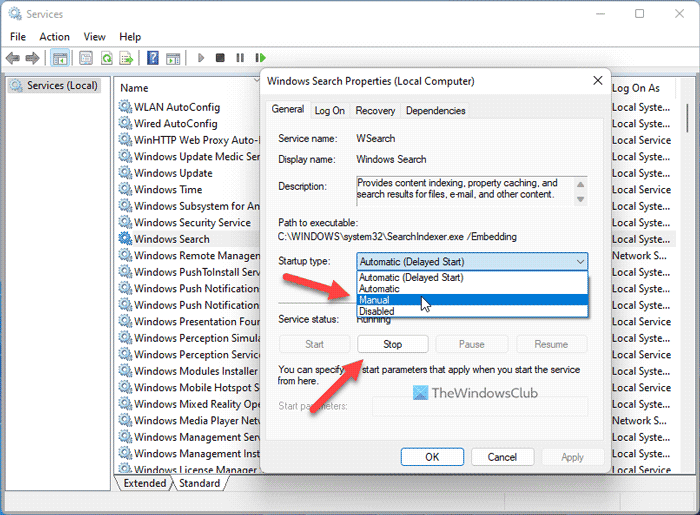
It is the handiest solution to this problem. Whether you are getting this error on Windows 11 or Windows 10, you can troubleshoot it by restarting the Windows Search service. However, while restarting, you need to keep one thing in mind. You cannot set it to Automatic. Instead, choose Manual as the Startup type. Otherwise, you will continue getting the same error on your computer.
To restart the Windows Search service, you need to follow these steps:
- Search for services in the Taskbar search box.
- Click on the individual search result.
- Find the Windows Search service.
- Double-click on it and click the Stop button.
- Expand the Startup type drop-down menu.
- Choose the Manual option.
- Click the Start button.
- Click the OK button.
Then, restart your computer to apply the change. Once done, you won’t find the same issue again.
2] Verify Group Policy settings
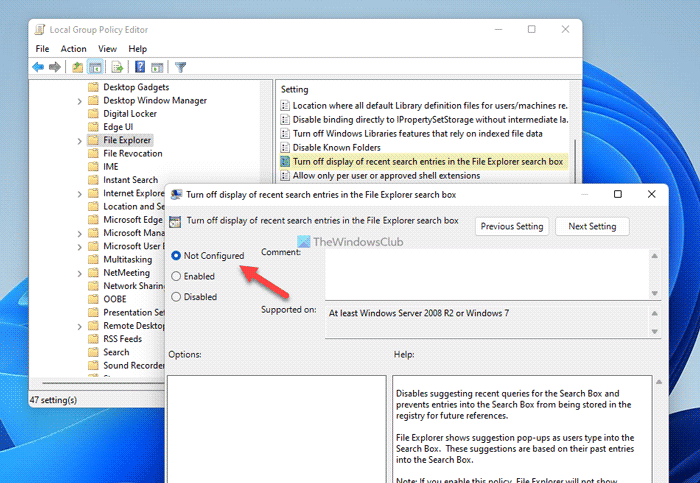
There is a Group Policy setting named Turn off display of recent search entries in the File Explorer search box, which might be responsible for this error as well. If you enabled this setting by mistake, you may see the same error code. Therefore, you need to disable it or set it to the default setting.
For that, do the following:
- Press Win+R to open the Run prompt.
- Type gpedit.msc and click the OK button.
- Navigate to this path: User Configuration > Administrative Templates > Windows Components > File Explorer
- Double-click on the Turn off display of recent search entries in the File Explorer search box setting.
- Choose the Not Configured option.
- Click the OK button.
Then, sign out and sign back in to your user account to apply the change.
Read: Event ID 10010, The server did not register with DCOM within the required timeout
3] Verify Registry files
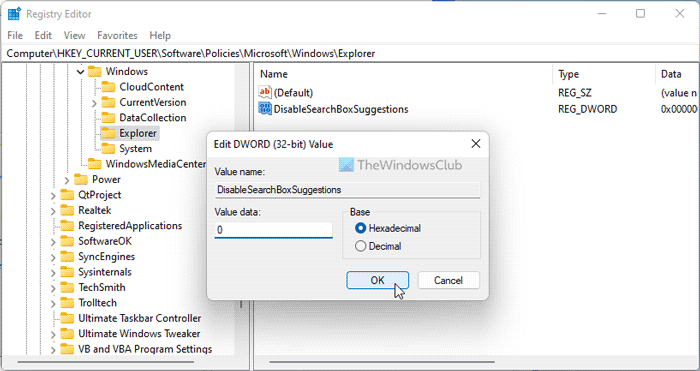
The same Group Policy setting could be set using Registry Editor as well. If you have used the Registry Editor to make this change, you need to follow these steps to revert this setting:
- Press Win+R to open the Run dialog.
- Type regedit > click the OK button > click the Yes button.
- Navigate to this path:
HKEY_CURRENT_USER\Software\Policies\Microsoft\Windows\Explorer - Double-click on the DisableSearchBoxSuggestions REG_DWORD value.
- Set the Value data as 0.
- Click the OK button.
- Restart your computer.
Alternatively, you can also delete this REG_DWORD value. For that, right-click on it, select the Delete option and click on the Yes button. Finally, you need to close all windows and restart your computer to get the change.
That’s all! I hope this guide helped you.
Read: Fix DCOM Event ID 10016 error
How do I fix DistributedCOM error 10005?
To fix the DistributedCOM error 10005 in a Windows 11/10 PC, you need to restart the Windows Search service. For that, open the Services panel on your computer first. Then, double-click on the Windows Search service and click the Stop button. Following that, choose the Manual option from the drop-down list and click the Start button. Finally, click on the OK button.
Read: Unable to start a DCOM Server
How do you fix a DistributedCOM error?
Various DistributedCOM or DCOM errors occur due to various reasons. However, if you get DCOM error 10005 on Windows 11/10 PC, the solution is mentioned above for you. In simple words, you need to restart the Windows Search service using the Services panel to get it fixed within moments.
Read: Fix DCOM Error 1084.
How do I fix Event ID 10005 DCOM error 1115?
Event ID 10005 with DCOM error 1115 in the Windows Event Viewer indicates that Windows attempted to start a specific background service (like TrustedInstaller, wuauserv, or SecurityHealthService), but the service failed to initialize or was interrupted during startup. To fix Event ID 10005 DCOM error 1115, ensure the service referenced in the error (eg., TrustedInstaller) is installed and running, then check DCOM permissions in Component Services to confirm proper access rights. Also verify that Windows services like RPC and COM+ are enabled. You should also update or reinstall the affected application. This should help resolve the issue. It is not a critical error.
