
In this post, we will show you how to fix the Excel YEAR function when it’s not working on a Windows 11/10 PC. The YEAR function in Microsoft Excel is a built-in date and time function that helps extract the year from a valid date value. However, many users have reported that it fails to return the expected year or displays an error instead.
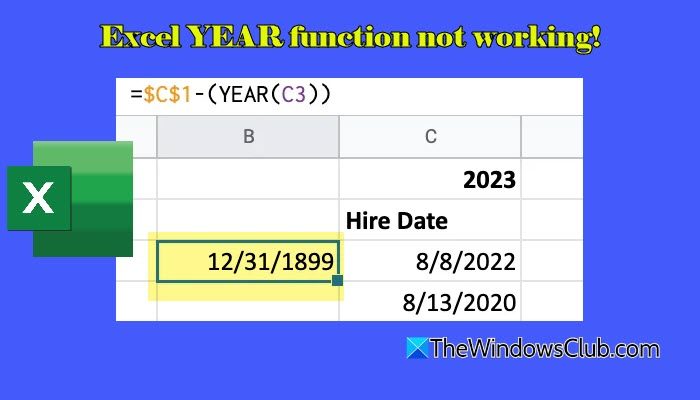
On Windows 11/10, users commonly report issues such as:
- The formula returns 1900 or 1905 unexpectedly
- The result is #VALUE! or #REF!
- The YEAR function returns an incorrect year
- The formula works on one PC but not on another
- The cell shows the formula instead of the result
If you are experiencing a similar problem, read this post for effective fixes.
Excel YEAR function not working
To fix the Excel YEAR function if it is not working on your Windows 11/10 PC, use these solutions:
- Change the cell format
- Convert text dates to real dates
- Remove hidden spaces from dates
- Check Windows regional settings
- Turn off Show Formulas
- Fix incorrect cell references
- Remove conflicting named ranges
Let us see these in detail.
1] Change the cell format
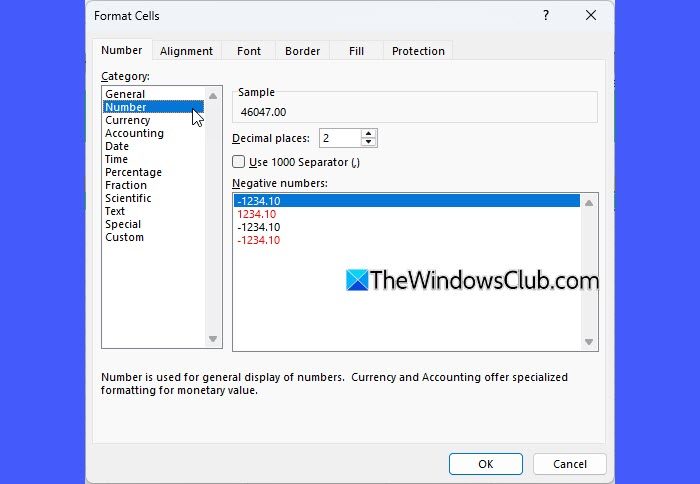
Sometimes, the YEAR function returns the correct value, but Excel displays an unexpected year, such as 1900 or 1905. This occurs when the cell containing the YEAR formula is formatted as a Date instead of a Number. In such cases, Excel interprets the numeric year returned by the function as a date serial number rather than a plain number (Excel stores dates as sequential serial numbers. By default, January 1, 1900, is stored as serial number 1, and each subsequent day increases the value by one).
So, if the YEAR formula returns a value like 2024 but the cell is formatted using a custom date format such as “yyyy”, Excel treats 2024 as a date serial number, not as a year. Since serial number 2024 corresponds to July 16, 1905, Excel displays 1905 instead of 2024.
To fix this, select the cell that contains the YEAR formula. Right-click the cell and select Format Cells. Under the Number tab, choose General or Number. Click OK to apply the changes.
Changing the column format to General or Number ensures that Excel displays the YEAR function’s output as a numeric value, allowing the correct year (for example, 2024) to appear.
2] Convert text dates to real dates
Dates imported from CSV files, web pages, or other apps may appear as dates but are actually stored as text. The YEAR function does not work correctly with text values. Converting text-based dates into proper Excel dates allows the YEAR function to process them correctly.
Select the affected cell, click the warning icon, and choose Convert to Number.
If no warning icon appears, select the cell, go to the Data tab, and click Text to Columns.
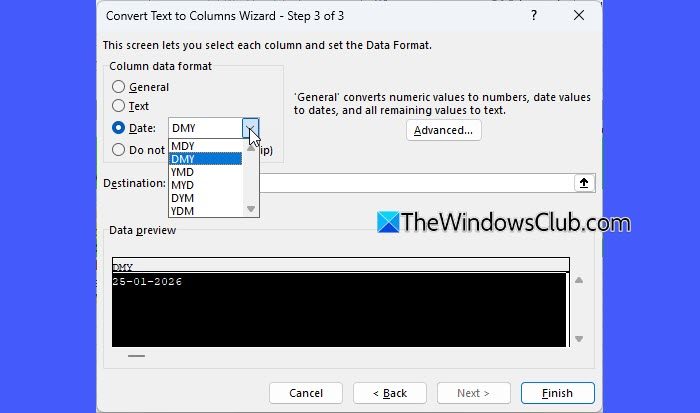
In the Convert Text to Columns Wizard, choose Delimited and click Next twice. Then select Date under Column data format, choose the correct date format, and click Finish.
Alternatively, you can wrap the cell reference inside the DATEVALUE function to convert a text date into a date serial number that Excel can interpret. For example:
=YEAR(DATEVALUE(A1))
After conversion, apply the YEAR formula again and check the result.
3] Remove hidden spaces from dates

In some cases, date values may contain leading, trailing, or hidden spaces (including non-breaking spaces) that are not visible in the cell. Although the value looks like a valid date, these hidden characters can prevent Excel from correctly interpreting it, causing the YEAR function to return an incorrect result or an error.
Removing hidden spaces cleans the date value and allows Excel to recognize it properly.
Use the TRIM function to remove extra spaces from the date value.
=TRIM(A1)
If the issue persists, use the following formula to remove non-printing characters as well:
=TRIM(CLEAN(A1))
Once the hidden spaces are removed, apply the YEAR formula again and check whether it returns the correct result.
4] Check Windows regional settings
Excel follows the Windows regional and date settings to interpret date values. If the system’s regional format (such as DD/MM/YYYY or MM/DD/YYYY) does not match the date format used in Excel, the YEAR function may return an incorrect result or behave inconsistently across different PCs.
Checking and correcting the Windows regional settings ensures that Excel interprets dates consistently and extracts the correct year value.
Press Win + I to open Settings. Go to Time & Language > Region.
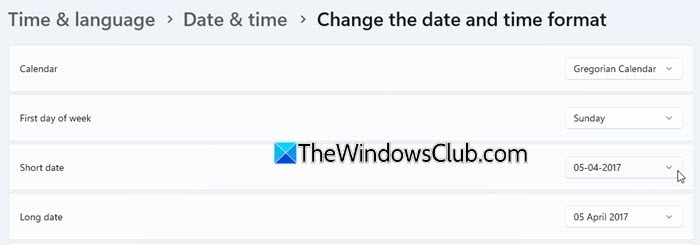
Expand the Regional format section and select Date & time format. Review the Short date and Long date settings. If needed, adjust the date format and restart Excel.
Note: If you use Excel with Microsoft 365 or share files through Excel Online, OneDrive, or SharePoint, ensure that your Microsoft 365 account region also matches your Windows regional settings. A mismatch between these settings can cause Excel to process dates inconsistently and affect functions such as YEAR.
5] Turn off Show Formulas
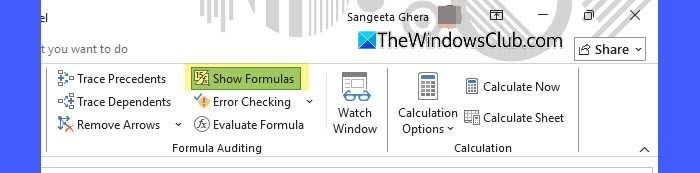
If Excel displays the formula instead of the result, the Show Formulas option may be enabled. Disabling this option allows Excel to display calculated results.
Select the affected cell, go to the Formulas tab, and click Show Formulas to turn it off.
6] Fix incorrect cell references
In some cases, the YEAR formula may point to an invalid or broken cell reference. This usually happens after rows or columns containing the original date values are deleted, moved, or overwritten. When this occurs, Excel may return an #REF! error or fail to extract the year correctly.
To fix this, replace the broken reference with the correct cell address that contains the date. Press Enter to apply the updated formula.
7] Remove conflicting named ranges
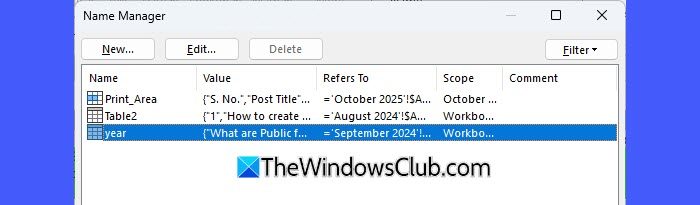
In rare cases, the YEAR function may not work as expected because a named range or defined name in the workbook uses the same name as the function itself (for example, Year). When this happens, Excel may confuse the function name with the named range, leading to errors or unexpected results.
To fix this, go to Formulas > Name Manager. Rename or delete any named range that conflicts with function names.
I hope this helps!
Read: Excel keeps changing Number to Date; Changes dates to random numbers.
How to use year() in Excel?
The YEAR function in Excel is used to extract the year from a date. You simply select a cell that contains a date and enter the formula =YEAR(A1) (replace A1 with the correct cell reference). After pressing Enter, Excel shows only the year part of that date. If the formula does not work, make sure the date is not stored as text.
How to put year only in Excel?
To show only the year in Excel, you can use two simple methods. The first method is to change the cell format. Select the date cell, open Format Cells, choose Custom, and enter yyyy. This will display only the year in the selected cell. The second method is to use the YEAR function by entering =YEAR(A1) in another cell. This extracts the year as a number.
Read Next: How to calculate Consumer Price Index in Excel.
