
In this article, we are going to talk about how to make the programs that you write better in Visual Studio Code. For me, ‘better’ refers to error-free, optimized code, which will lead to smoother deployment and execution of the project. We will be covering everything about writing some code on the IDE in this article. But before that, we should cover which languages and technologies are supported better by Visual Studio Code.
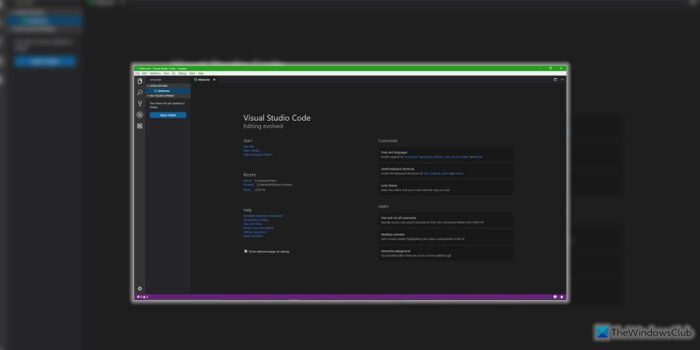
How to write & enhance your first program on Visual Studio Code
This Visual Studio Code tutorial for beginners will show you how to compile and write your first program. Microsoft added support for extensions in Visual Studio Code. These extensions help to enhance and optimize your code for languages like PHP, C, C++ and more!
Languages supported by Visual Studio Code
According to the Visual Studio Code official website, the following are the main languages supported by the IDE. They include C++, C#, CSS, Dockerfile, Go, HTML, Java, JavaScript, JSON, Less, Markdown, PHP, Python, Sass, T-SQL, and TypeScript.
Now with this, you get some language features that help you write better code. This better code is similar to what we talked about above. So, with support for numerous extensions, we get rich support for the following:
Syntax highlighting and bracket matching, Smart completions (IntelliSense), Linting and corrections, Code navigation (Go to Definition, Find All References), Debugging and Refactoring.sc
When the language or the file extension is supported by the IDE, you will see the name of that particular language in the Status Bar on the bottom right corner. Else, it will show you markdown or plaintext written.
For example:
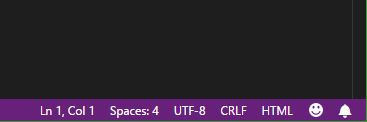
The image above shows the IDE identifying the file as a known type (HTML).
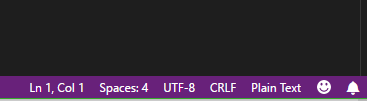
The above image is when the IDE does not identify the file as a known type. Hence, it is mentioned as Plain Text.
Now, let us look at how to install and use these extensions to make full use of their capabilities.
How to install Extensions on Visual Studio Code
So, in the first step when you open Visual Studio Code, you might see a screen somewhat similar as shown in the snippet below.
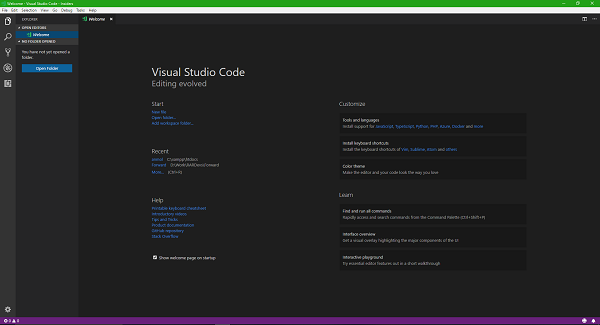
After that, click on the Extensions button on the left side vertical menu as shown in the screenshot below.
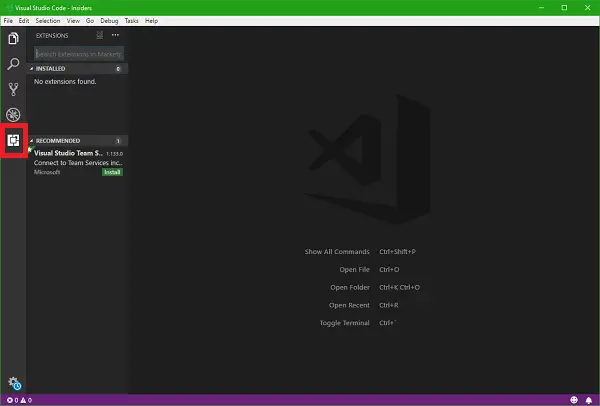
Then you will see a new panel sliding from the left side itself. In the Search bar of the panel, search for the language or service you want an extension for. I will be searching for a PHP extension because I will be demoing it.
From the list of search results, select the one that best meets your needs. If you click the extension listing, you will see more details such as the description, developer’s name, features, size, compatibility, and more.
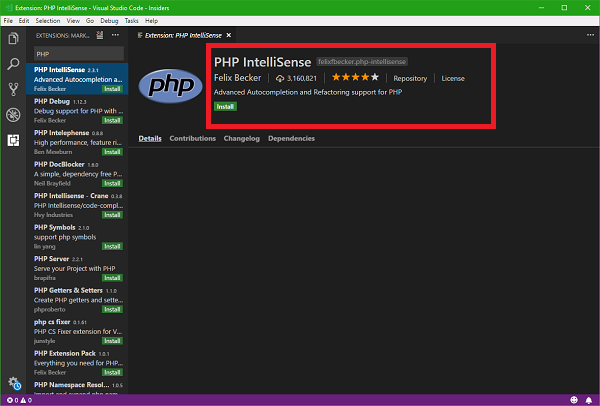
Once you hit on the Install button, you are good to go!
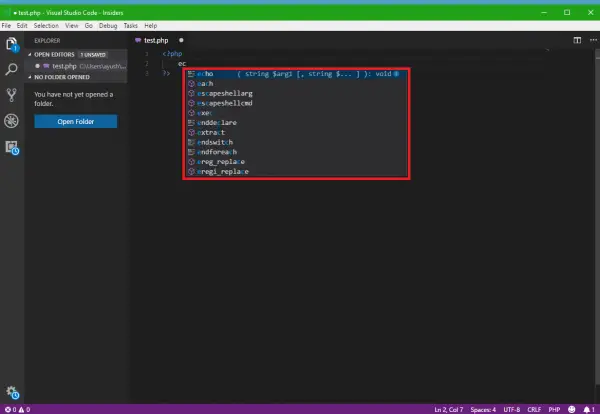
Now as I installed the PHP IntelliSense Extension on Visual Studio Code, it starts displaying smart suggestions and auto-completion for different syntax. Hence, this will reduce the likelihood of errors and make the execution and deployment of your application smoother.
The real-time example of IntelliSense working with a PHP file is inserted here.
Bonus: What did I do to demo?
If you are curious to try out what I did now, just follow these quick steps.
Install Visual Studio Code and then search for or get the extension for PHP as instructed in the steps above or follow this link marketplace.visualstudio.com.
Now create a new file and save it in .php extension for the file.
<?php
    echo "This is Ayush from TheWindowsClub.com";
?>
Save and then move the files to the htdocs folder of XAMPP or WWW folder of WAMP.
Now, finally open your favorite web browser and enter the local URL for your file. Then you will see an output like this.
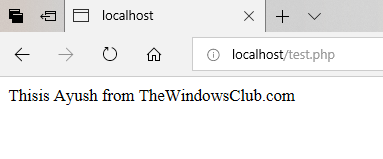 So, this is how extensions help you to enhance and optimize your code on Visual Studio Code.
I hope you find it easy to understand.
What are good Extensions for Visual Studio Code?
There are so many extensions available for Visual Studio Code that you can install and use to enhance your productivity. For example, you can use Atom One Dark Theme, TabOut, Snippets, Shortcuts, Git Graph, etc. In other words, you need to take a closer look at the official repository and check which one is suitable for your purpose.
How do I make my Visual Studio Code better?
Although the default installation is handy, it may not be perfect for each purpose. In that case, you need to tweak a few things as per your requirements. The easiest way to make the VS Code better for your work is by installing extensions. There are countless extensions available for VS Code, and you can check them one after one to start the installation process.
