
In this tutorial, we will show you how to enable or disable Text and Image generation for Apps in Windows 11. The Text and image generation feature in Windows uses on-device generative AI technologies to respond to requests quickly. With this new feature, you can allow third-party apps to use generative AI models provided by Windows. You can also control which apps can use them using the native options of Windows 11. Enabling or disabling this option won’t affect apps that use cloud AI technologies.
Enable or disable Text and Image generation for Apps in Windows 11
You can enable or disable Text and image generation for apps in Windows 11 using the three native options:
- Turn on or off Text and Image generation for Apps using the Settings app
- Enable or disable Text and Image generation for Apps using the Group Policy Editor
- Enable or disable Text and Image generation for Apps using the Registry Editor.
Let’s check these options.
1] Turn on or off Text and Image generation for Apps using the Settings app
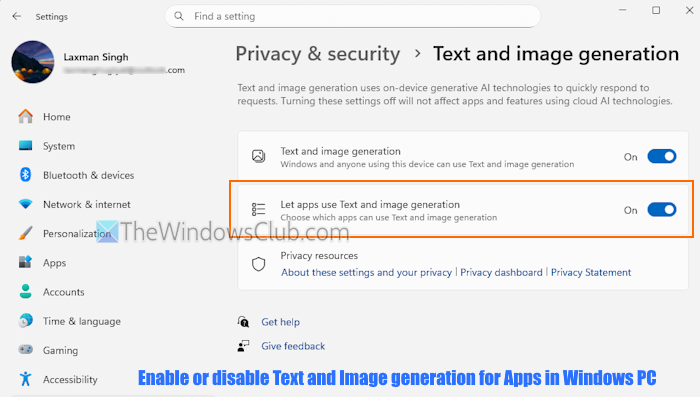
The steps to turn on or off Text and image generation for apps using the Settings app are as follows:
- Press the Win+I hotkey, and the Windows 11 Settings app will open
- Select the Privacy & security category
- Access the Text and image generation page
- Turn on the Text and image generation option
- Use the toggle for the Let apps use Text and image generation option to enable it
- Now you can select which apps can use the Text and image generation once this option is functional.
2] Enable or disable Text and Image generation for Apps using the Group Policy Editor
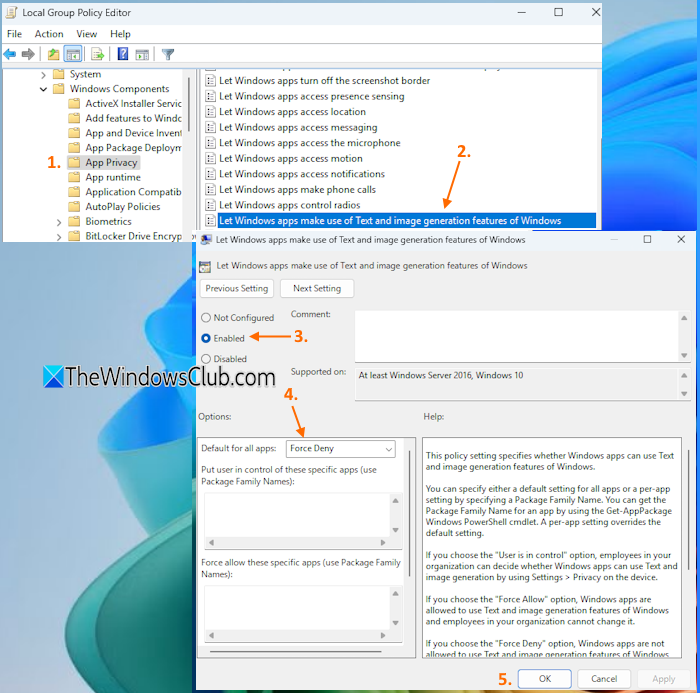
If you use Group Policy Editor to disable Text and image generation for apps, this will override the Settings app option. Also, you will notice that the Text and image option is greyed out in the Settings app. Here are the steps:
- Open the Group Policy Editor window. You can type gpedit.msc in the Windows Search box and press Enter to open it
- Access the App Privacy folder. Here is the path:
Computer Configuration > Administrative Templates > Windows Components > App Privacy
- Double-click on the Let Windows apps make use of Text and image generation features of Windows setting in the right section. This opens a new window
- Select the Enabled option in that window
- Open the drop-down menu for the Default for all apps option present in the center-left section
- Select the Force Deny option in that menu for all apps. If you want to disable it for specific apps, you can use Package Family Names (for a per-app setting) in the text field
- Click on the Apply button and the OK button.
That’s it.
To enable the Text and image generation feature again, follow the steps covered above. Open the Let Windows apps make use of Text and image generation features of Windows setting. Select the Disabled or Not Configured option and press OK.
3] Enable or disable Text and Image generation for Apps using the Registry Editor
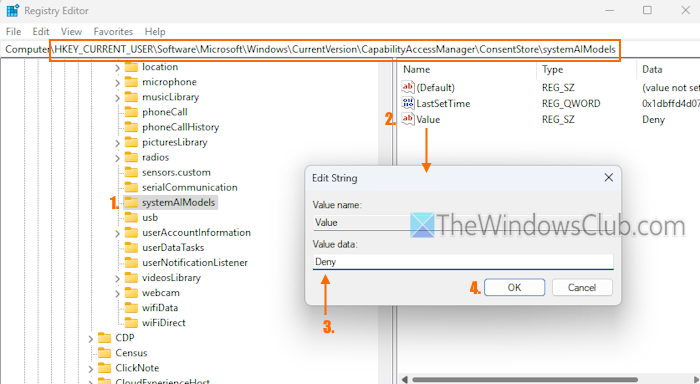
It is advised to back up the Windows Registry before you make any changes to it. After that, follow these steps to enable or disable Text and image generation for apps using the Registry Editor:
- Type regedit in the Windows Search box and hit Enter to open the Windows Registry
- Access the systemAIModels Registry key. Here is the path:
HKEY_CURRENT_USER\Software\Microsoft\Windows\CurrentVersion\CapabilityAccessManager\ConsentStore\systemAIModels
- On the right section, you will see a ‘Value’ name String Value. If it is not present there, right-click on an empty area > New > String Value. Rename it to Value
- Double-click on the Value string, and a small box will pop up
- In the Value data text field, add Deny
- Press the OK button.
This will turn off the Let apps use Text and image generation option in the Settings app. That means apps won’t be able to use the Text and image generation feature, but it will remain turned on.
To undo the changes, you can follow the above steps and add Allow in the Value data field of the Value string. Press OK to save the changes.
Additionally, if you want to turn off the Text and image generation feature directly, access the systemAIModels Registry key in the HKEY_LOCAL_MACHINE root key. Here is the path:
HKEY_LOCAL_MACHINE\SOFTWARE\Microsoft\Windows\CurrentVersion\CapabilityAccessManager\ConsentStore\systemAIModels
There, add Deny in the Value data text field of Value.
To enable the Text and image generation option again, add Allow in the Value data field of the Value key and press OK.
That’s all. Hope it helps.
Now read: What are the best AI Voice Assistants on Windows 11?
Is it safe to disable the Microsoft Text Input Application?
The answer is Yes. It is safe and easy to disable the Microsoft Text Input Application from running. However, it is needed for functions like advanced screenshots, Emoji keyboard, etc. If you use such features, you need to keep that process running in the background. But, if the Microsoft Text Input Application process is causing any issues, you should disable it or end the process from running.
Should I disable Windows 11 animations?
While you can easily disable or turn off Animation effects in Windows 11, you shouldn’t do that unless it is causing major issues. Animation effects appear in the Start menu, UI elements, Notifications, and other areas, and turning them off might be a poor user experience.
Read next: How to create your Windows 11 AI PC?
