
Are you a big fan of dark mode or black themes? Dark color schemes are more pleasing to the eye and more comfortable to use when working in the dark. Many popular websites like YouTube have already started offering an inbuilt dark mode. But most websites do not offer it, and you might be restricted to using them in the light color scheme. A browser extension named Dark Reader is trying to change this entirely.
Dark Reader extension for Chrome, Edge or Firefox
Dark Reader is a free browser extension for Chrome, Edge or Firefox. It lets you apply a dark color scheme to any website like Facebook, Amazon, YouTube, Google Search, X (Twitter), etc. so that you can enjoy browsing your favorite websites at night or in the dark. The extension is available in respective extension stores and can be quickly installed on any browsers mentioned above.
For this review, we installed the extension on Google Chrome and tested it on various websites. The extension is quite simple and easy to use. Once installed, you can quickly switch to the dark mode for any website.
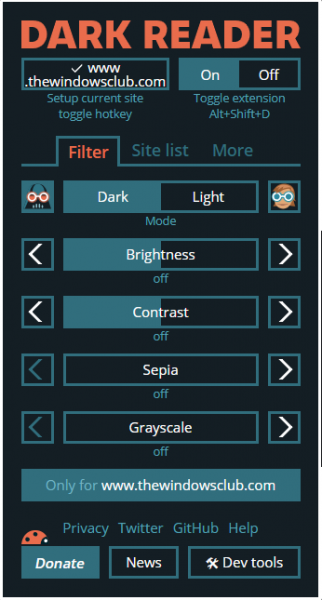
Enable Dark Mode on any website
To enable the extension, click the Dark Reader icon next to the address bar and toggle it on. Or you can you the Alt+Shift+D to quickly turn on/off dark mode. Once enabled, all the websites will now be presented to you in their respective dark modes. This is quite an intelligent extension, and it works well on most websites.
Apart from color schemes, you can also customize a few options. Firstly, you can adjust the brightness by moving the slider in either direction. Then you can adjust the contrast if you would like. Moving on, you can even add Sepia or Grayscale filters with some percentage. Adjust all these options to ensure the best browsing experience. The level of customization offered by this tool is simply amazing, and you can easily create a combination that soothes your eyes.
Not just color schemes, this extension even lets you adjust fonts to improve readability. You can practically change fonts for any website/webpage. Just switch to the font tab and select a font that you consider is best for longer periods of reading. The font will be applied to the entire website/webpage, and you will be really surprised to see its effects.
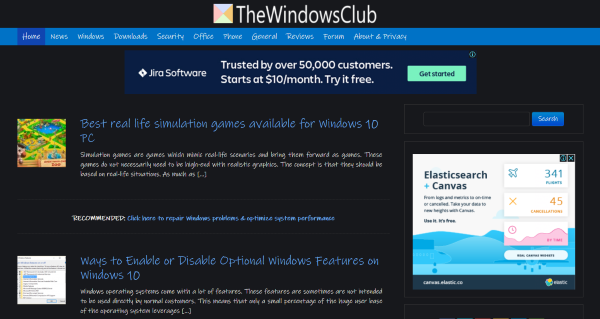
You can also add a little stroke to the text by adjusting the slider. Dark Reader comes with four different theme engines. Discussing each functionality is beyond the scope of this post, but you can try them out and select the best out of them.
You must be wondering how to set different settings for different websites. Dark Reader has got you covered. Once you are done customizing a website, you can use the Only for website.com button to preserve these settings only for this website. Doing this will not only give you better control but also a different experience on every website. You can also disable dark mode for some websites if you like them as they are.
Dark Reader offers another feature. It lets you maintain a whitelist and a blacklist of websites for which dark mode should be applied. A hotkey can also be configured to quickly add a website to any of these lists.
Automation is a useful feature of Dark Reader. Using this, you can configure Dark Reader to automatically enable dark mode at your preferred times. Alternatively, you can enter your country’s longitude and latitude to automatically turn dark mode on and off.
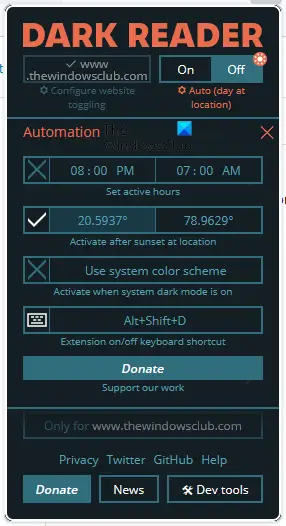
Dark Reader is a must-have browser extension if you are a big fan of dark color schemes. It is a nice, easy-to-use browser extension with many features. Once you get used to it, you can use the hotkeys to quickly perform actions and switch between dark and light color schemes.
Click here to download Dark Reader.
Try it out and let us know how you like it!
How do I enable dark mode for all websites in Chrome?
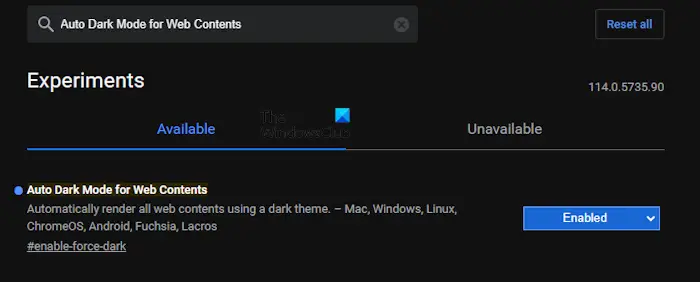
You can enable dark mode in Chrome on all websites by installing an extension. If you do not want to install an extension, you can do so by configuring the Chrome Flags. Open a new tab in Chrome and type chrome://flags. Hit Enter. Now, type Auto Dark Mode for Web Contents in the search bar. Click on the Auto Dark Mode for Web Contents drop-down and select Enabled. Relaunch Chrome to apply changes.
Is dark mode better for your eyes?
Most people claim that dark mode helps reduces eye strain. Most studies are also in favor of dark mode. The impact of dark mode depends on the light conditions. Using dark mode in bright conditions can strain your eyes. Hence, dark mode benefits most when used in low-light conditions.
Read next: 10 best Chrome extensions to install.
