
We all need a safe way to download files; sometimes, using a web browser isn’t the best option. With this in mind, we chose to test an app called Tribler, and so far, we’re relatively impressed with what we can do with it.
OK, so it would seem that Tribler for Windows PC is connected to several torrent-based websites, and as such, users can download whatever they want without ever needing to visit those sites. However, one should keep in mind that Tribler cannot detect whether a file is infected. As it stands, then, when downloading Torrent files via this Torrent client, you’re still required to use your better judgment to determine what is safe from what is not.
Download Torrents with Tribler
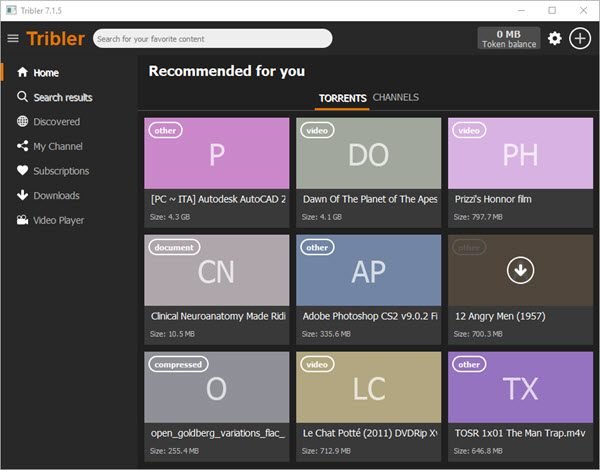
For us, the tool is pretty straightforward so users shouldn’t face many difficulties understanding how it works, among other things. Just download what you want and move on to the next; it’s that simple, at least from our point of view. Let us take a look at what Dribbler has to offer:
- Discovered
- My Channel
- Subscriptions
- Downloads
- Video Player
- Settings
1] Discovered
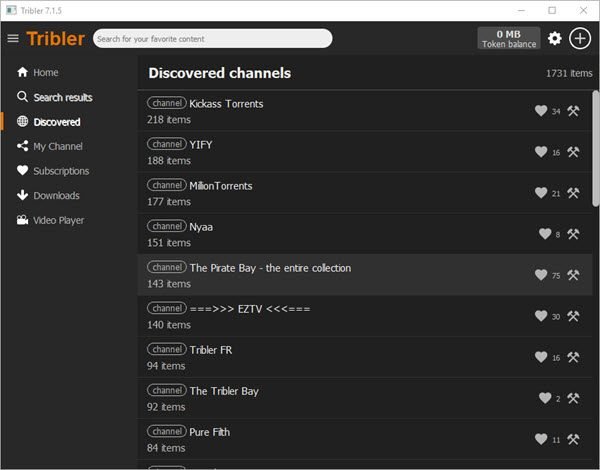
When the user clicks on the Discover tab, they’ll come across a list of items, and each will have information on the number of downloads inside among other things. Simply click the preferred option, select the download you’re most interested in, and finally click the download or play button.
Since these are likely torrent files, speed will always depend on the number of seeders and your Internet connection. Tribler itself supports up to 100mbps; therefore, if you have a gigabyte connection, you won’t get the full performance here.
2] My Channel
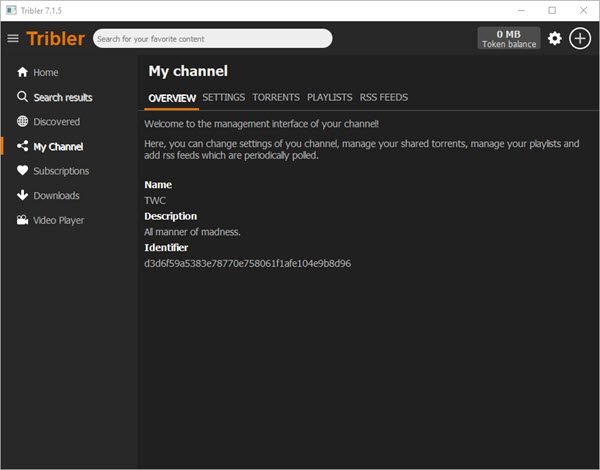
Here’s something interesting: the ability to create your very own channel. This is easily done by clicking on the My Channel tab, then hit the Create Channel button. From here, type in the name and description of your channel, then click on the Create Channel button once more.
After creating your channel, select Torrents button, and then at the bottom, click on ADD. Whenever someone finds your channel, they can easily download the files you’ve shared. Remember, never share copyrighted material, or you could find yourself in trouble with the law.
3] Subscriptions
If you didn’t know, the option is there to subscribe to a channel to get updates whenever new content is available. To subscribe to a channel, click on the heart, then visit the Subscriptions section to see the list of channels you’ve subscribed to.
4] Downloads
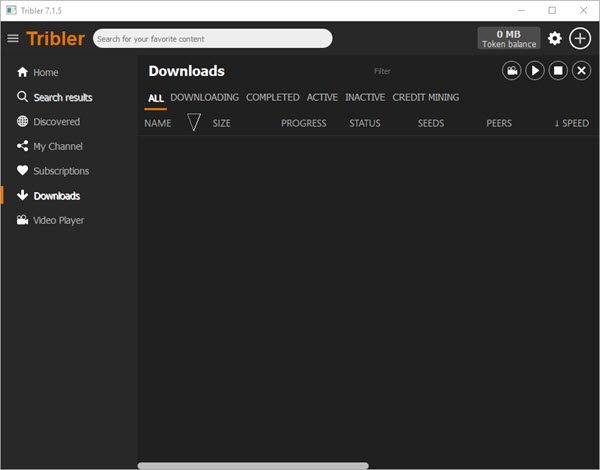
Whenever the user downloads multiple files, they’ll all appear in the Downloads section. Not only that, but the files currently being downloaded will also appear there, along with all the necessary information. Users will see which items are active or inactive, along with download speed and progress.
There’s quite a lot to see here, and it’s all similar to a torrent tool, so if you’ve downloaded torrents in the past, you’ll understand much of what is available here.
5] Video Player
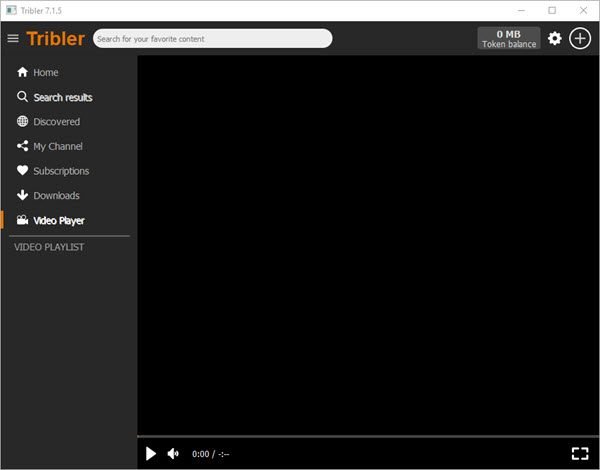
If you’ve downloaded a video file, folks can easily play it via the Video Player. However, it’s quite useless if you want to play videos outside of Tribler. We’re not sure why the developers chose this approach, but it shouldn’t be a significant issue.
6] Settings
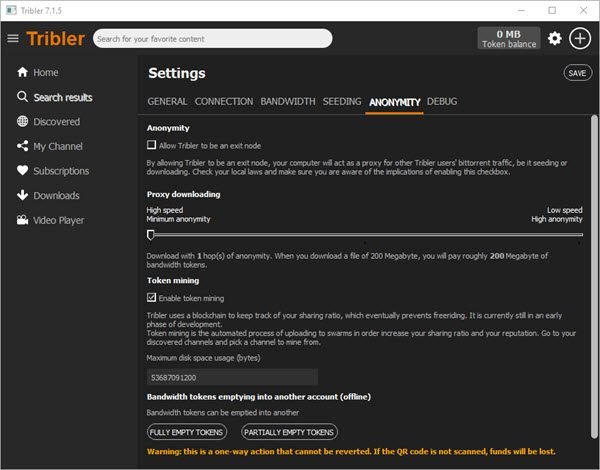
Finally, let’s look at the settings are to see what it has to offer to the user. You see, this is where the user will have the chance to change the default download location, and turn off the family filter for the purpose of downloading “certain” files.
Interestingly, the Settings allow the player to remain anonymous, at least in the basic form. Furthermore, some might appreciate that Tribler allows token mining and uses a blockchain to track users’ sharing ratios.
Overall, we like it because searching for downloads is very easy. You can download Tribler from the Github website.
