
Mozilla Firefox browser has come up with a Suggest feature that occasionally shows sponsored or suggested ads. If you would like to disable this feature, then we show you how to do it.
Mozilla Firefox’s “Suggest” Feature
It can help you explore relevant information and websites, providing suggestions tailored to your requirements. Firefox uses the user’s city location and searches keywords to give relevant suggestions for both Firefox and its trusted partners. The user’s privacy is ensured when working on contextual suggestions.
The suggestions from the “trusted partners” are displayed below the usual search suggestions. It is based on the user’s browser history, bookmarks, and open tabs, which is a less intrusive version of the search ad.
The Firefox suggest feature does not require new data (collected or stored) to make new recommendations to its users. Additionally, according to the company’s support page, it only works with partners that comply with Mozilla’s privacy standards for Firefox.
Once you update the latest version of the browser, Firefox also presents you with a pop-up asking if you would like to enable “contextual suggestions” or modify your settings. Please note that you can also disable any of Firefox Suggest features if you have accidentally enabled them.
Disable Sponsored Suggestions and Ads in Mozilla Firefox
To disable the ads in Mozilla Firefox, follow the next steps:
- Launch Firefox browser
- Go to Settings of Mozilla Firefox.
- Open “Privacy and Security”.
- Change settings for Privacy and Security.
- Uncheck the box of Contextual suggestions and Include occasional sponsored suggestions.
Let us look at these steps in more detail.
Go to Settings of Mozilla Firefox:
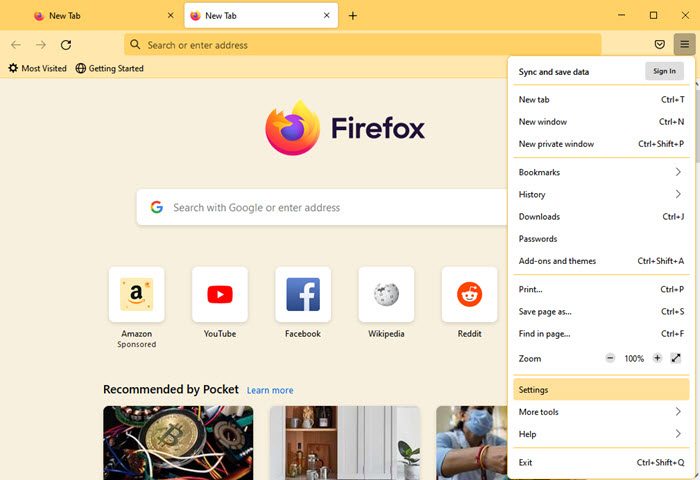
Open Mozilla Firefox. Select Settings. To do that, go to the upper right corner of the Firefox window, click the hamburger icon, and select Settings from the menu.
Open “Privacy and Security”:
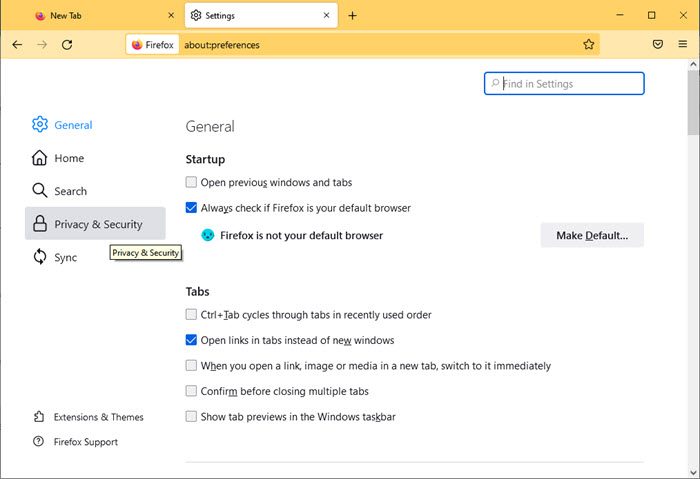
Once the Settings tab is open, click on Privacy & Security in the sidebar.
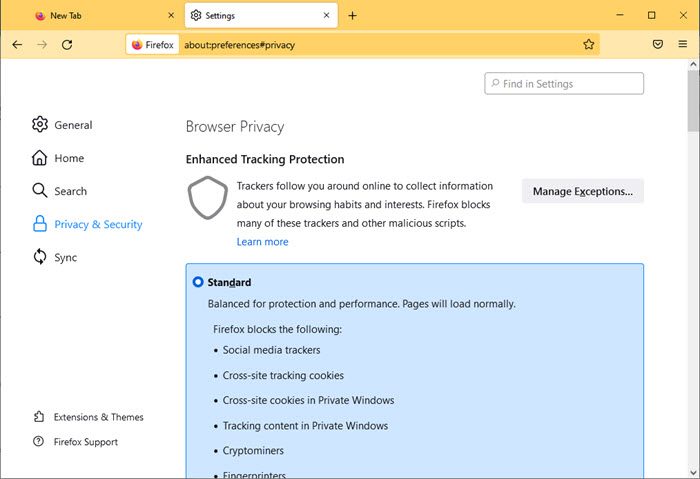
You will see the following options for Privacy & Security tab.
Change settings for Privacy and Security:
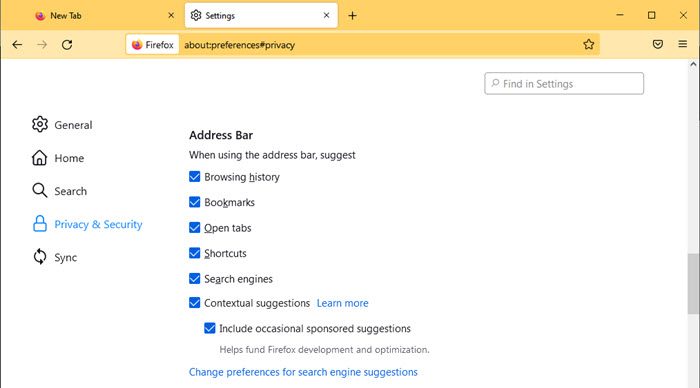
Now scroll down to the Address Bar. Uncheck the box of Contextual suggestions and Include occasional sponsored suggestions.
Firefox is an alternative browser, and it prioritizes user privacy, collecting and storing less data. Therefore, Firefox Suggest is not a significant issue if you trust the browser.
We hope that the guide mentioned above was helpful. Do let us know for suggestions if any.
Why I don’t see any Ad Suggestions by Mozilla Firefox?
Not all users will see the ad suggestions in the address bar of Firefox. It is because these users haven’t opted for this option. These users won’t see the option of Contextual suggestions also in the Privacy & Security settings of Firefox.
Users who have opted for this option will see the text, “Firefox will have access to your location, search queries, and visited sites,” under Contextual suggestions. This means that Firefox Suggest, with smarter suggestions, is available to these users. If you don’t see this text, then ‘smarter contextual suggestions’ are not offered or enabled.
How do I turn on Suggestions in Firefox?
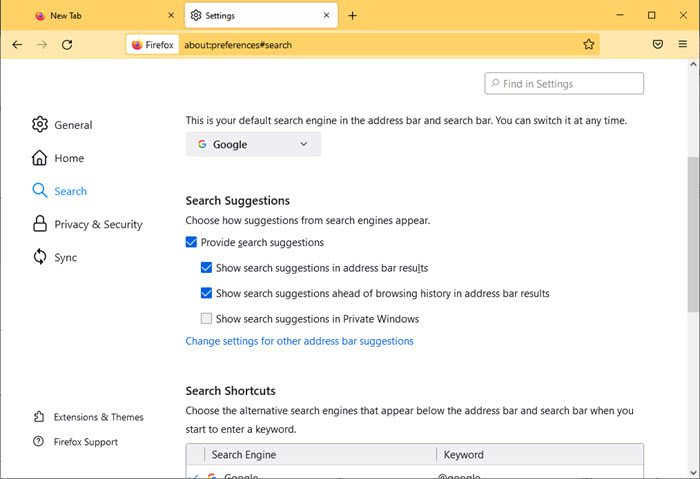
You can enable the search suggestions in the address bar of Firefox by changing the Settings option of the browser. Under Settings, you will see the Search tab in the left-hand side menu.
Now select the Search panel and then check or uncheck the Provide search suggestions box in your Firefox search settings. To see search suggestions in the address bar drop-down, put a checkmark next to Show search suggestions in address bar results.
